Looking for your apps? Click the account icon in the upper right corner of the page.

General settings

ManageGeneral Settings

Figure: General settings
Sounds - Change the volume of the scanner sounds. Enable or disable scanner sounds. Sounds
Power Management - View detailed settings regarding the administration of power, such as the battery charge level. Enable or disable Start on Power, which causes the scanner to switch on when it is connected to a power supply. Modify display settings to optimize power usage. Power management.
Display - Set the brightness of the screen or change the theme of the Home screen to Dark or Bright. Display.
Date & Time - Change the displayed time and date format, or change the date and time of the scanner. Setting the date and time.
Language - Change the language of the controller software. Setting the interface language.
Units - Change the unit used for length. Setting the unit of length and the temperature scale.
Scanner Details - View and change details of the scanner. Scanner details.
Allow Retaking Pictures - Enable the ability to retake any pictures with the internal camera immediately after the scan completes. Note that when this option is enabled, you must take extra steps to close the scan. Special scanning modes.
Remote Access to Scans Enabling this function gives you access to the scans on the inserted SD card on remote devices that are connected to the scanner through WLAN or Ethernet. WLAN.
Caution:
Risk of data loss
Use only if you’re about to access scan files through a network. If you have chosen the SD card as the storage medium, DO NOT remove the SD card until remote access is disabled.
The status of the SD card is set to busy as long as this function is enabled. Disable it before you remove the SD card from the scanner. Remote access is automatically disabled, when shutting down the scanner. You must re-enable it after reboot.

Sounds

ManageGeneral SettingsSounds
The scanner has a built-in speaker. The scanner signals certain events with various sounds. You can change the speaker volume here, as well as switch the sound effects ON or OFF.
Volume - Increase or decrease the volume of the scanner sounds.
Sound during scanning - If switched on, the scanner plays a warning signal, when the laser is switched on and scanning starts.
Sound when scan is finished - If switched on, the scanner plays a sound when scanning is complete.
Sounds when warnings are issued - If switched on, the scanner produces a sound when a warning is issued.
Sounds when errors are issued - If switched on, the scanner produces a sound when an error is issued.

Power management

ManageGeneral SettingsPower Management
Dim display during scanning - If switched on, the brightness of the screen decreases during scanning to save battery power. Switching this ON is particularly useful for long scans.
Start on Power - Enable the scanner to be turned on, if it was turned off, by connecting it to the external power-supply.
Power supply info - Provides information regarding the current power-supply source and the charge state of the battery.

Display

ManageGeneral SettingsDisplay
Brightness - Set the brightness of the screen.
Select Theme - Change the theme of the Home screen to Dark or Bright.
Display orientation - Set the orientation of the display as desired.

WLAN

Manage General Settings WLAN
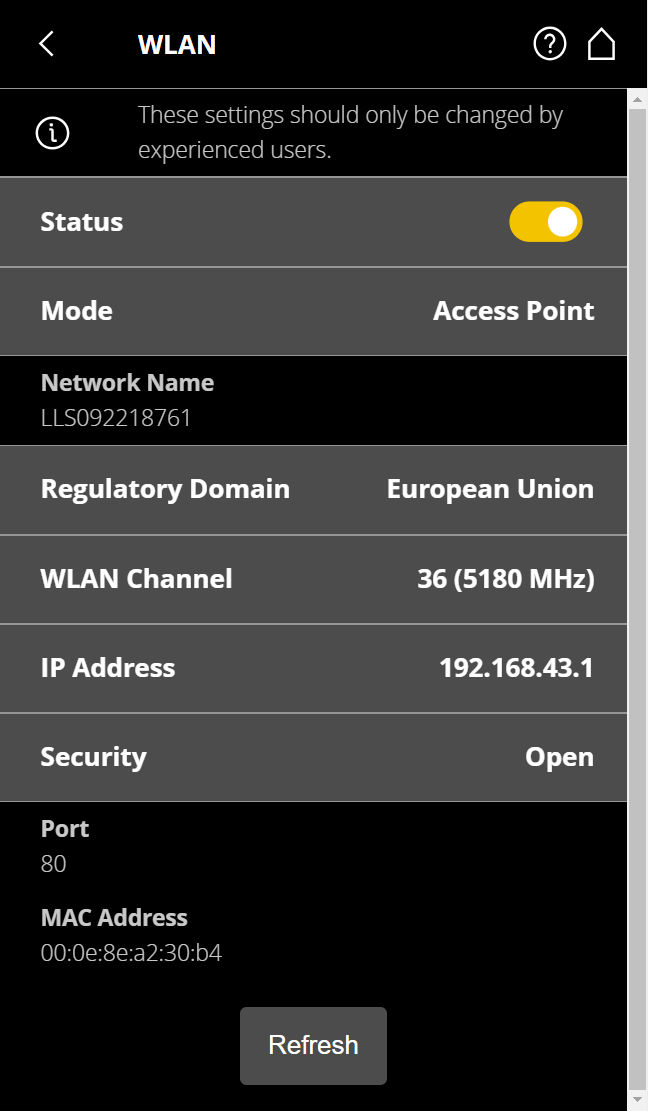
The WLAN interface can be used for remote connections.
Figure: WLAN settings
The scanner has an integrated WLAN module that remotely connects to the scanner with portable devices, such as notebooks, PDAs, or tablets. Connect your remote device to the scanner via WLAN, and remotely access the scanner user interface with a standard web browser. The WLAN option also provides remote access to the scan files on the scanner's SSD or SD card.
It is possible to turn WLAN off from a remote interface. Since this might disable the connection to the remote interface, a warning is displayed.
Note:
The scanner user-interface can be accessed through the following desktop browsers: Chrome, Mozilla Firefox, Safari, Opera, or Edge. The WLAN option also provides remote access to the scan files on the SSD or the inserted SD card if Remote Access to Scans is enabled on the General Settings page.
Mobile browsers: Android Chrome, Android Browser, and iOS Safari. WLAN settings can only be modified through the scanner user interface, and not with the remote interface.
Changes to the WLAN settings are only possible if WLAN is turned off.

myTopcon NOW! support

Take your Topcon experience to the next level with myTopcon NOW! This platform is a self-service tool for your desktop or mobile device. 

Product manuals
paper icon
Communications
phone icon
E-learning
hat icon
Quick start guides
support icon
Firmware & software updates
cloud icon
Troubleshooting
webinars icon