- Download the current firmware for the HiPer XR GNSS receiver from https://mytopconnow.topconpositioning.com/ (requires login ID).
- Save the *.itb file in a folder on the hard drive of the field controller or computer that is connected to the receiver.
- Connect the receiver to a field controller or computer with a USB-C cable.
- Select on the web UI.ADDITIONAL INFORMATION:The web UI dashboard shows the current receiver firmware version.
- Select Update.
- Select the downloaded firmware file, then select Open.ADDITIONAL INFORMATION:
Figure: Web UI firmware update 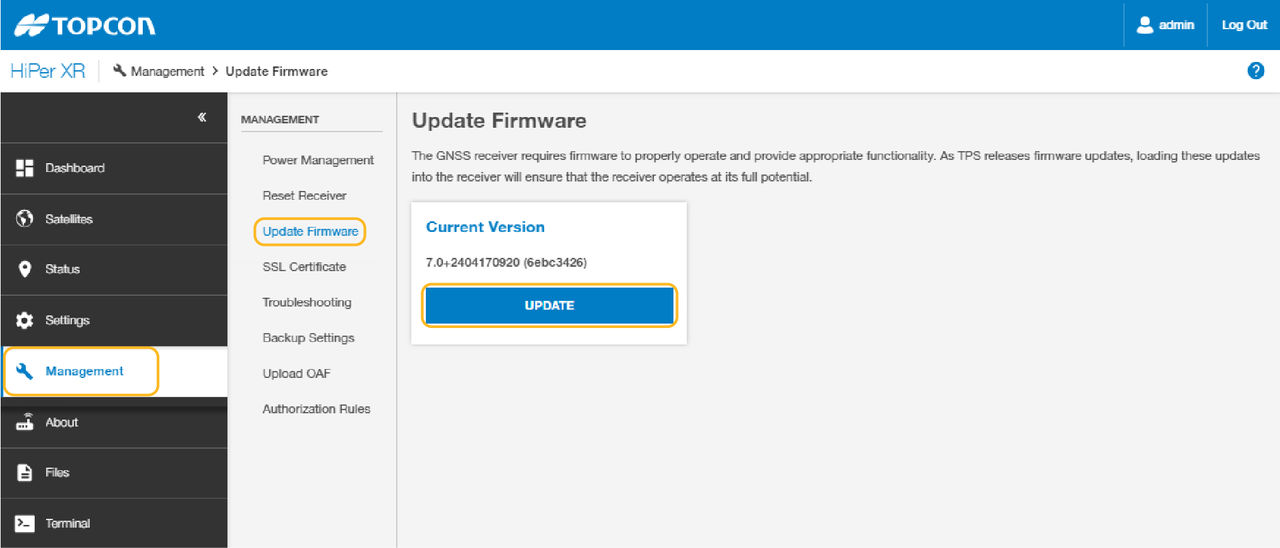 The Installation screen shows the firmware upload and installation in progress.
 - Do not stop the receiver while the firmware updates.ADDITIONAL INFORMATION:After the installation is completed, the receiver disconnects and automatically restarts.Note: Firmware files for the HiPer XR GNSS receiver have the *.itb extension.
- Make sure that the firmware is the current version:
- Connect the receiver to the field controller or computer to open the on-board web UI.ADDITIONAL INFORMATION:The Dashboard and About menu show the currently loaded receiver firmware.
- Make sure that this firmware version is the same as that of the firmware update file.
- Connect the receiver to the field controller or computer to open the on-board web UI.
Previous:
Firmware update
Next:
Operation
myTopcon NOW! support
Take your Topcon experience to the next level with myTopcon NOW! This platform is a self-service tool for your desktop or mobile device.