The new myTopcon experience is now available. Please click here to access and start using all your apps. The legacy version will still be accessible until April 15th 2026.

Install GX-90 app

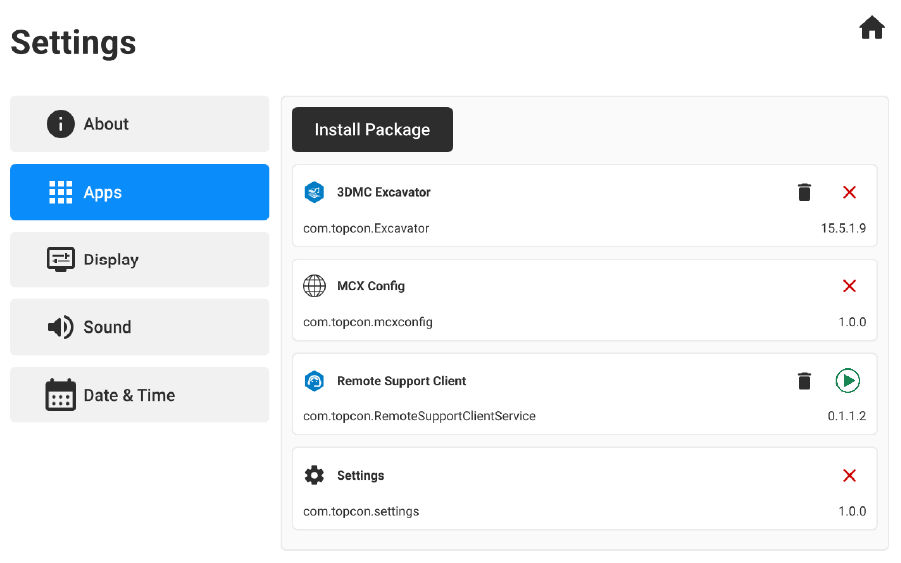
The GX-90 series display runs on a Linux-based operating system. All software on the display is installed with the same process: AppsInstall Package.
Install 3D-MC app:
Note: Topcon recommends deleting previously installed 3D-MC apps before installing the new app.
IconFunction
Uninstalls the app
Force stop the app
Force start the app
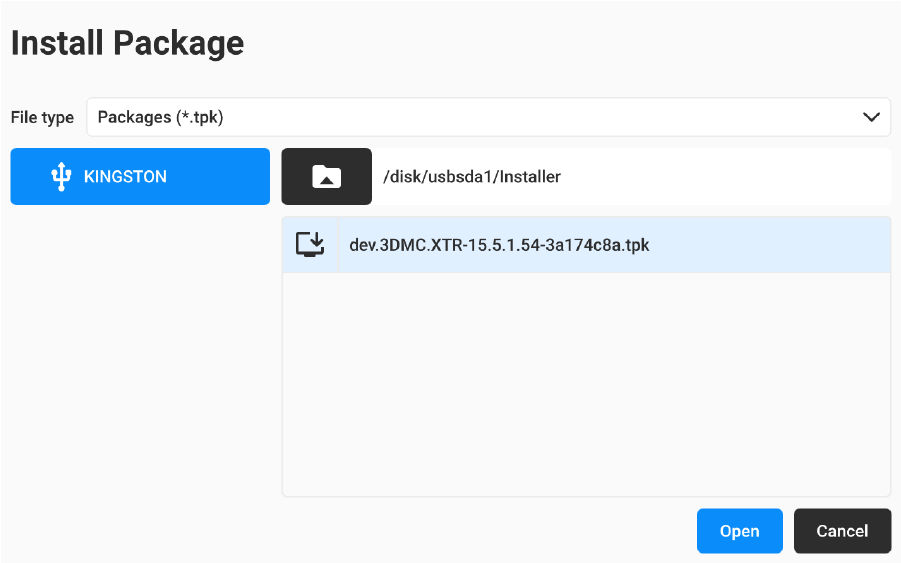
  1. Download the 3D-MC install file from MyTopcon and save it to a USB drive. The install file has a .tpk file extension.
  2. Power on the GX-90.
  3. Select Settings on the Home screen.
  4. Insert the USB drive into the GX-90.
  5. Select Install Package.
  6. Select the tpk file.
  7. Select Open.
  8. Follow the instructions on the screen.

myTopcon NOW! support

Take your Topcon experience to the next level with myTopcon NOW! This platform is a self-service tool for your desktop or mobile device. 

Product manuals
paper icon
Communications
phone icon
E-learning
hat icon
Quick start guides
support icon
Firmware & software updates
cloud icon
Troubleshooting
webinars icon