Use this procedure to pair 3D-MC to the MC-X platform.
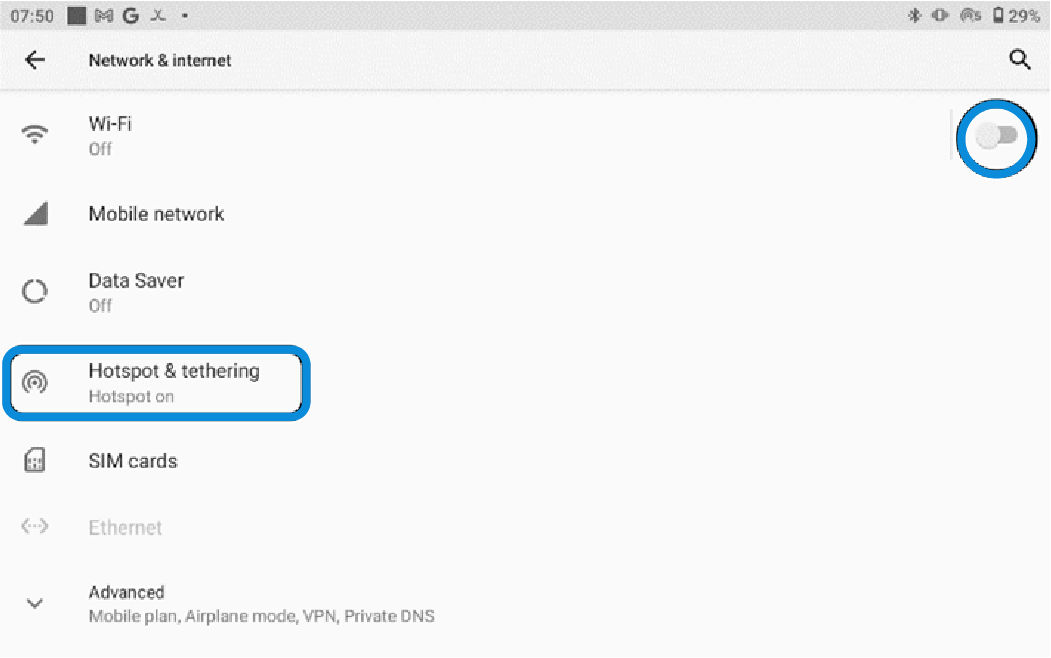
- Go to the Network and Internet settings on the wireless display.
- Make sure that Wi-Fi is off.
- Tap the selector in the top right corner of the display.ADDITIONAL INFORMATION:A white/gray dot and slider bar shows when the Wi-Fi is off.
- Select Hotspot & Tethering to show the Hotspot Settings menu.ADDITIONAL INFORMATION:
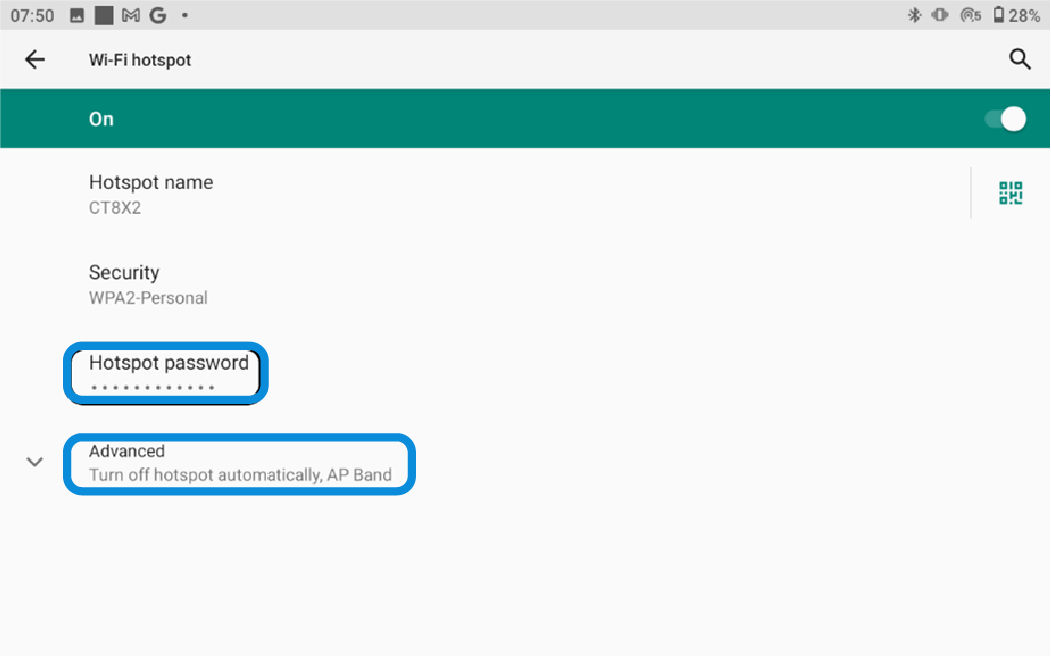
- Make sure that Wi-Fi Hotspot is ON.ADDITIONAL INFORMATION:The slider bar/dot are green when the hotspot is ON.
- Enter the Hotspot password.
- Record the hotspot name and password.ADDITIONAL INFORMATION:This information is necessary to connect to the machine in 3D-MC.
- Select Done.
- Select Advanced.
- Make sure that Turn off hotspot automatically is disabled.ADDITIONAL INFORMATION:
 The wireless display can communicate with the MC-X1 controller at this time.
 - Go back to the main screen on the wireless display.
- Open 3D-MC.
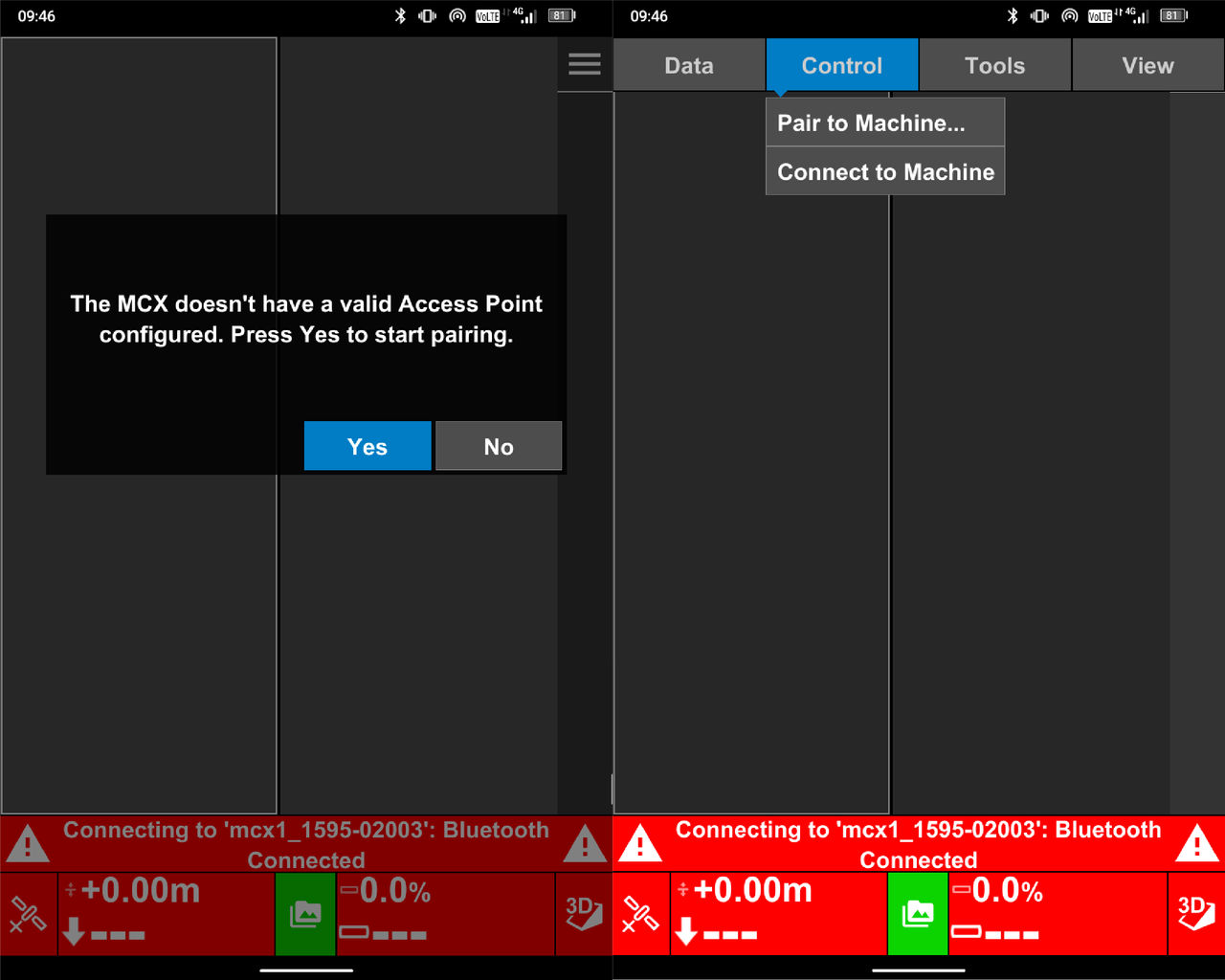
- Select Yes at the prompt or select Pair to Machine from the Control drop-down menu.ADDITIONAL INFORMATION:
- Select the MC-X1 controller from the Device list.ADDITIONAL INFORMATION:If the device does not show, select Refresh.
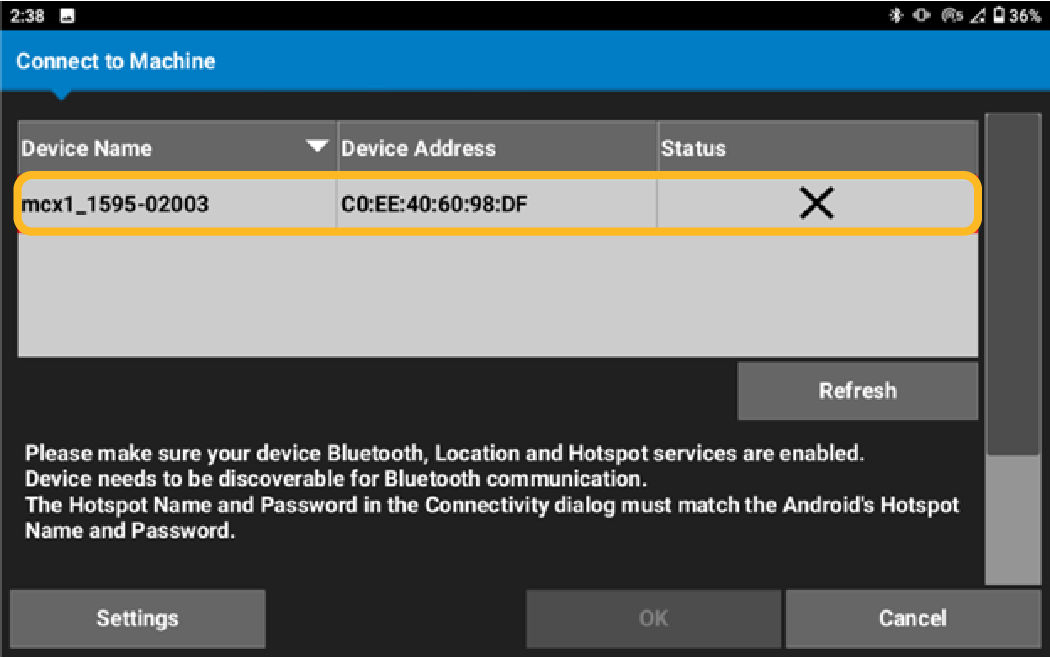 Bluetooth Connected shows after the wireless display makes a Bluetooth connection with the MC-X1 controller.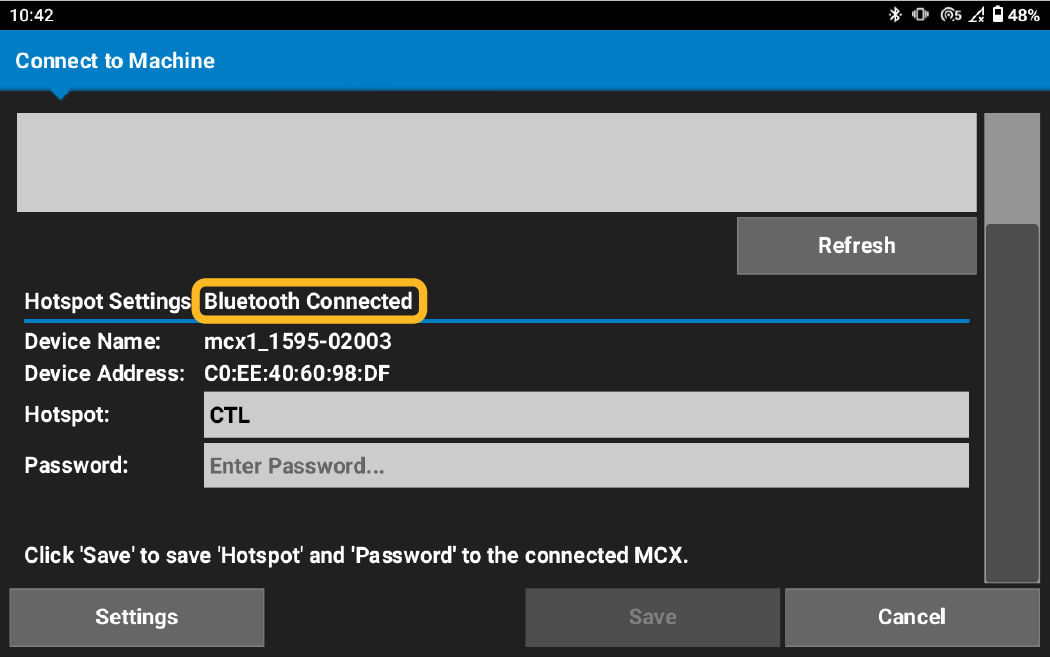
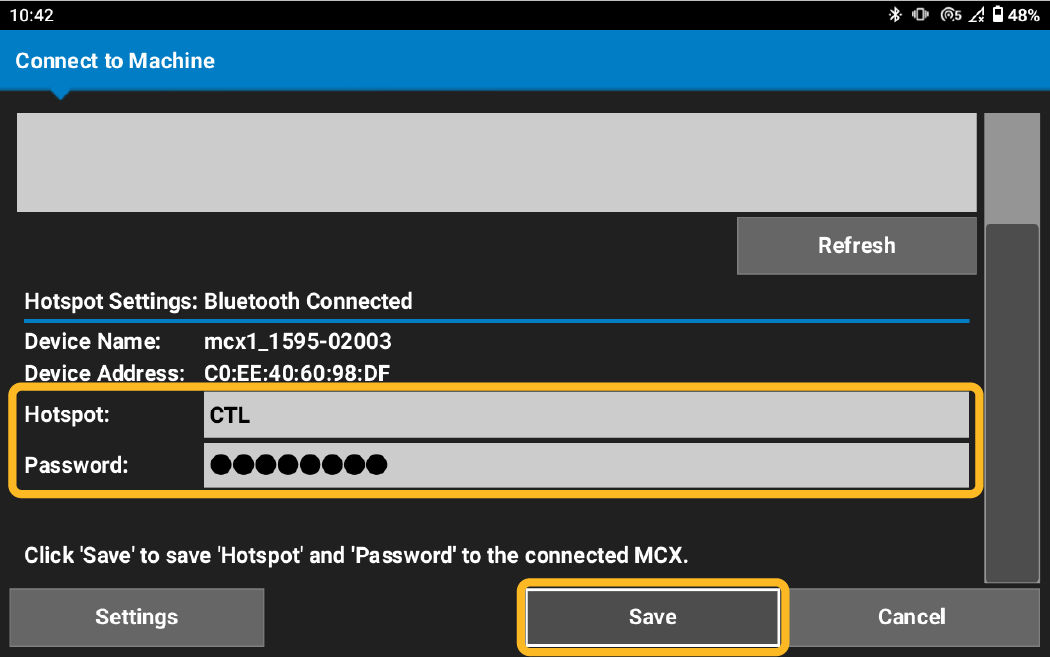
- Enter the wireless display Hotspot name and Hotspot password.
- Select Save.ADDITIONAL INFORMATION:
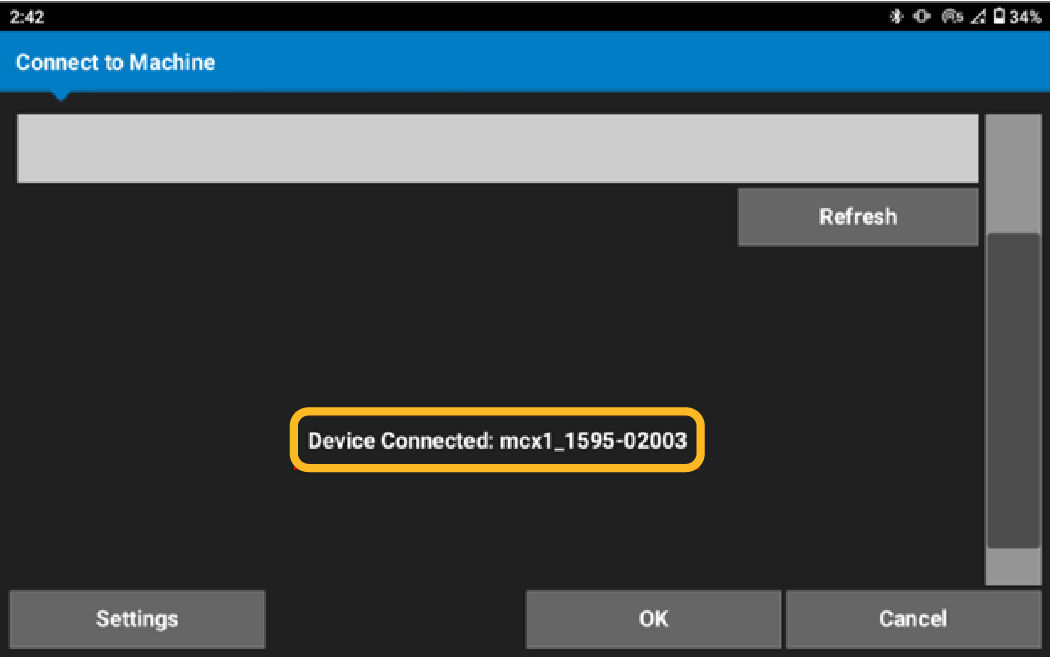
 Device Connected shows with the associated MC-X1 name after the hotspot information is saved to the MC-X1. If the device does not make a connection, make sure that the hotspot on the wireless display is enabled.
 - Select OK.ADDITIONAL INFORMATION:The wireless display and the MC-X1 controller are paired. The system automatically pairs the wireless display and the MC-X1 controller on startup when you select Yes at the Confirm Connection prompt.
- Select Tools and enable Supervisor mode.
- Select MCX Configuration.
- For a wireless hotspot connection and the MCX Configuration tab in 3D-MC: The Login page shows. See Step #20.
- For a wired direct connection or the Wi-Fi method: Open a web browser and enter 192.168.0.1 to connect to the MC-X web interface. See Step #20.
- Enter
adminfor the the Username andmcxYYYYfor the Password.YYYYis the last five digits of the MC-X controller serial number.
myTopcon NOW! support
Take your Topcon experience to the next level with myTopcon NOW! This platform is a self-service tool for your desktop or mobile device.