Looking for your apps? Click the account icon in the upper right corner of the page.
Install the GX-90 app
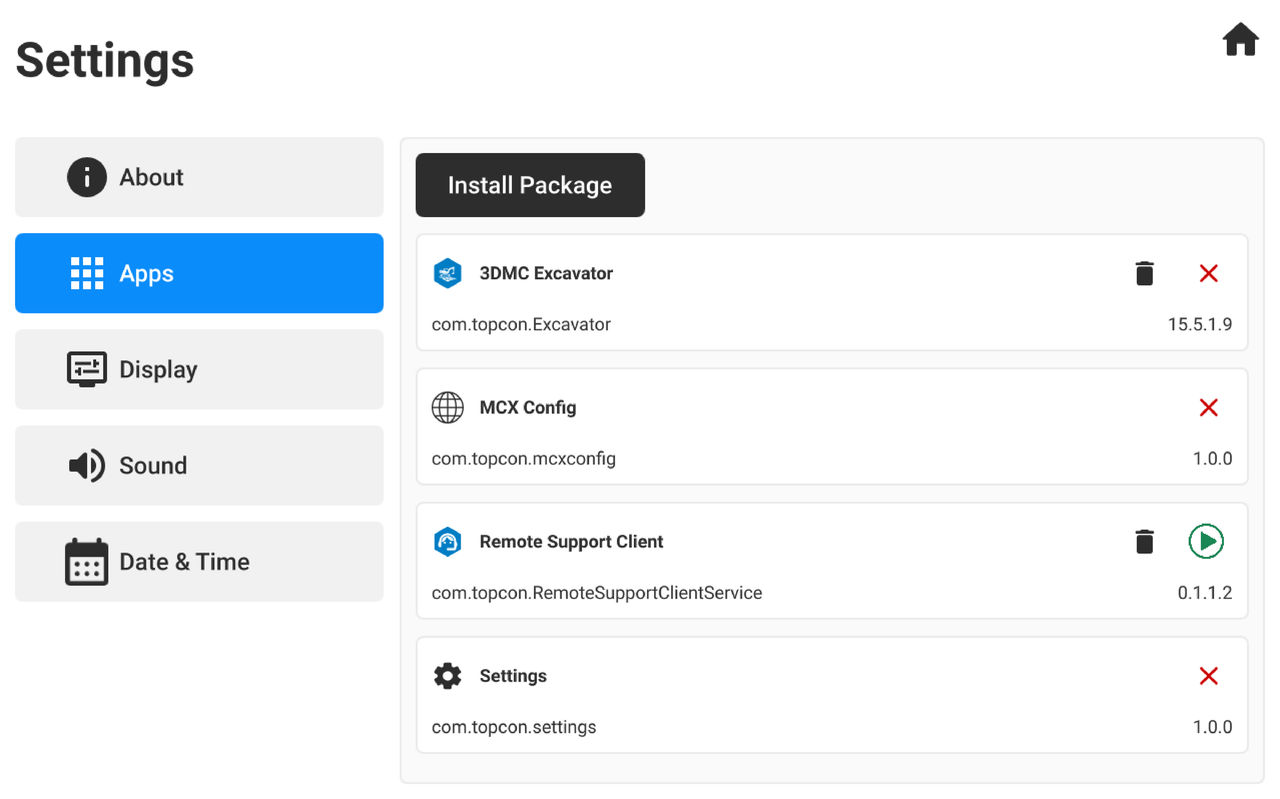
The GX-90 series display runs on a Linux operating system. Use the same path to install all software on the display. This path is AppsInstall Package.
Manage installed apps
It is recommended to remove the 3D-MC apps before you install the new one. Select to remove the 3D-MC apps. To manage the installed apps, see the icons in the table. For example, select to force an app to close.
Icons to manage the apps
Icon
Function
Remove the app
Force the app to stop
Force the app to start
Install multiple 3D-MC versions
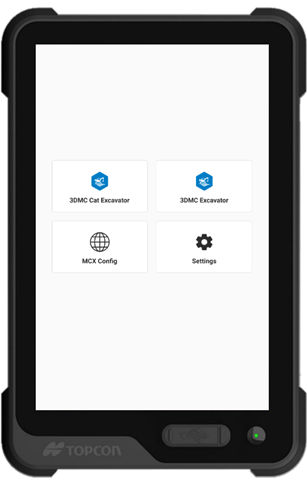
With the 15.5.1 release, you can install multiple 3D-MC versions on the same display. This applies to the GX-90 and CT8X2. On the GX-90, the autoboot continues to operate as before. This automatically starts the software version that was used previously.Figure: Two 3D-MC versions
To install the 3D-MC app:
Download the 3D-MC installation file from myTopconNOW!.
Save the file to USB drive.
Turn power on the GX-90.
On the Home screen, select Settings.
Put the USB drive into the GX-90 USB port.
Select Install Package.
ADDITIONAL INFORMATION: Figure: Install the app
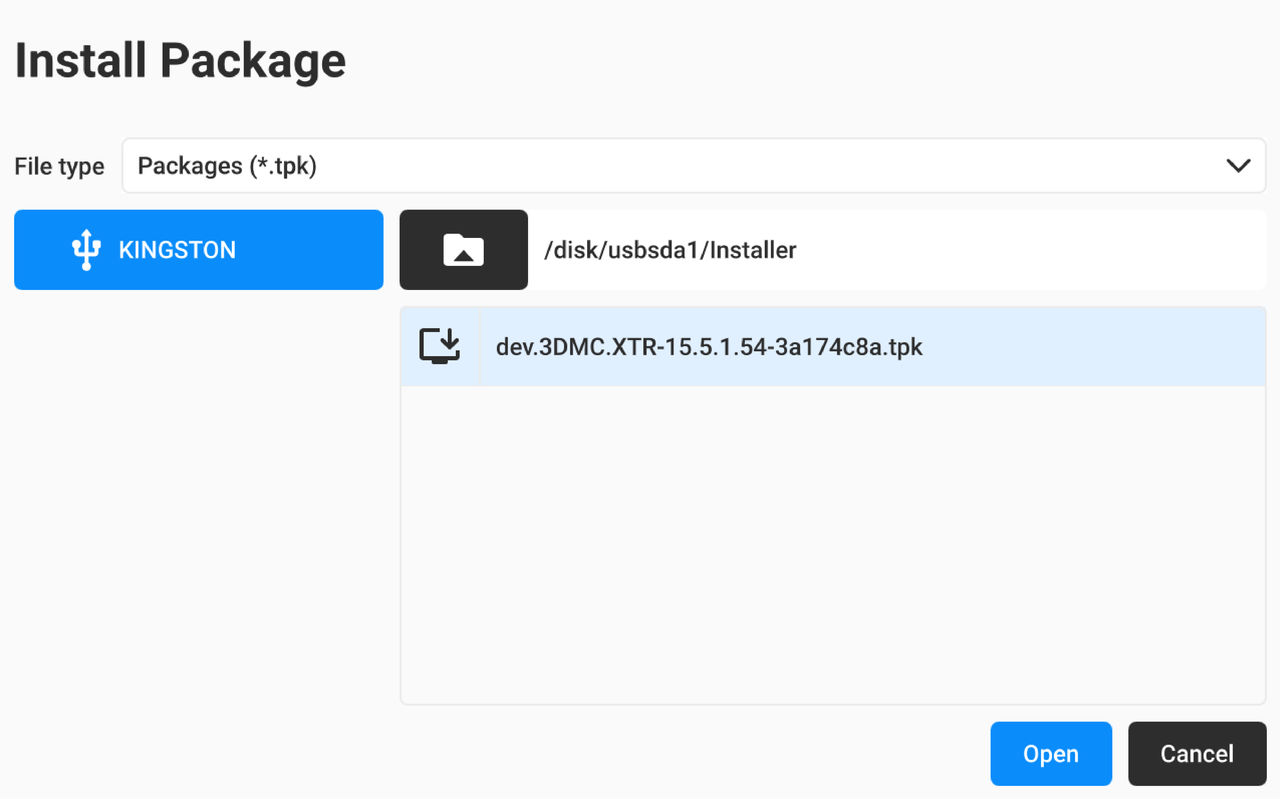
Select the installation file.
ADDITIONAL INFORMATION: Figure: Open the installation file

 to remove the 3D-MC apps. To manage the installed apps, see the icons in the table. For example, select
  to force an app to close.