- Install the RAM Mount hardware for the GX-Series Touch Screen Display and attach the GX-90.
- Connect the cable to the GX-Series Display and route the cable through the console. MC-X1 Breakout A cable, P/N 1017652-03, has the GX-Series Ethernet cable display unpopulated from the Deutsch connector. More information is available in P/N 1041036-02 supplied with cable P/N 1017652-03.ADDITIONAL INFORMATION:
Figure: Install RAM mount hardware - GX touchscreen display part 1 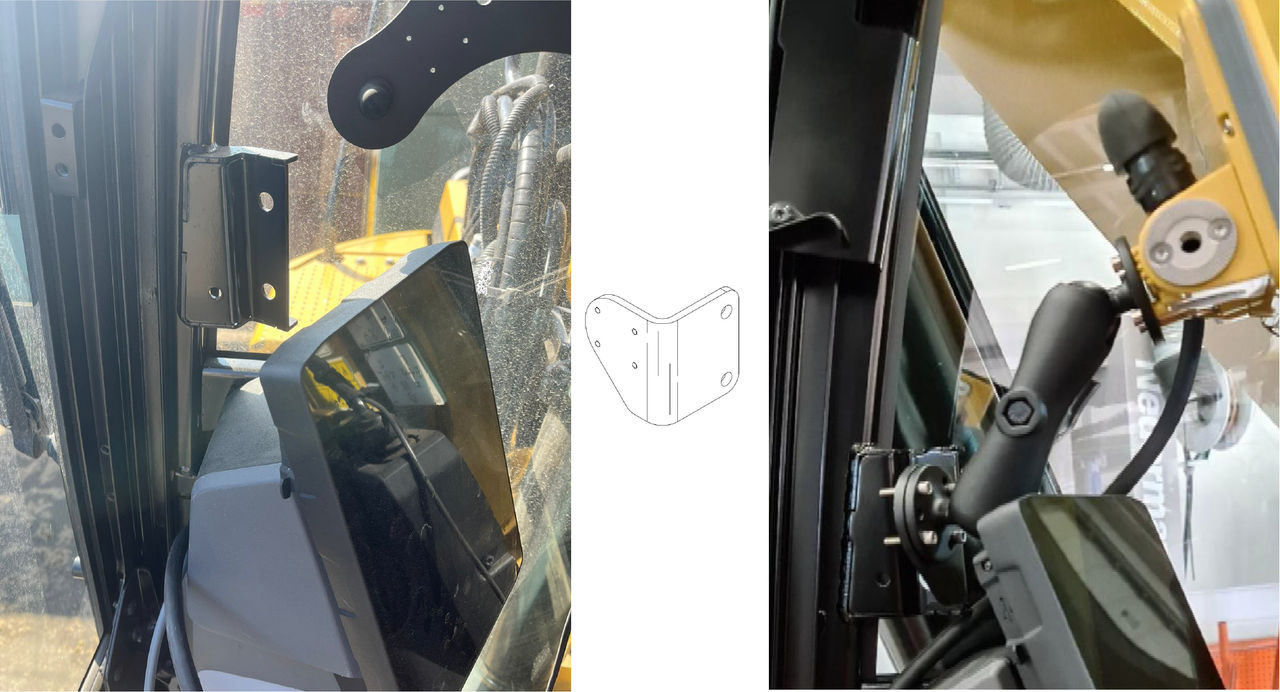
Figure: Install RAM mount hardware - GX display part 2 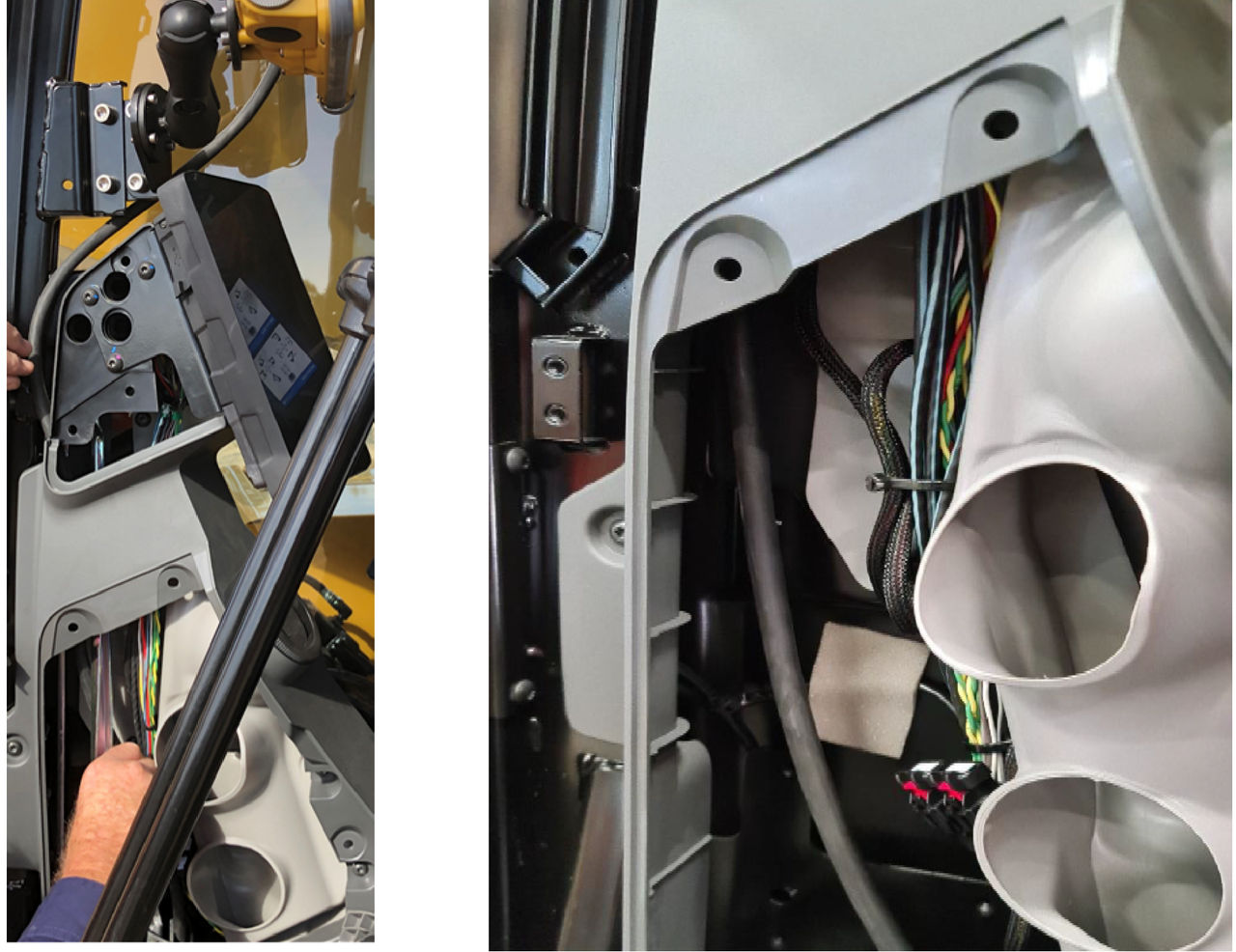
- From the bottom of the console, route the cable under the floor mat along the inside right edge of the cab.ADDITIONAL INFORMATION:
Figure: Route cable under floor mat 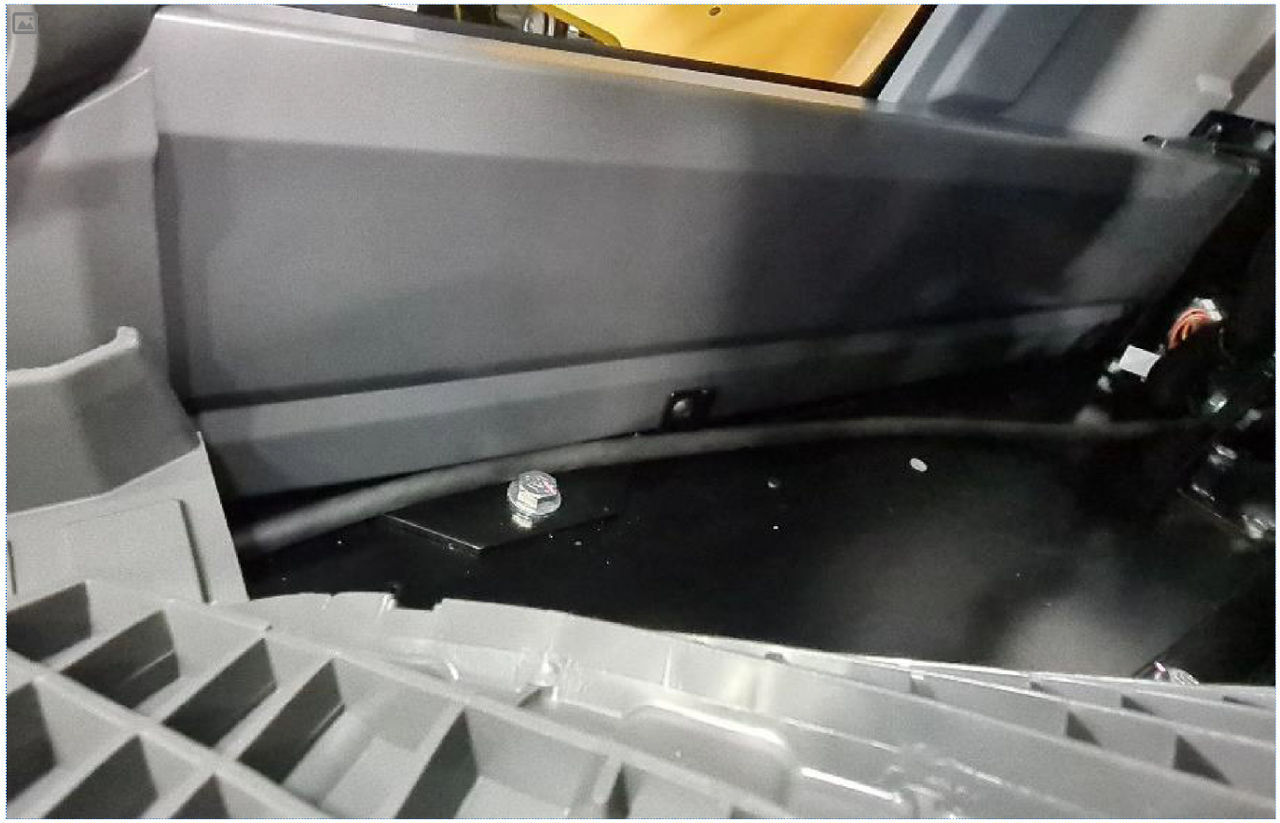
- From the rear wall of the cab, route the cable through a CAT-supplied passthrough. The passthrough may be populated by a blank or unpopulated connector.
- After the cable is routed through the passthrough, use the supplied seal to seal the cab back to OEM specifications.ADDITIONAL INFORMATION:
Figure: Passthrough and seal 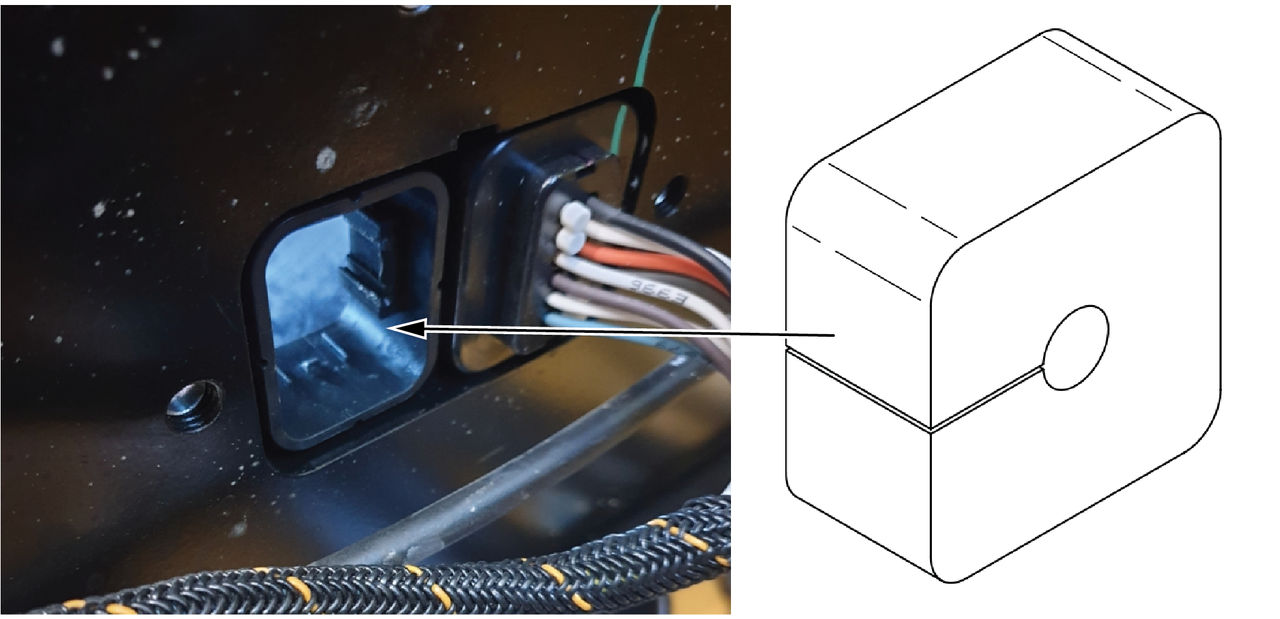
myTopcon NOW! support
Take your Topcon experience to the next level with myTopcon NOW! This platform is a self-service tool for your desktop or mobile device.