The available options are different for the selected radio. Use 3D-MC on the GX Series display for these options.
- Select .
- Select Configure. The Configuration screen for the selected radio shows.ADDITIONAL INFORMATION:
Figure: Topcon UR1(UHF) settings 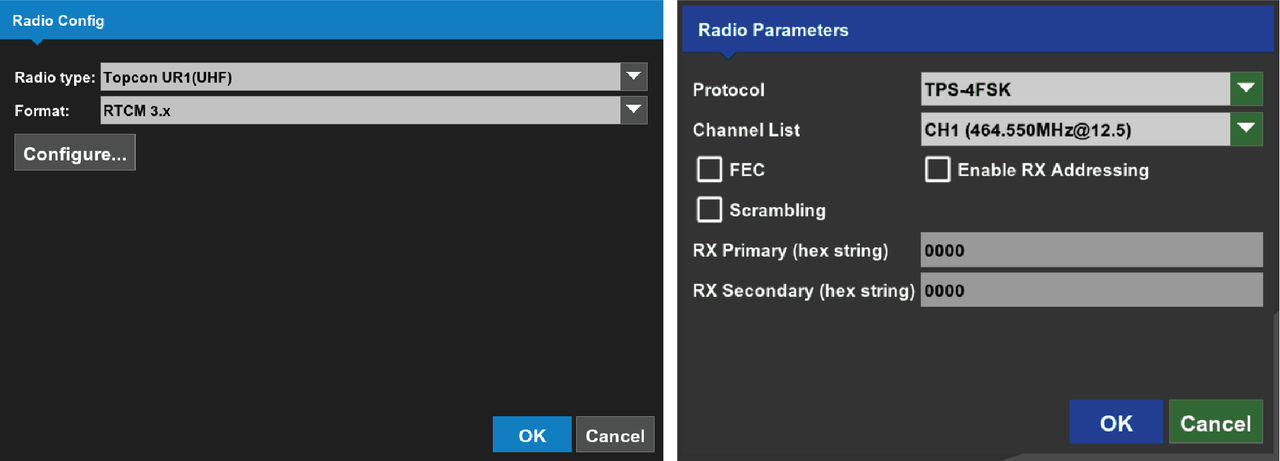
- For Topcon UR1 (UHF), select the applicable settings for Protocol, Channel List, FEC (Forward Error Correction), and Scrambling. The channel setting must align with the base station channel setting.ADDITIONAL INFORMATION:
- For FH915 (UR-1), select FH915 or FH915+ (only available with the UR-1 radio) and make sure that the base station is supportive. Select the applicable settings for Protocol, Channel, Ext RLink, and Region.
- For Topcon UR1 (UHF), select the applicable settings for Protocol, Channel List, FEC (Forward Error Correction), and Scrambling. The channel setting must align with the base station channel setting.
- For Direct Network Connection:
- Input the NTRIP Server, NTRIP Username, and NTRIP Password from your network connection service provider.
- Select Download to start the network connection.
- Select the applicable Mount-point from the drop-down menu.ADDITIONAL INFORMATION:
Figure: Direct network connection settings 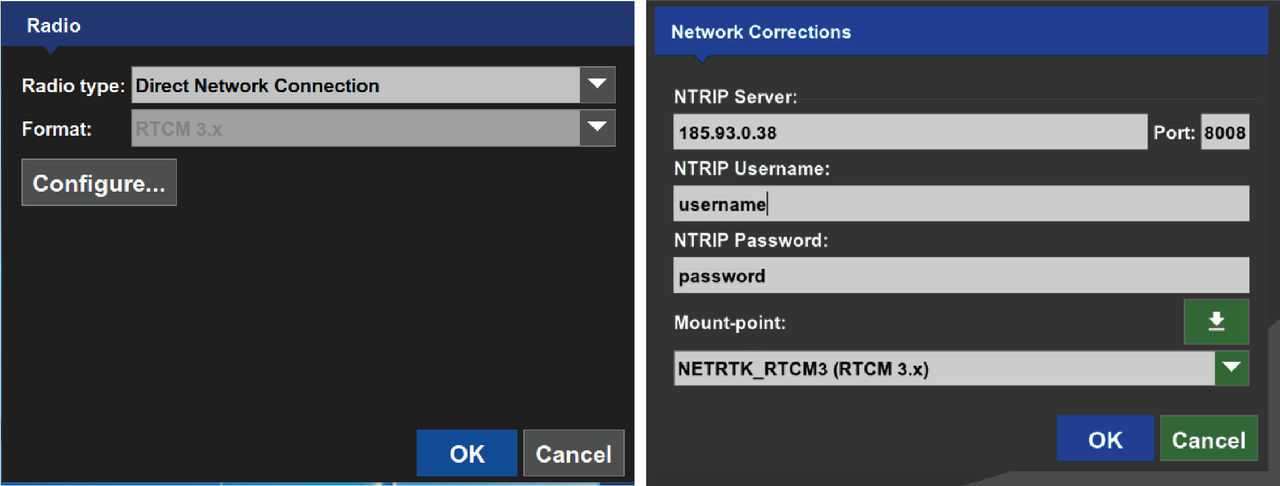
- Select OK to save the radio configuration settings and go back to the Radio Config screen.ADDITIONAL INFORMATION:Note: Installation of 3D-MC v15 software will overwrite radio settings for UHF Radio, FH-915 Radio, and the Direct Network Connection. Users must set up UHF channel changes made in MC-X Machine Control Gateway.
Previous:
FH915 radio configuration
myTopcon NOW! support
Take your Topcon experience to the next level with myTopcon NOW! This platform is a self-service tool for your desktop or mobile device.