
Update the GNSS firmware
To update the main board and GNSS board firmware:
- Open MCWEB.
- Select one of the two methods to show the GNSS (main) or GNSS (aux):
- Select or GNSS (aux)
- Select or GNSS (aux)
ADDITIONAL INFORMATION: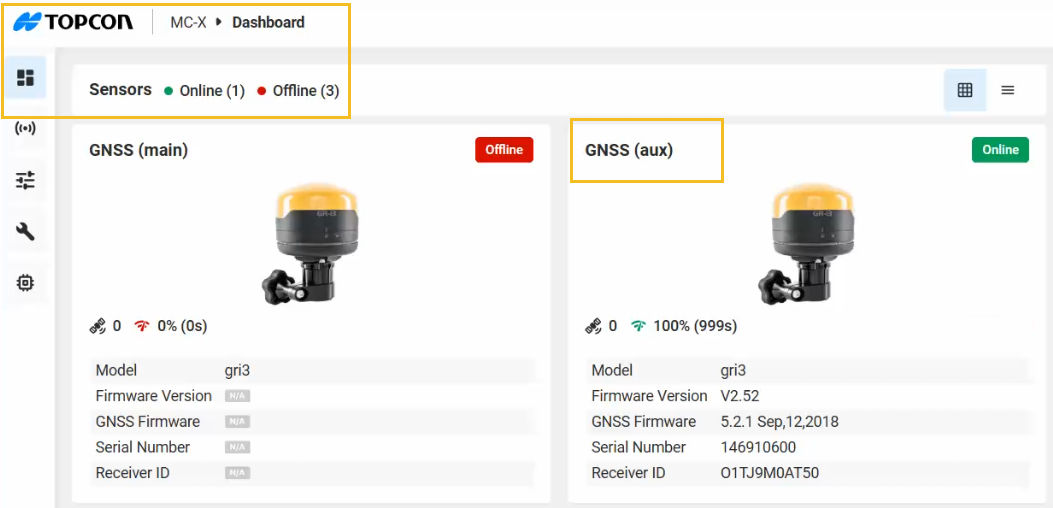
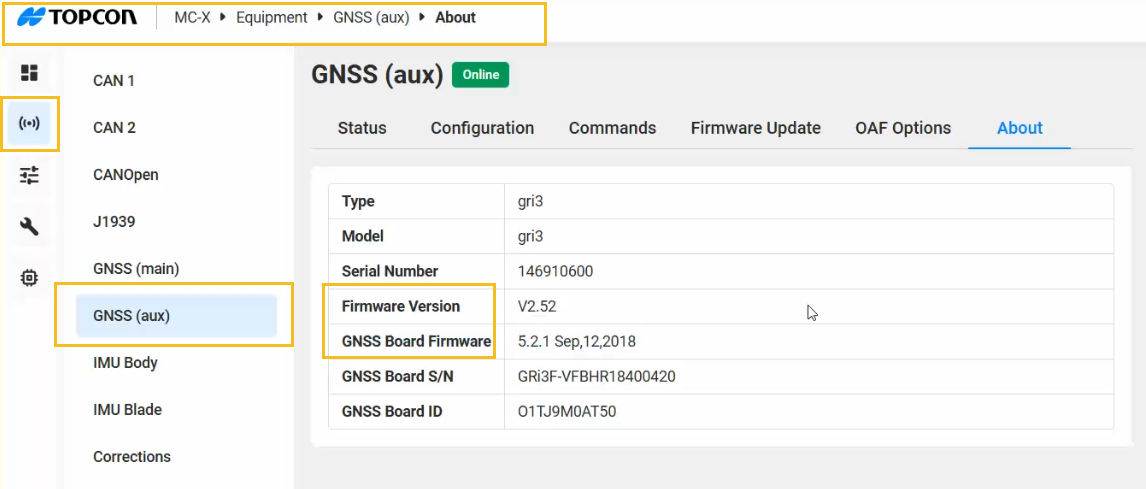
- Select the Firmware Update tab.
- Select one of the two methods to load the .ITB firmware file:
- Select Browse, go to the file in Windows Explorer, and select Open
- Open Windows Explorer, select the file and drag it into the Load Firmware pane
ADDITIONAL INFORMATION: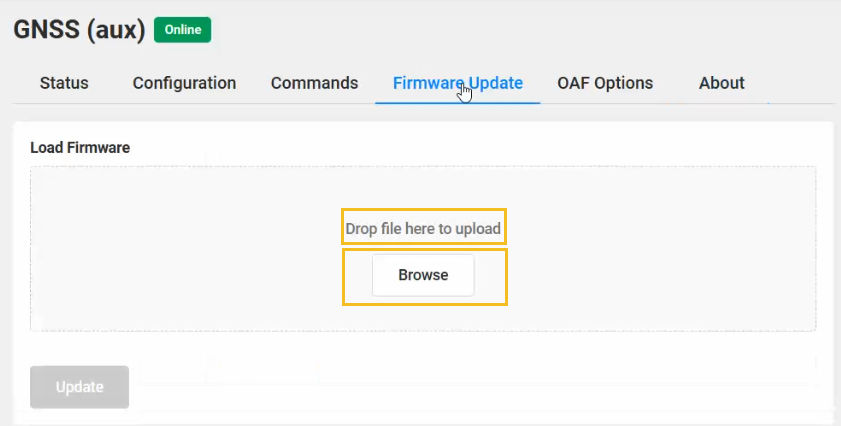
- With the .ITB file added to the Load Firmware pane, select Update. The Firmware Installer starts to prepare the update. ADDITIONAL INFORMATION:
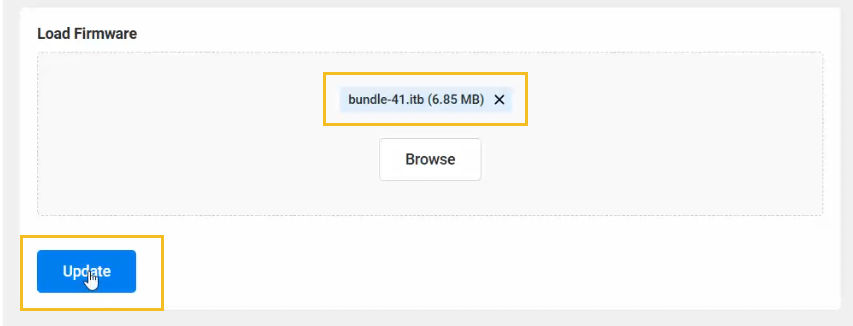
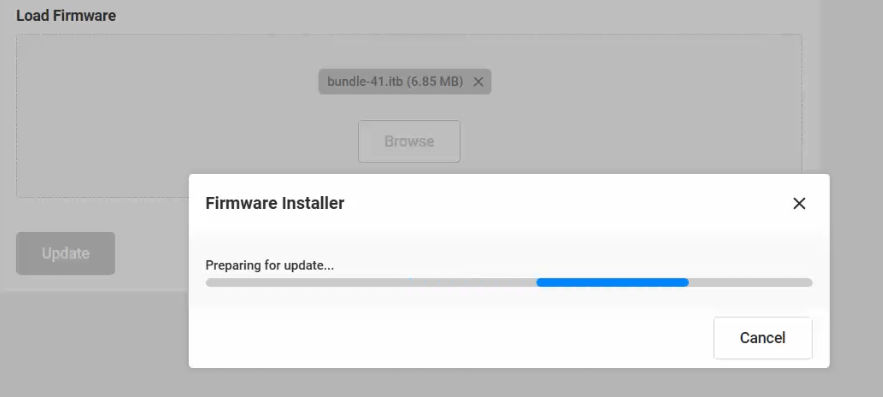
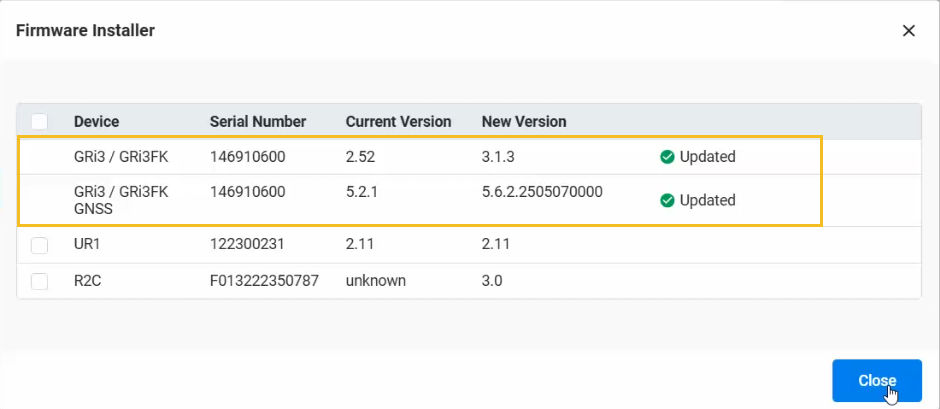
- When the preparation is done, make sure that the GR-i3 and GNSS check boxes are selected, then select Update. The Firmware Installer starts the update. ADDITIONAL INFORMATION:

- When the update is done, select Close.ADDITIONAL INFORMATION:
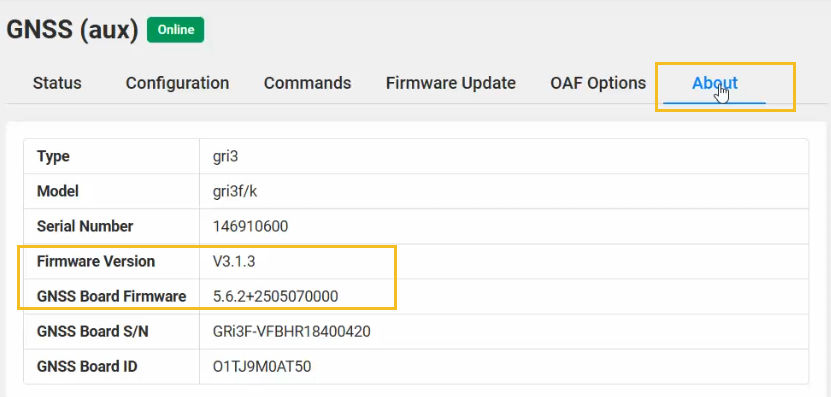
- Select the About tab to confirm the new firmware versions.ADDITIONAL INFORMATION:
Previous:
GNSS firmware
Next:
Upload GNSS OAF
myTopcon NOW! support
Take your Topcon experience to the next level with myTopcon NOW! This platform is a self-service tool for your desktop or mobile device.





