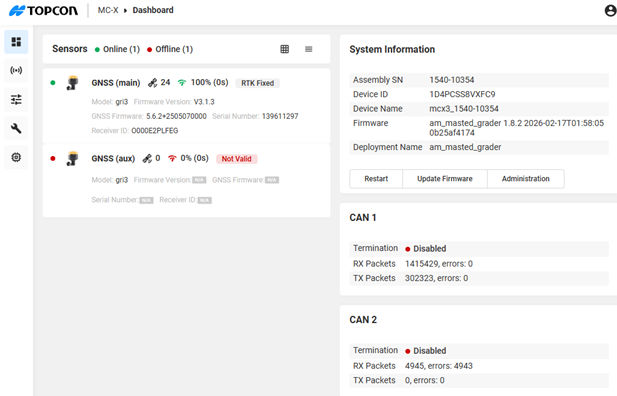
Looking for your apps? Click the account icon in the upper right corner of the page.
System logging
The MC-X creates an operations log while the power is on. This log can be supplied to Topcon support for troubleshooting purposes.
By default, the system log file restarts when the MC-X starts and the previous log file is removed. You can change to a persistent system log file, which continues to log data without a loss between power cycles. See the procedure below.
To save a log file:
Open MCWEB.
ADDITIONAL INFORMATION:
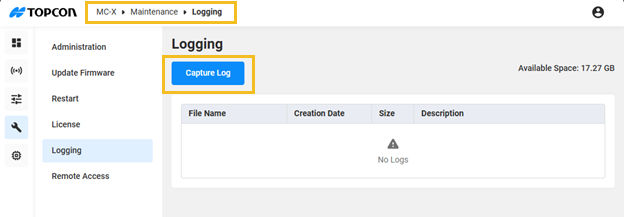
Select MaintenanceLoggingCapture Log.
ADDITIONAL INFORMATION:
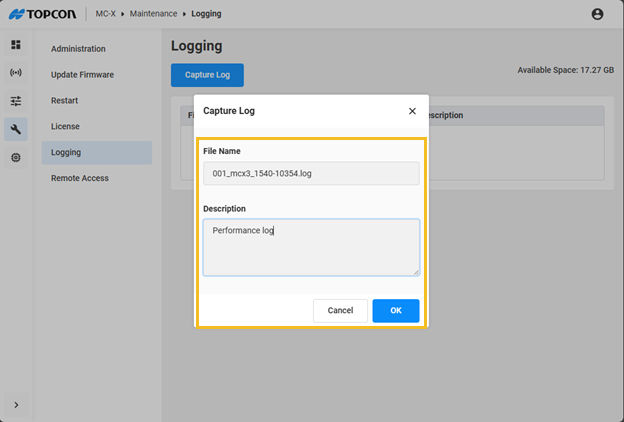
The log file name is automatically created from the MC-X serial number, but you can manually edit it. Enter a File Name and Description, then select OK to save it.
ADDITIONAL INFORMATION:
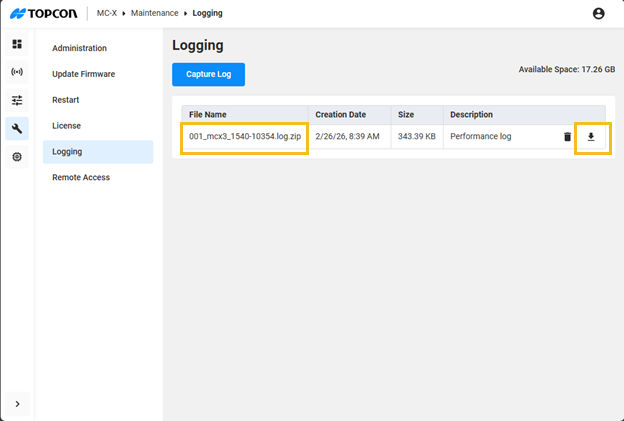
On the Logging screen, select the Download icon.
ADDITIONAL INFORMATION: The communication method in use to the MC-X changes the type of download process:
For a PC web browser - Select the Download icon. This saves the log file to the default save location of the browser
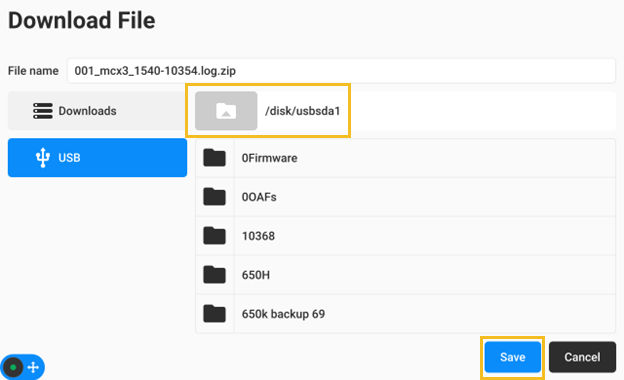
For MCXConfig on a GX-90 - Select the location on the Download File screen, go to the location, and select Save.
ADDITIONAL INFORMATION:
To change to a persistent system log file:
In MCWEB, select MaintenanceAdministration.
Select the Enable persistent system log check box and select Save.
ADDITIONAL INFORMATION: The Persistent log state has been successfully performed message shows.
Select Proceed with Restart.
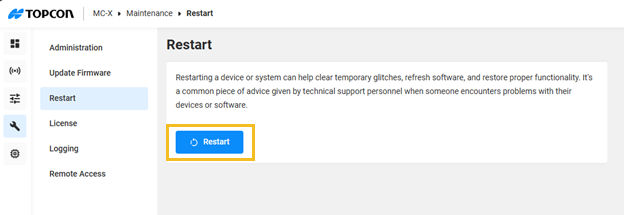
ADDITIONAL INFORMATION: The Restart screen shows.
Select Restart, and select Restart again to confirm.
ADDITIONAL INFORMATION:
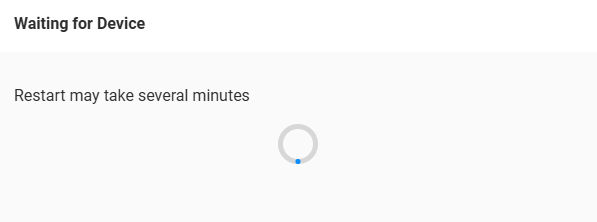
ADDITIONAL INFORMATION: The restart begins. This takes several minutes. You can use this same procedure to disable a persistent system log file: Unselect the Enable persistent system log check box and select Save.

 ADDITIONAL INFORMATION:To change to a persistent system log file: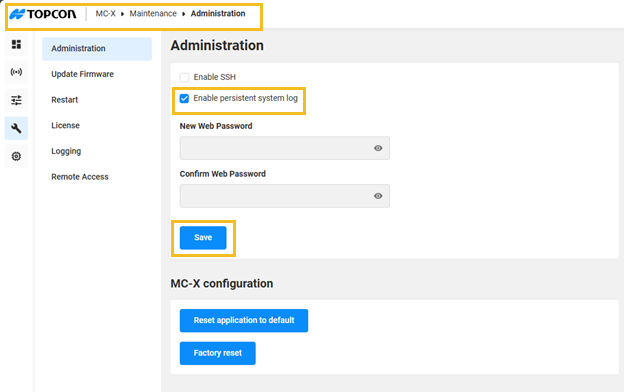
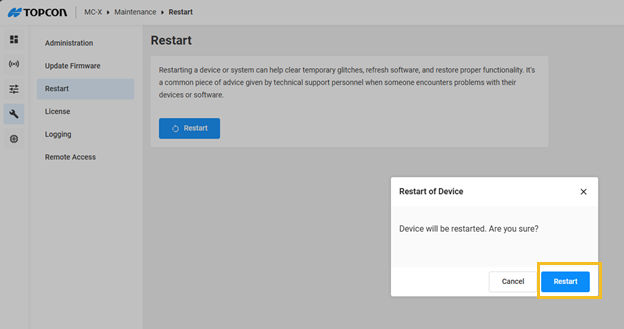 ADDITIONAL INFORMATION: The restart begins. This takes several minutes. You can use this same procedure to disable a persistent system log file: Unselect the Enable persistent system log check box and select Save.