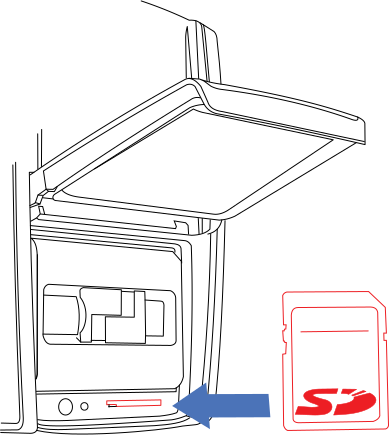
- Open the battery compartment cover. The SD card slot is in the lower right corner.
- Insert the formatted SD card with the notched edge in the direction as illustrated until it clicks. ADDITIONAL INFORMATION:Caution:Confirm the direction of the memory card before inserting. Using force to insert the memory card in a wrong direction can damage the SD card, card slot, or data on the card.
- Close the cover.
AFTER COMPLETING THE TASK
Ejecting the SD Card
To remove an SD card from the scanner, open the SD card slot cover and lightly push the memory card until it slightly springs out.
Caution:
Do not eject the memory card while in-use.
Do not let the memory card release from the slot and fall.
Previous:
Structure of the SD card
Next:
Switching on the scanner
myTopcon NOW! support
Take your Topcon experience to the next level with myTopcon NOW! This platform is a self-service tool for your desktop or mobile device.