For the WLAN running in ad hoc mode, assign a static IP address to your notebook.
Open


In the Internet Protocol dialog, choose Use the following IP address. Enter a valid IP address and sub-net mask. The IP address and sub-net mask of your notebook must be compatible with the scanner's. Change the last number of the scanner's IP address and use the address. For example, if the scanner has 192.168.43.1, you can enter 192.168.43.100. The sub-net mask must be identical to the scanner's. You may have to disconnect and re-connect to get the connection to work.
Open User Interface in the Web Browser
- With the notebook connected to the scanner, open your web browser.
- In the web browser's address field, enter the scanner's WLAN IP address to access the controller software. For example, http://192.168.43.1 or https://192.168.43.1 for a secure connection.
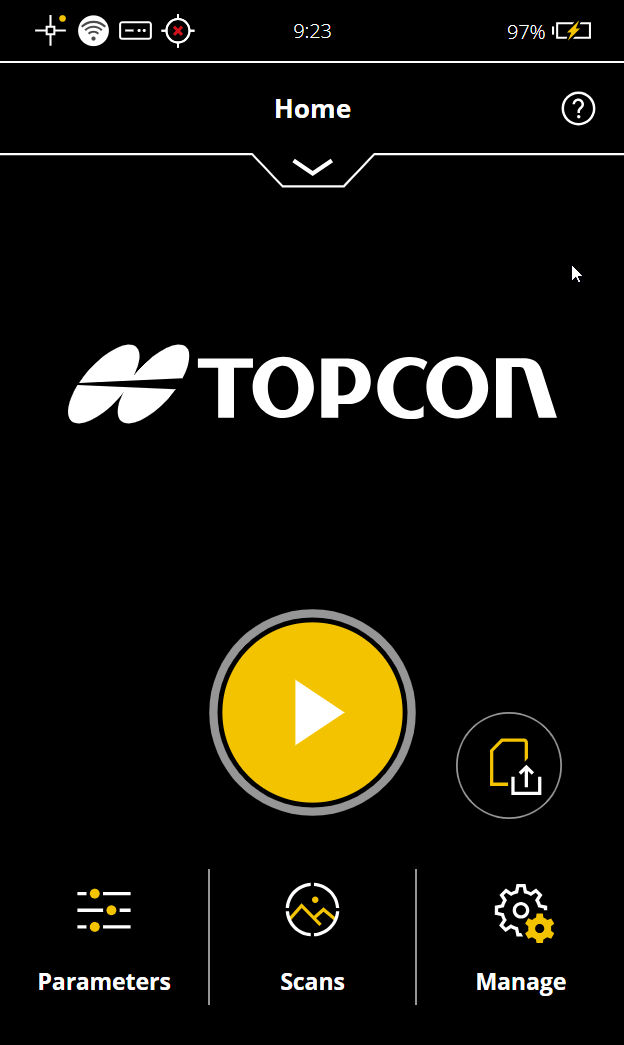
- The Home screen of the controller software appears in your web browser, allowing you to control the scanner.
myTopcon NOW! support
Take your Topcon experience to the next level with myTopcon NOW! This platform is a self-service tool for your desktop or mobile device.