View previews of the scans stored on the inserted SD card. A list of all available scans is displayed:
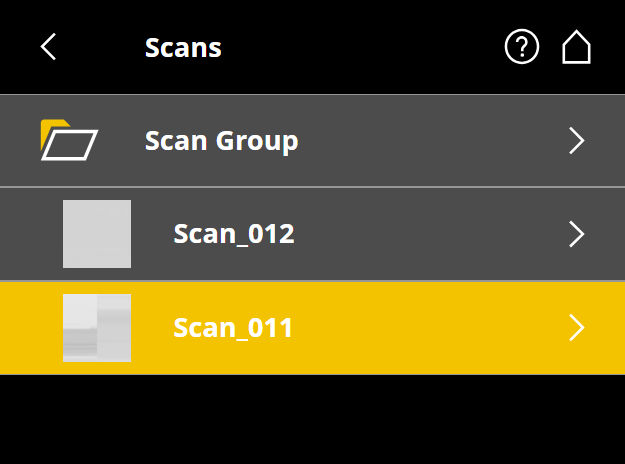
This list contains all scans available on the SSD or SD card. The list is sorted by the scans' creation dates.
Tap a scan in the list to see its preview picture.
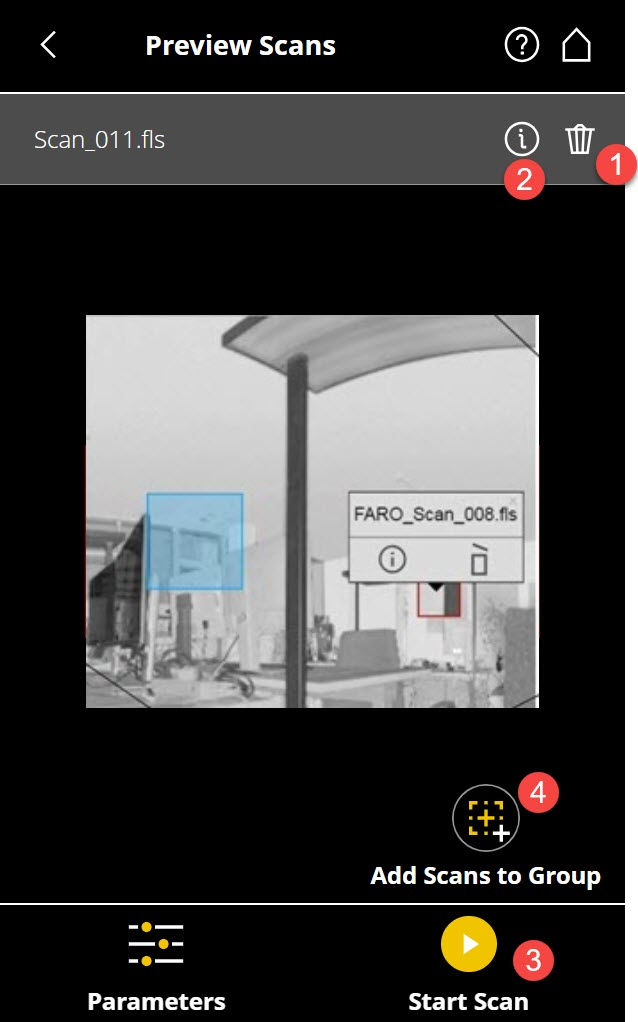
- Delete - Deletes the currently displayed scan from the SD card.
- Info - Tap to view the scan properties.
- Start Scan - Starts a scan, or resumes the previous scan.
- Add Scans to Group - Adds a new detail scan to the group.
For scan groups, the detail scans are shown with the primary scan. Zoom in using a pinching gesture, or the mouse wheel, to enlarge the detail scan's preview. Tap or click the detail scan to display a pop-up window with the name of the detail scan, a link to the related Scan Properties page, and the option to delete the detail scan.
Previous:
Storage management
myTopcon NOW! support
Take your Topcon experience to the next level with myTopcon NOW! This platform is a self-service tool for your desktop or mobile device.