Looking for your apps? Click the account icon in the upper right corner of the page.
Connection to a computer through USB
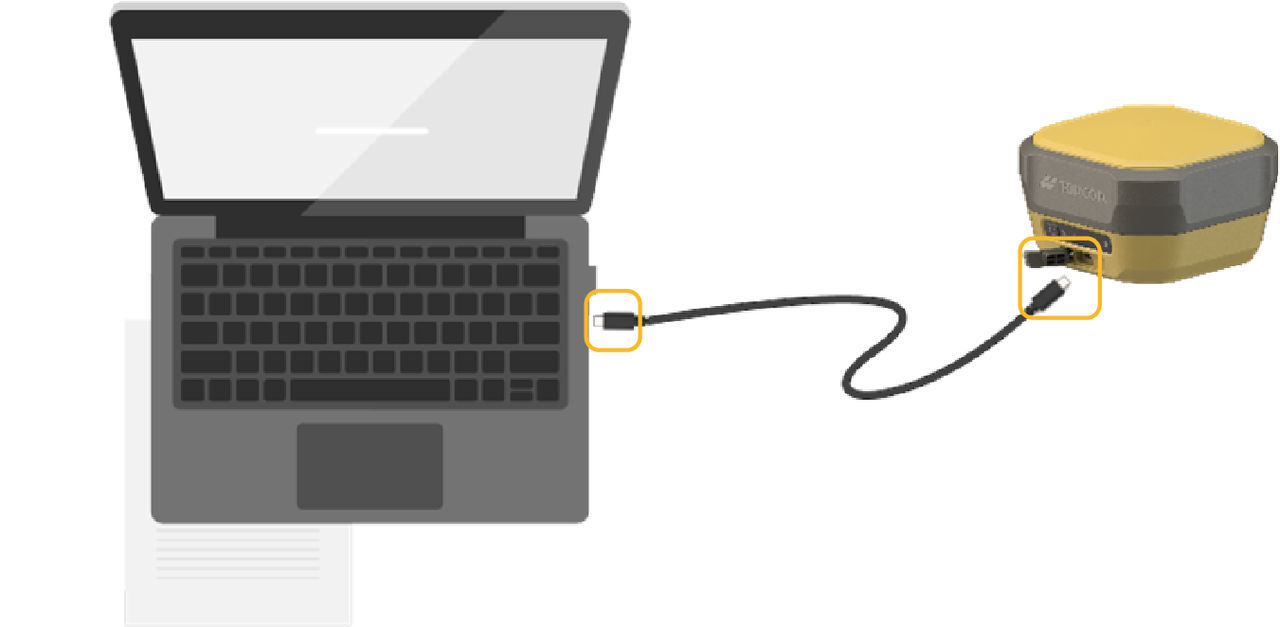
Connect the GNSS receiver to a computer with a USB-C cable or adapter. Set the device power to ON, open the web UI with the IP address, and log in with the default credentials.
The HiPer XR GNSS receiver can connect to a computer with a USB-C cable (P/N 1068615-01) from the USB Type-C port on the receiver to a USB-C port on a computer.
If the computer does not have an available USB-C port, connect a USB-C to USB-A adapter (P/N 1068617-01) to a USB-A port on the computer.
Make sure that the battery pack in the receiver is fully charged, then connect to a computer.Figure: Receiver to Computer Connection
With the receiver and computer connected with the USB-C cable, push and hold the Power button on the receiver for 2 seconds to set the power to ON.
Open a web browser, then enter the receiver IP address in the URL field.
ADDITIONAL INFORMATION:
By default, the IP address of the receiver is http://192.168.4.1. The first time that the web interface opens, it is necessary to enter a user name and password.
Enter the user name and password at the login prompt.
ADDITIONAL INFORMATION:
The default user name is admin and the default password is admin.