Upload a new OAF file to the GNSS receiver through a connection to a controller, the web UI, with the upload feature from the Management menu.
- Connect the HiPer XR GNSS receiver to a field controller or computer and open the on-board web UI.
- Open the Management menu, then select Upload OAF.
- Select UPLOAD OAF in the Choose File box to open a window from which to select the new OAF file.
- Open the location of the new OAF (*.tpo), select this file, then select Open.
- Select Upload OAF to start the process to apply the new option file.ADDITIONAL INFORMATION:When the OAF is uploaded, the receiver resets to apply the changes.
Figure: Load an OAF 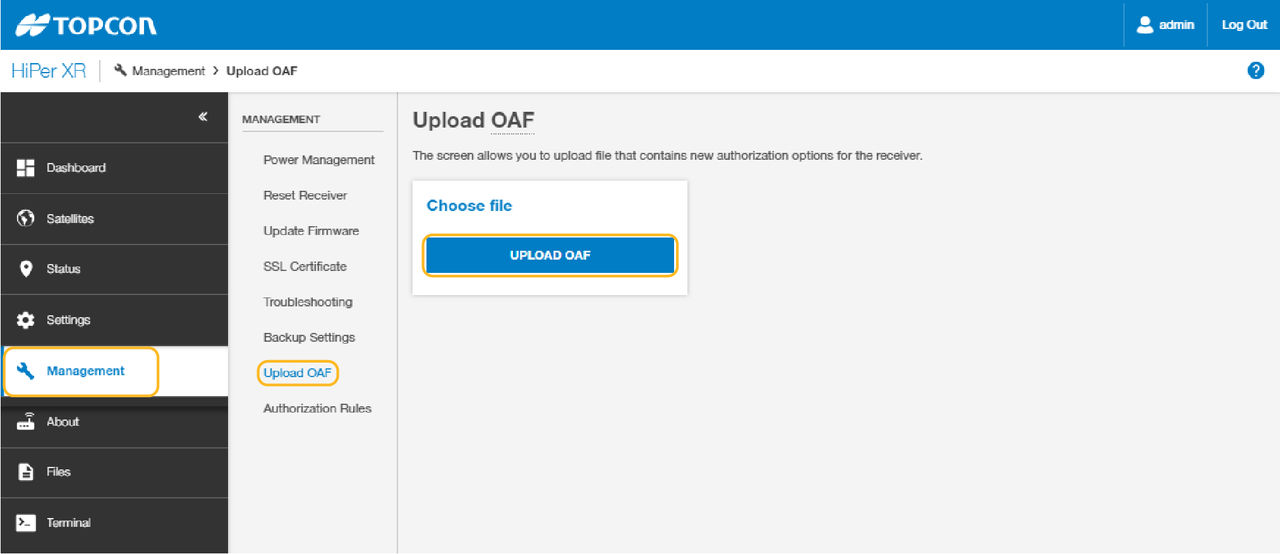
Previous:
Option authorization files
myTopcon NOW! support
Take your Topcon experience to the next level with myTopcon NOW! This platform is a self-service tool for your desktop or mobile device.