
- Before connecting the LN-150 Layout Navigator to MC-Mobile CTL, make sure:
- The LN-150 is authorized for LPS.
- The LN-150 wireless communication selector switch is set to Bluetooth.
- The LN-150 has been set up for position and is not still connected to the survey software.
- The Bluetooth LED light is flashing green, indicating it is ready to connect.
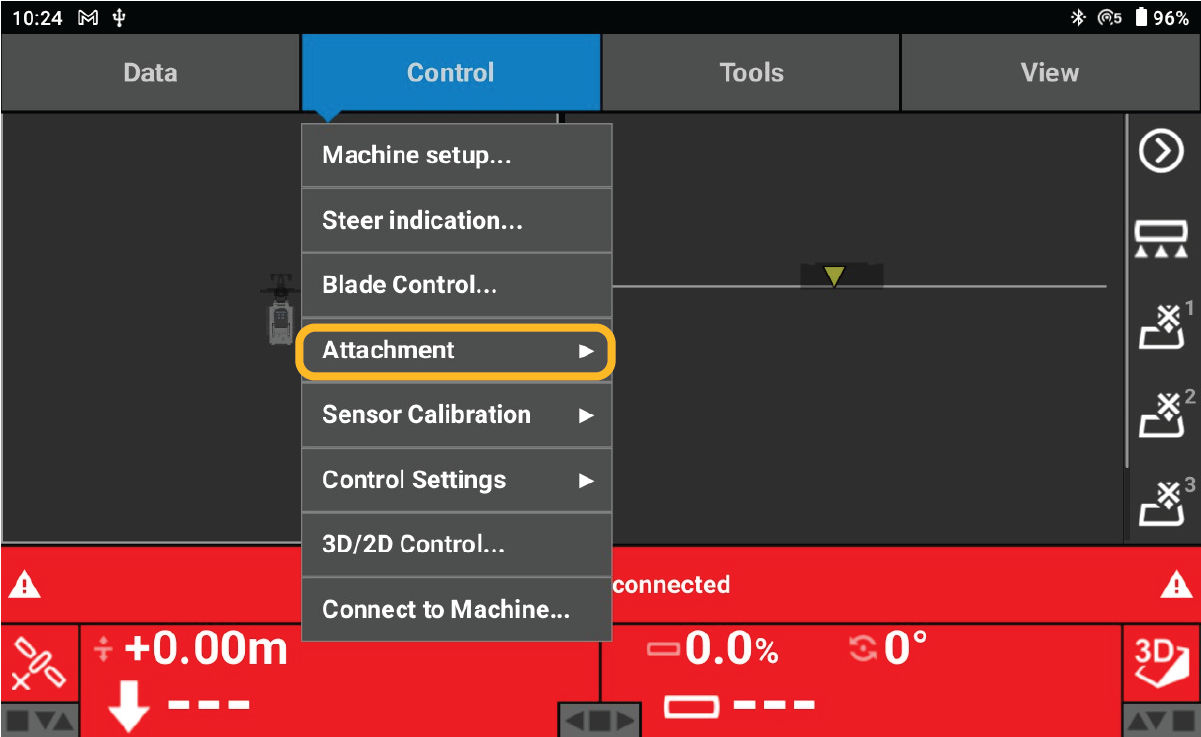
- Open 3D-MC and select the Main Menu icon.
- Select .ADDITIONAL INFORMATION:
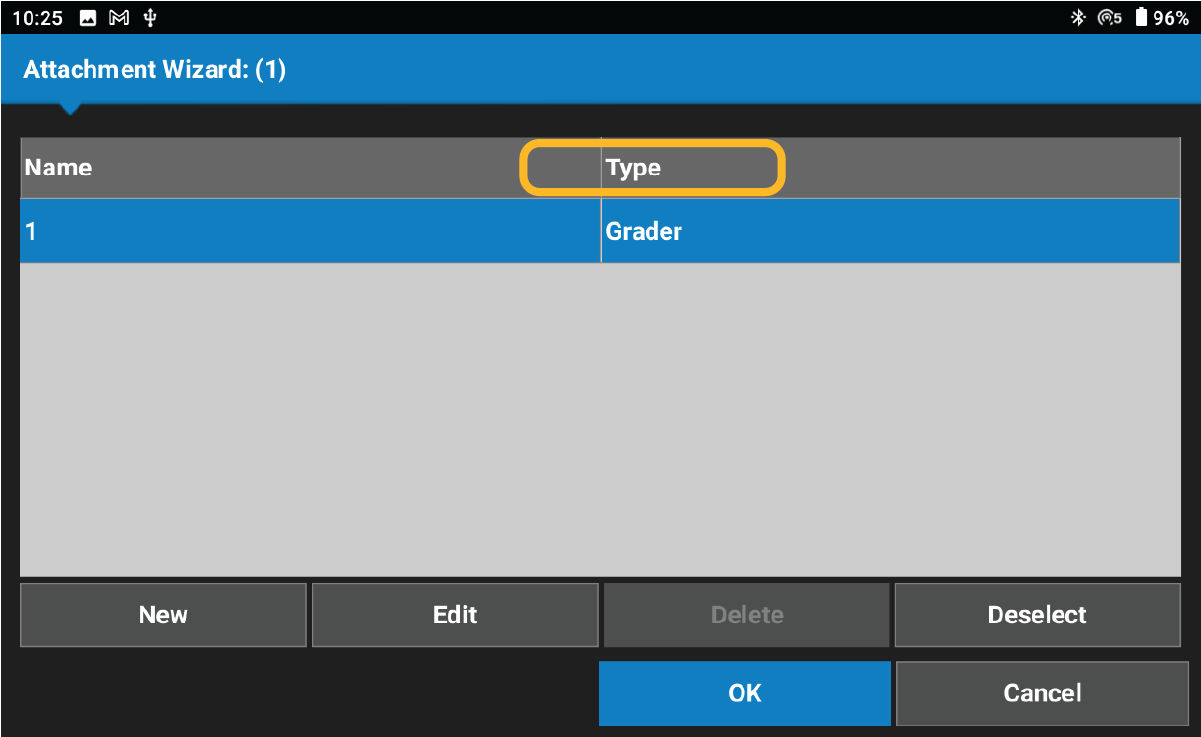
- Select New to create a new attachment.ADDITIONAL INFORMATION:
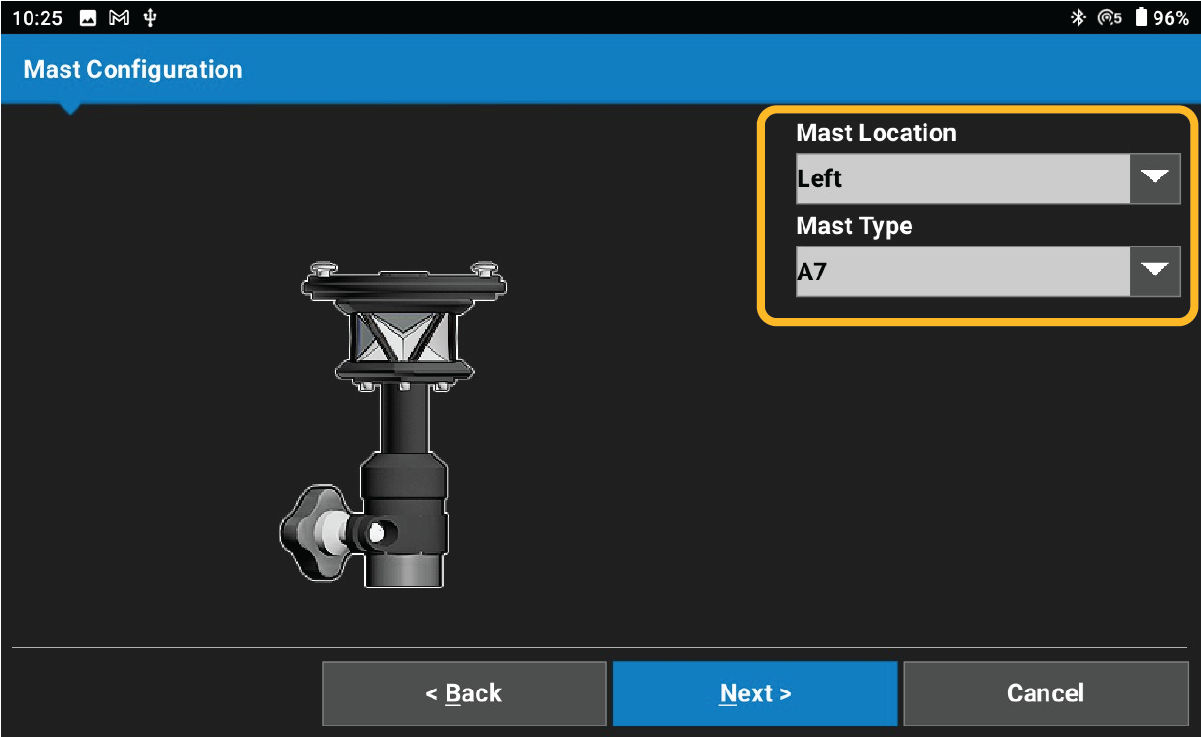
- Select the applicable attachment type and Mast Location. For Mast Type, select A7R or RP-i3.ADDITIONAL INFORMATION:
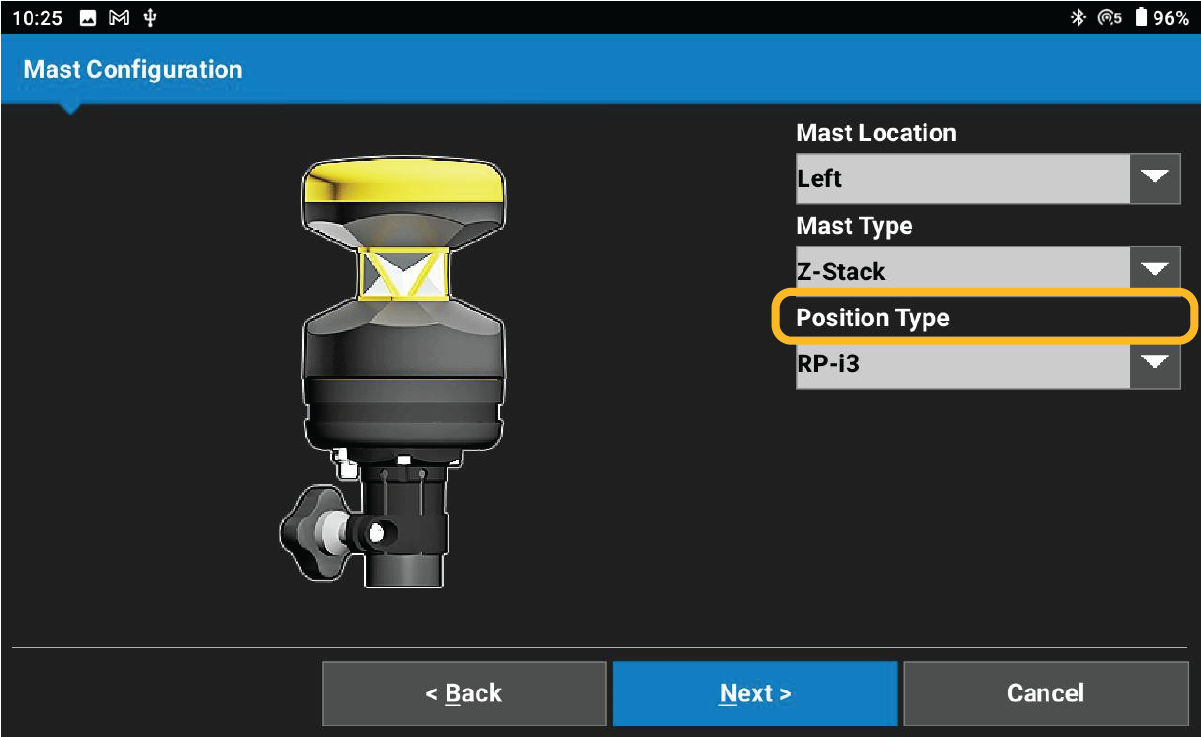
- Select the applicable Position Type.
- Select Next.ADDITIONAL INFORMATION:
- Finish creating the attachment and assign it as the active attachment.
- Select from the 3D-MC main screen.
- Select LN150 from the Type field.ADDITIONAL INFORMATION:
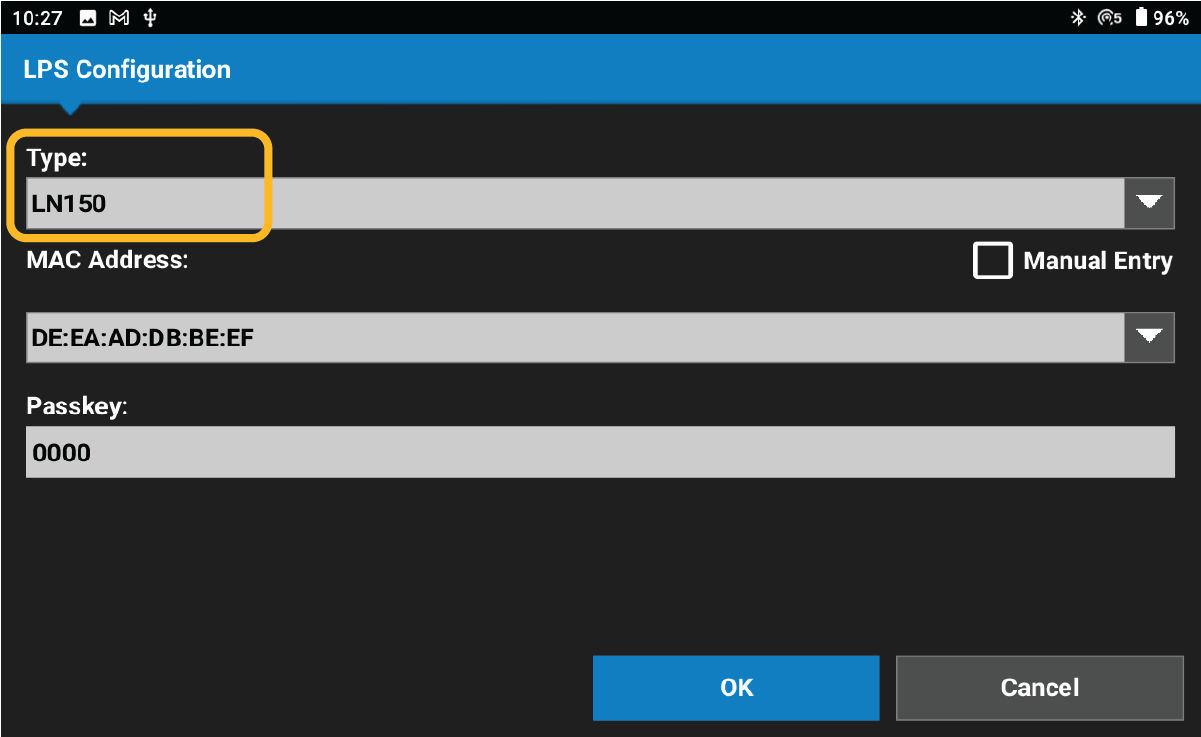
- Select or manually enter the MAC Address. Select the Manual Entry checkbox to enter the address.ADDITIONAL INFORMATION:
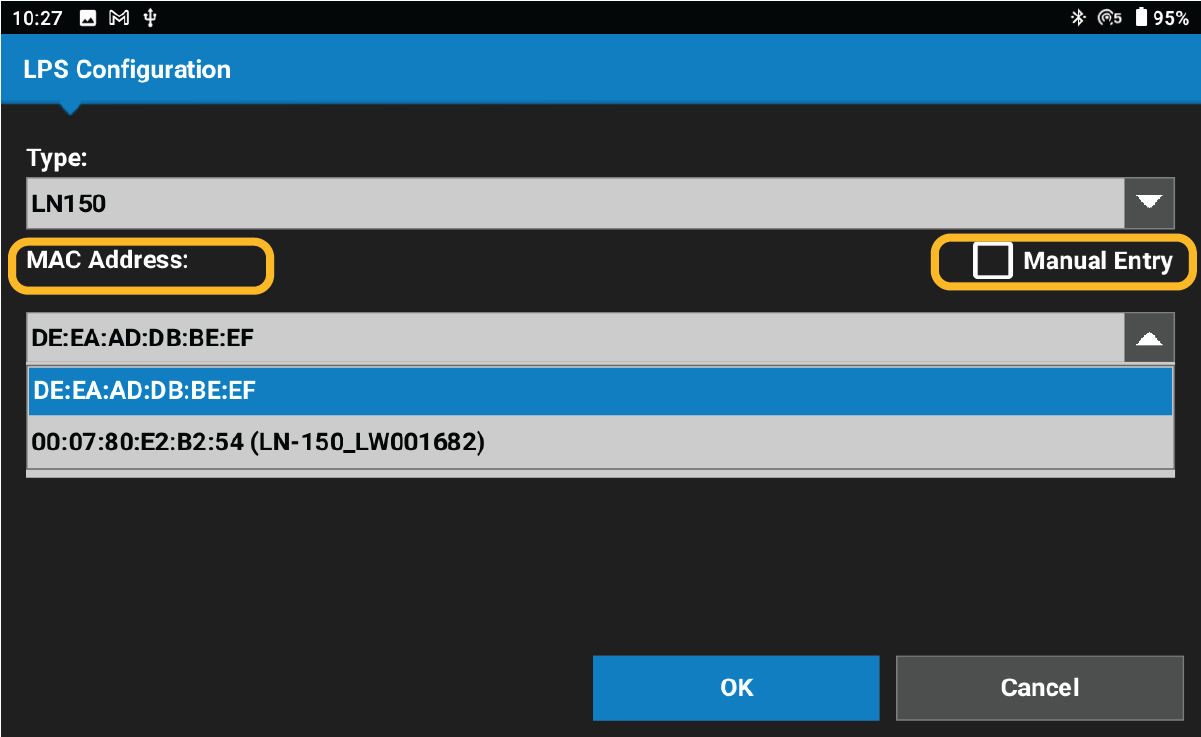
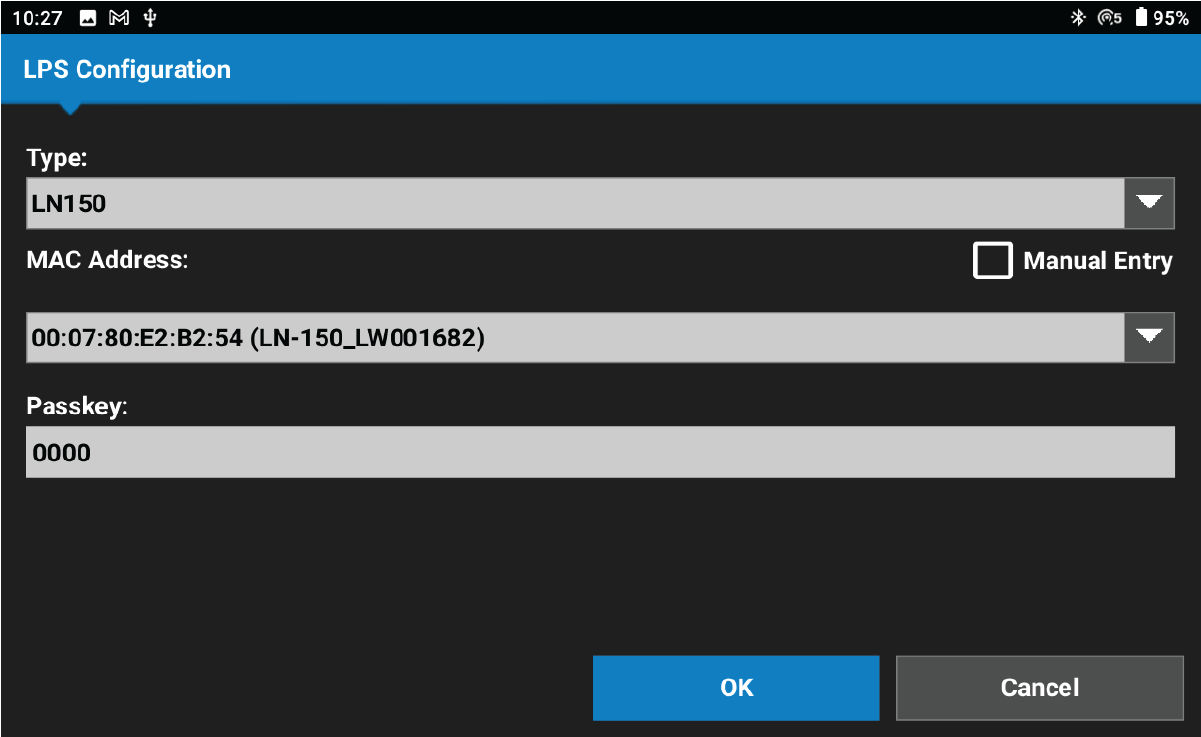
- Select the instrument from the list. Do not enter a Passkey code.
- Select OK.ADDITIONAL INFORMATION:
 Allow time for MC Mobile to connect to the LN-150. Upon connection, the status changes from Total Station Offline to Total Station Searching.
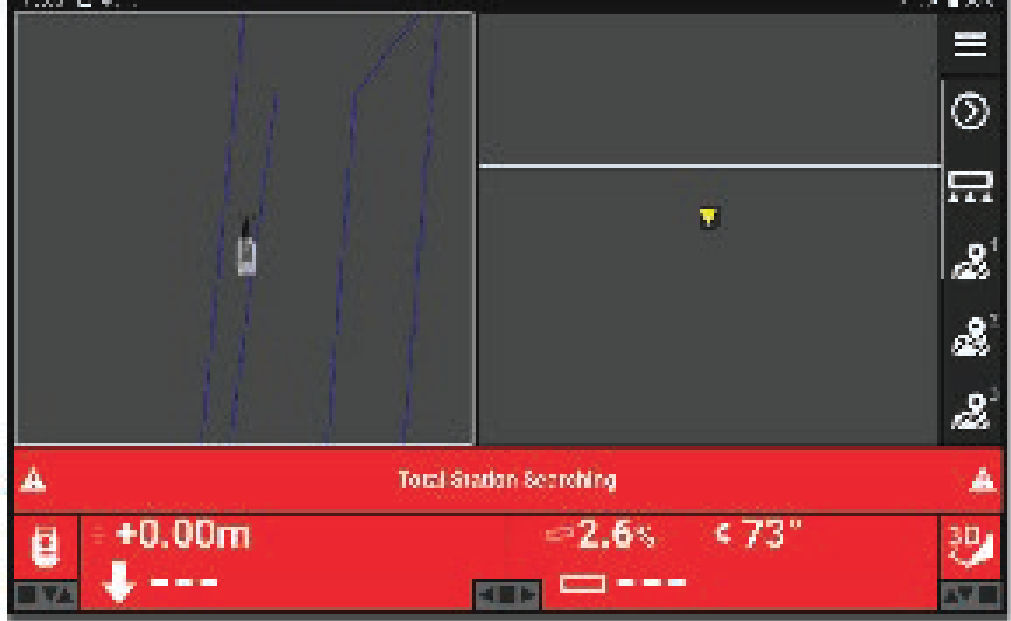 When the LN-150 finds the prism, the status changes to Move Machine. The system is now connected and ready.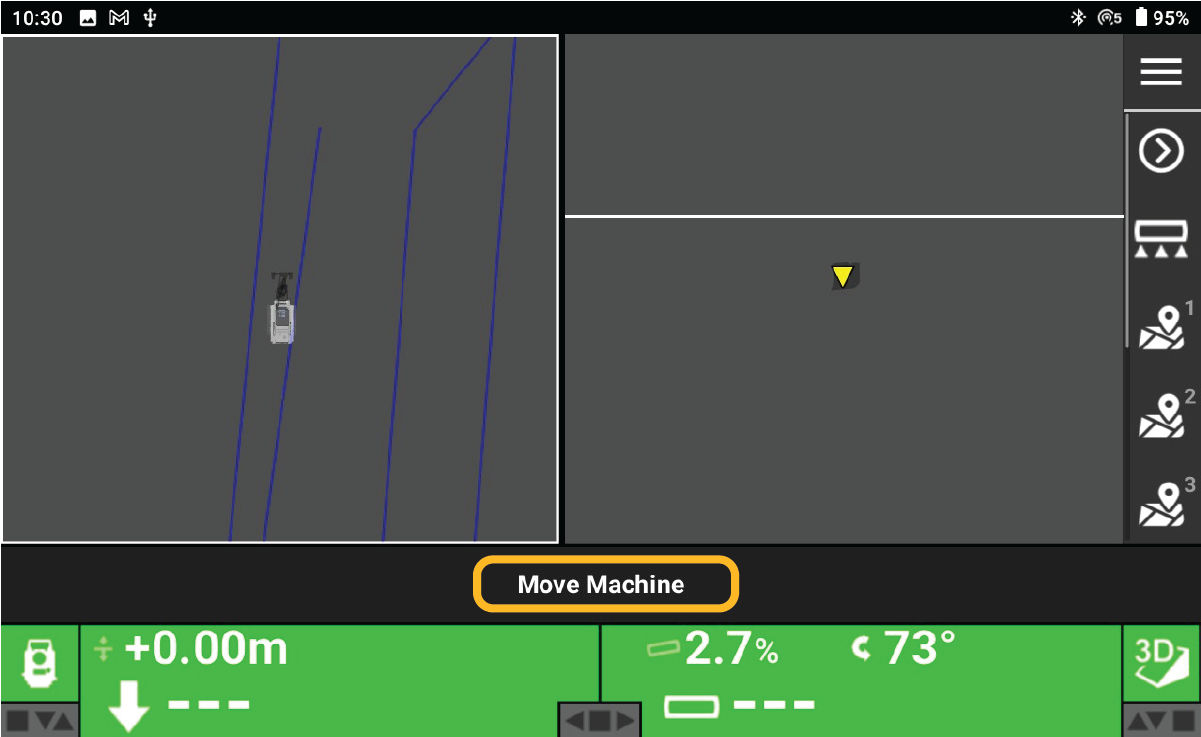
Previous:
3D-MC configuration
Next:
Elevation control
myTopcon NOW! support
Take your Topcon experience to the next level with myTopcon NOW! This platform is a self-service tool for your desktop or mobile device.





