
Note: The hardware kit for the hitch sensor components is P/N 1059641-01. Most installations include the body sensor and CTL Body Kit, which is P/N 1047571-01.
- Identify a location to install the machine bulkhead bracket. ADDITIONAL INFORMATION:Note: These installation procedures are generic. Speak with the customer about where and how they want the machine bulkhead installed. A small change or add-on plates/hardware can be necessary. Most CTLs can have the bulkhead mounted near the hydraulic hose quick couplers.
- Remove the two bolts on the left side and right side of the top of the gooseneck landing. Use these to attach the bulkhead and bracket.ADDITIONAL INFORMATION:
Figure: Bulkhead installation location and bulkhead bracket 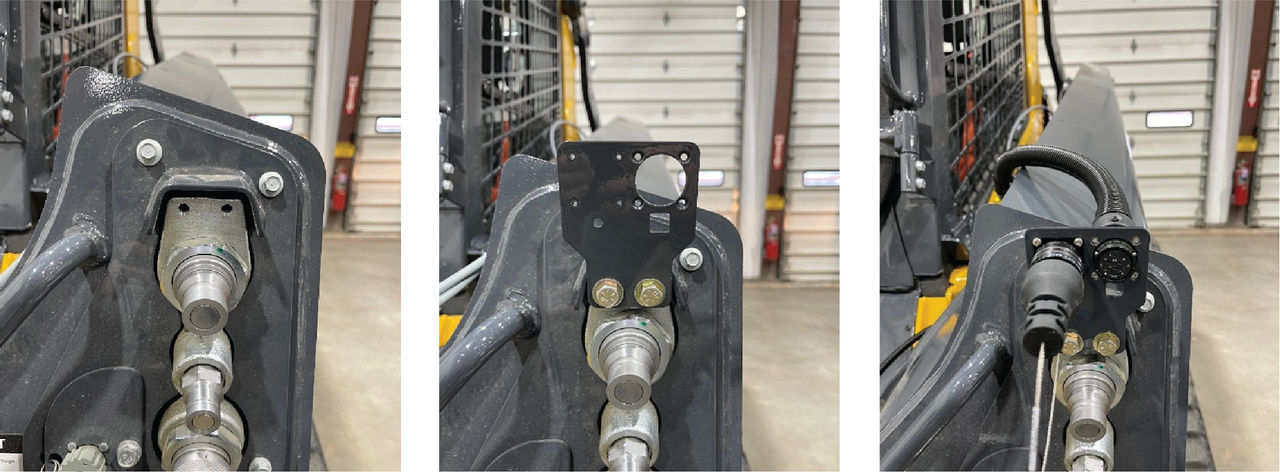
- Run the M12 cable(s) down the boom arm with tape or magnets for possible P-clamp locations. Use wire loom where it is applicable.
- Use zip ties to attach directly to the hydraulic hose boom lines where it is applicable.
- Connect the M12 cable to TS-i4 Hitch sensor.
- Install a CAN tee near the machine bulkhead and attach with a magnet or weld-on block.ADDITIONAL INFORMATION:
Figure: M12 cable routing on boom 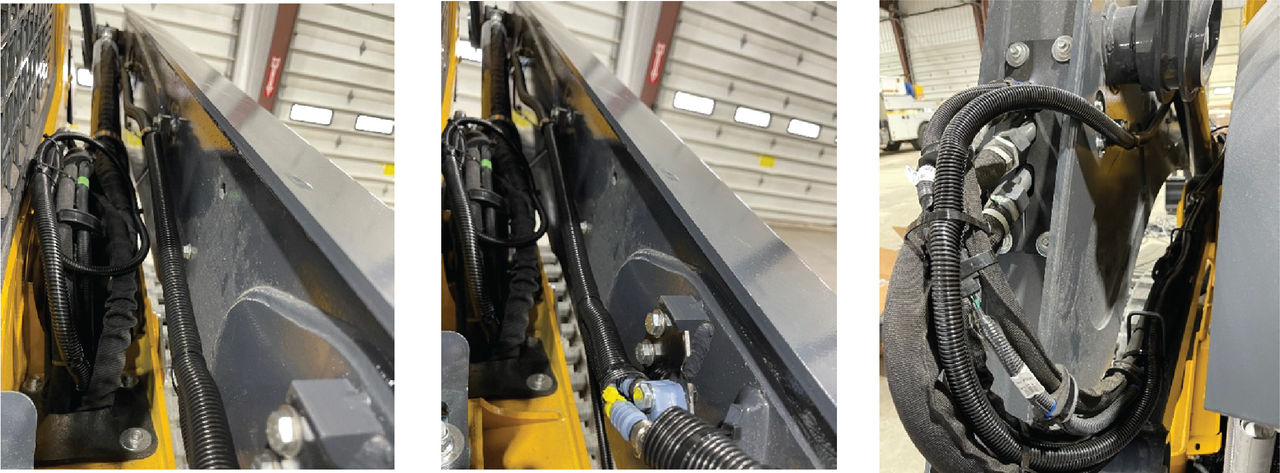
Figure: GB108 bulkhead assembly 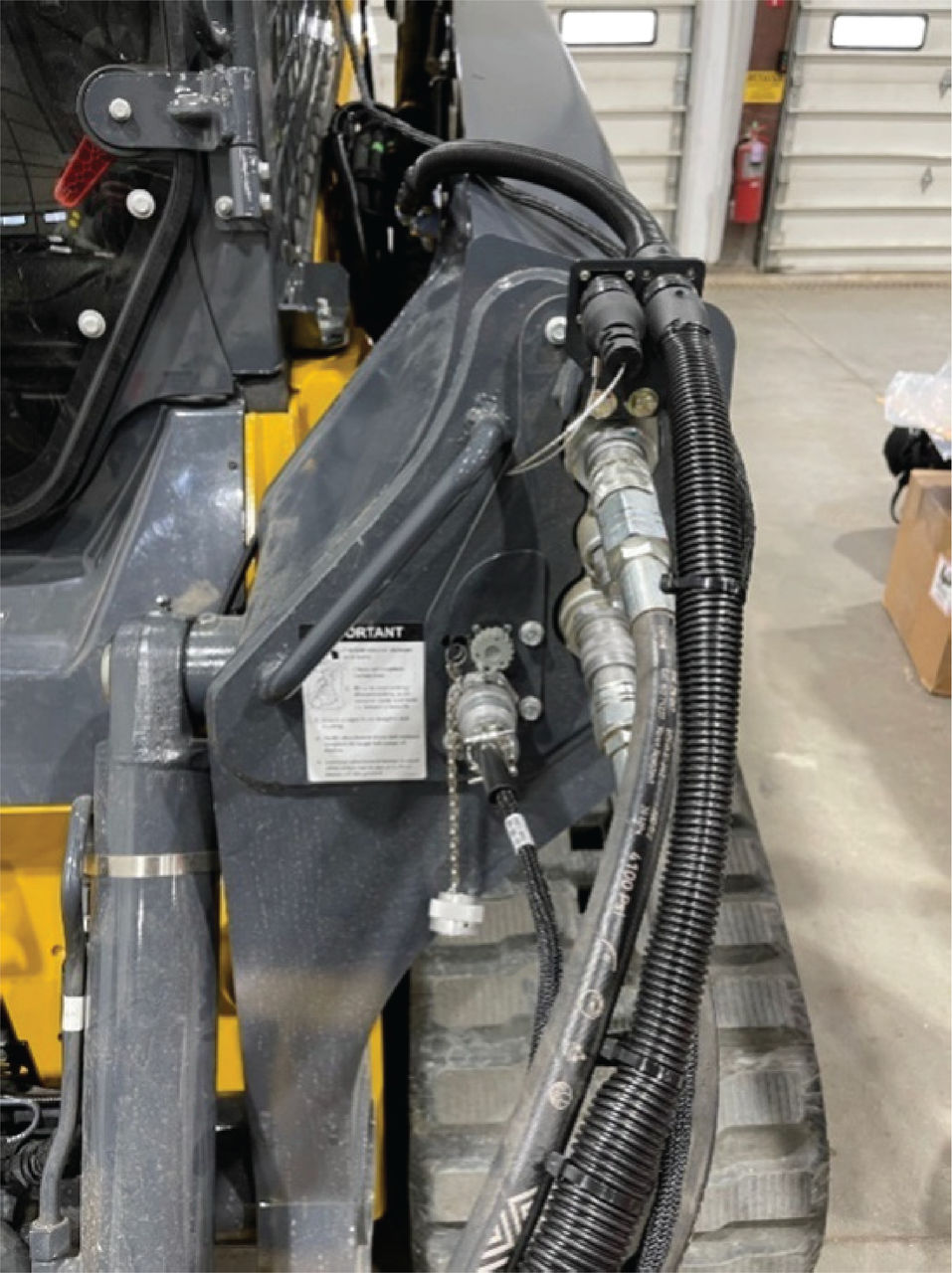 Note: Make sure that there are labels specified for 2D bayonet connections (CANopen) and 3D bayonet connections (J1939).Note: This is the only point of connect/disconnect for the Topcon system if you change to other attachments.
 - Populate the bayonet to M12 Y cable into the bracket and “rough-in” the 5 m (and 7 m M12 CAN/J1939) cable(s) with zip ties along the boom hydraulic lines.
- Lift the boom arm to the maximum height to make sure that the cable lengths are sufficient. It can be necessary to adjust them.
- Make sure that cable slack is service looped correctly and put back into the belly pan through the hydraulic access panel.
- Populate the bayonet dummy plug.
- Connect the dust connector if not in operation.
Previous:
2D Hitch add-on installation
myTopcon NOW! support
Take your Topcon experience to the next level with myTopcon NOW! This platform is a self-service tool for your desktop or mobile device.





