Looking for your apps? Click the account icon in the upper right corner of the page.

Factory reset for the GR-i3/F via TRU

A factory reset reverts all receiver parameters to the default values and clears the receiver’s Non-Volatile Random Access Memory (NVRAM). NVRAM holds data required for satellite tracking. Factory reset does not delete any files from the receiver and does not reset modem parameters. Perform a factory reset after loading a new GNSS firmware file and to eliminate communication or tracking problems.
Note: GR-i3 receivers require time (up to 15 minutes) to collect new ephemerides and almanacs after each factory reset.
  1. Open TRU from the desktop of the GX-series display.
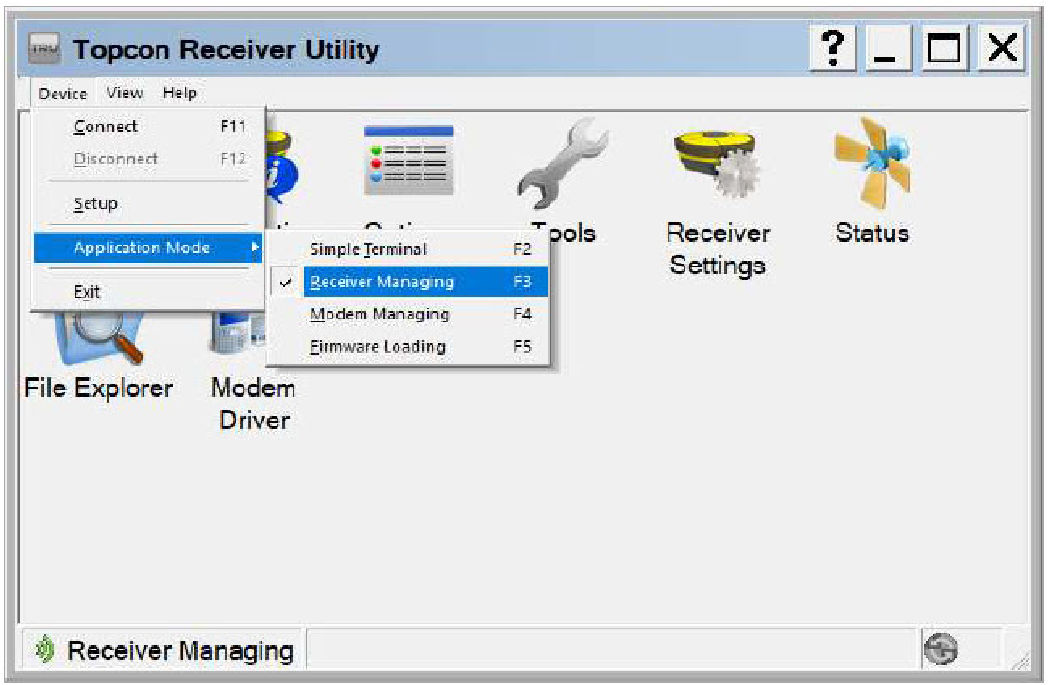
  2. Select DeviceApplication ModeReceiving Managing.
    ADDITIONAL INFORMATION:
    Figure: Receiver managing
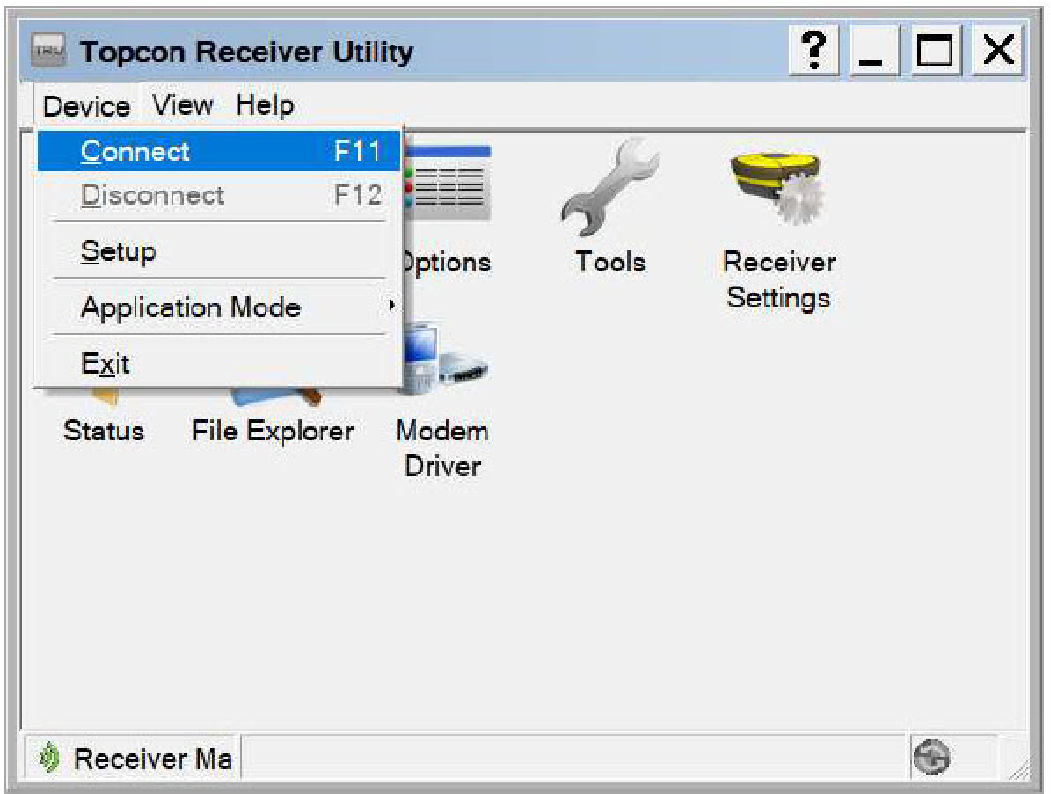
  3. Select DeviceConnect.
    ADDITIONAL INFORMATION:
    Figure: Device connect
  4. Select Network from the Connect Using drop-down list.
  5. In the Device Name, select to select the device name of the connected GNSS receiver board.
  6. If a Device Name has not been configured:
  7. Select .
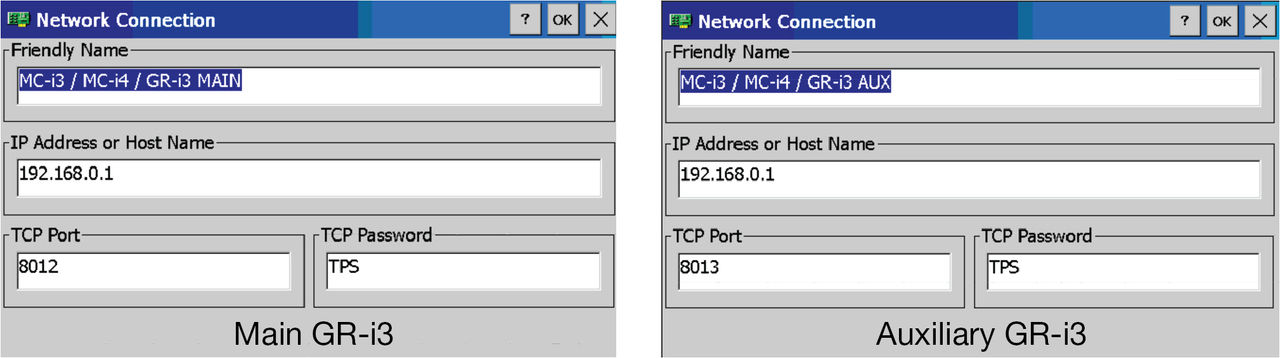
  8. Press and hold the white area of the screen. Select Add. The Network Connection screen appears.
    ADDITIONAL INFORMATION:
    Figure: Network connection
  9. Enter a Friendly Name to identify the Main GNSS board.
  10. Enter the network parameters for the Main GNSS board:
    ADDITIONAL INFORMATION:
    • IP Address or Host Name: 192.168.01
    • TCP Port: 8012
    • TCP Password: TPS
  11. Select OK.
  12. Repeat steps 4 through 10 for the Auxiliary GNSS board.
    ADDITIONAL INFORMATION:
    Note: The TCP Port for the Auxiliary GNSS board is 8013.
  13. Select Connect.
  14. Select the Tools icon.
  15. Select Factory Reset. A pop-up message is displayed. Select OK.
  16. After both GNSS boards have been reset, close TRU.
  17. Open the Machine Control Gateway and select Reboot.
  18. Perform MC-X Controller reboot.

myTopcon NOW! support

Take your Topcon experience to the next level with myTopcon NOW! This platform is a self-service tool for your desktop or mobile device. 

Product manuals
paper icon
Communications
phone icon
E-learning
hat icon
Quick start guides
support icon
Firmware & software updates
cloud icon
Troubleshooting
webinars icon