The new myTopcon experience is now available. Please click here to access and start using all your apps. The legacy version will still be accessible until April 15th 2026.

Update MC-X firmware

The MC-X firmware is specified for MC-X1 and MC-X3. If you select the incorrect file, the load operation will not occur. The filename will contain X1 or X3. Make sure to choose the correct file.
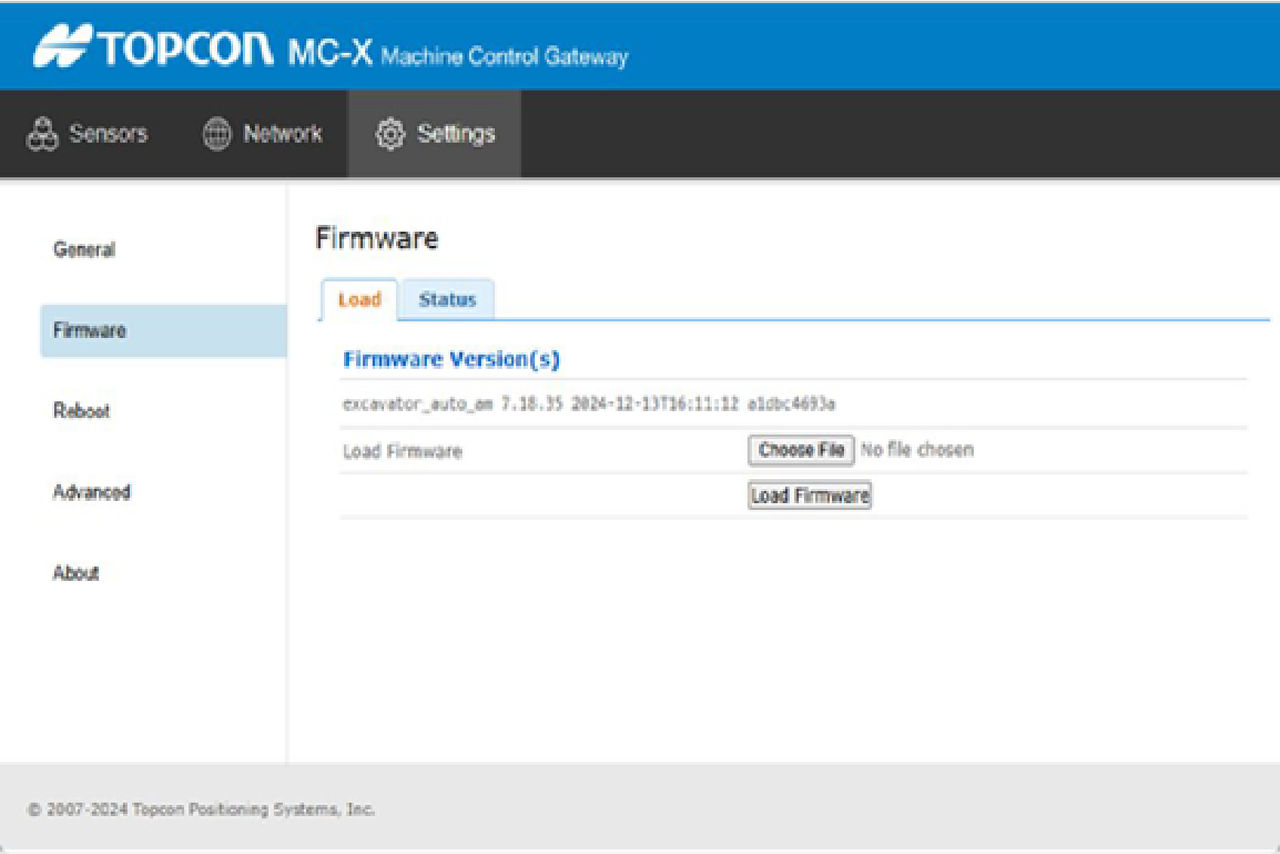
Update MC-X firmware

The MC-X firmware must be updated two times. The MC-X1 has two copies of the base firmware, the Main image and the Recover image and one copy of the application image. The second base firmware copy, the Recovery image, is used as a backup in the event of an issue or problem with the Main image firmware. It is necessary to upgrade twice to make sure that versions of the Main image firmware and the Recovery image firmware match. If the firmware of the Main image and the Recovery do not match, the system will not function and the message “controller offline” shows in 3D-MC. Firmware is not backward compatible and a mismatch between the Main image and Recovery image firmware will fail. Copy the firmware file to the touchscreen display or computer.
  1. Enter the MCX-Config.
  2. Select SettingsFirmwareLoad. This screen shows the installed firmware version on the MCXW controller.
  3. Select Choose File. The File Explorer dialog opens.
  4. Locate and select the appropriate controller firmware for the MC-X (.bin file extension).
  5. Select Load Firmware.
    ADDITIONAL INFORMATION:
    Note: Do not close the web browser or power off the system during the firmware upload process.
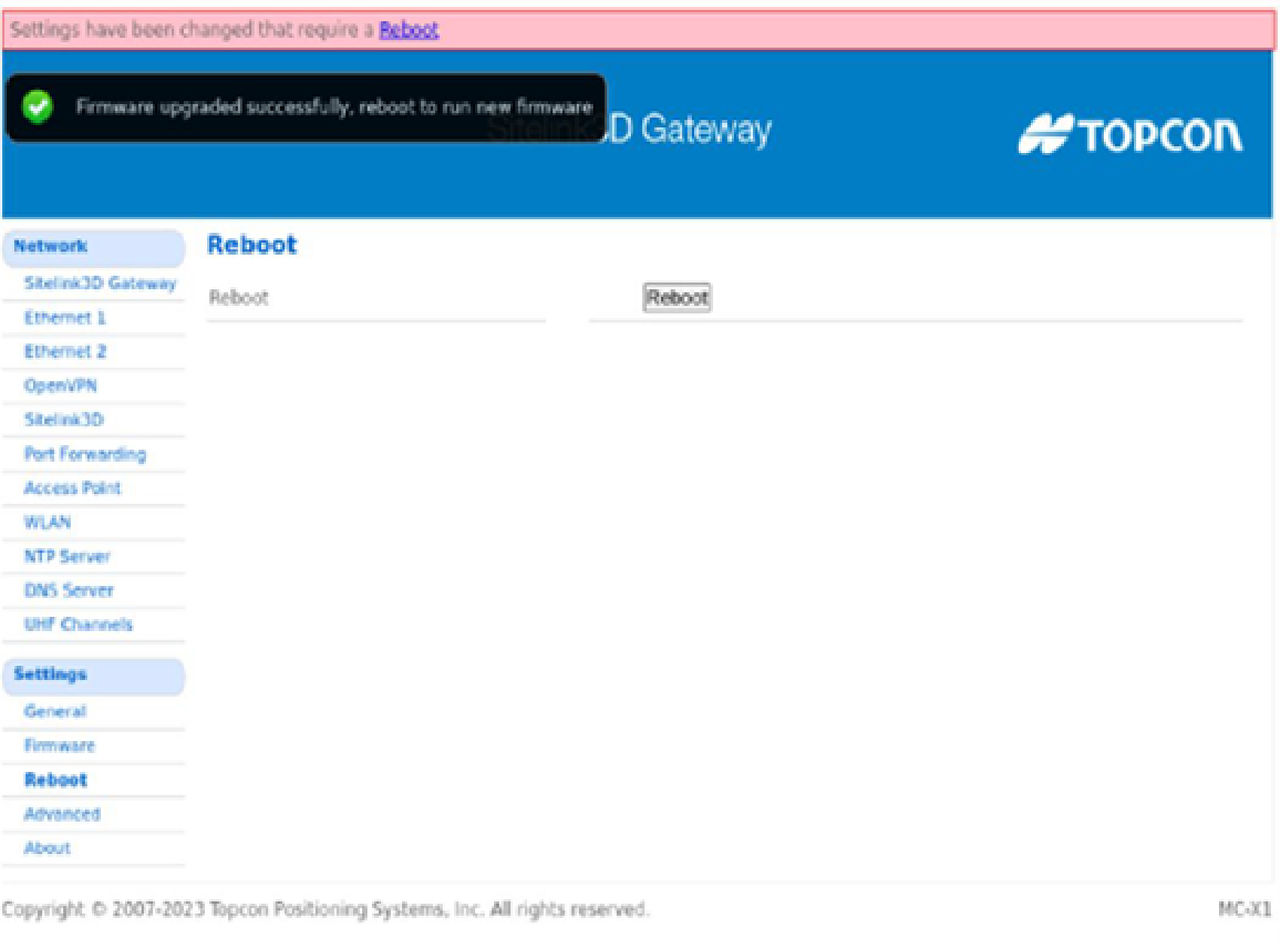
  6. Select Reboot to complete the firmware upgrade process.
    ADDITIONAL INFORMATION:
    ADDITIONAL INFORMATION:
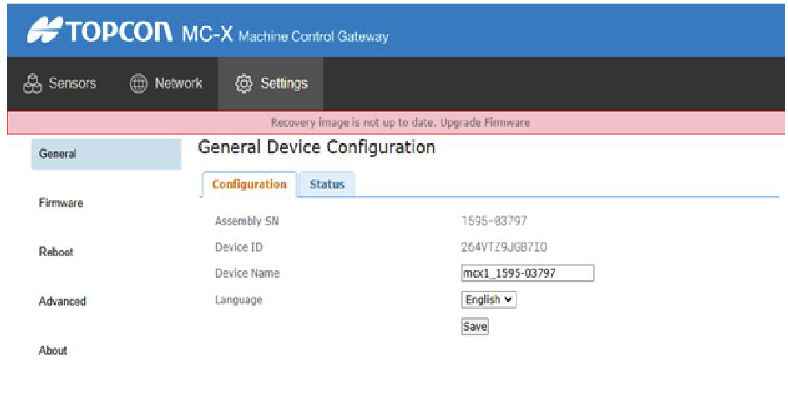
    The MC-X1 reboots. If the Recovery image is outdated, a warning message shows that a second firmware update is necessary. Repeat steps 2 through 6 to update the firmware.
    Note: If the system is shut down or rebooted before the second update completes, a system mismatch will occur that produces a system failure. If the system reboots twice after the first update, start again and go through two complete updates to make sure that the firmware matches.
    If a warning message does not appear, the BASE and RECOVERY images match and no more firmware updates are necessary.

myTopcon NOW! support

Take your Topcon experience to the next level with myTopcon NOW! This platform is a self-service tool for your desktop or mobile device. 

Product manuals
paper icon
Communications
phone icon
E-learning
hat icon
Quick start guides
support icon
Firmware & software updates
cloud icon
Troubleshooting
webinars icon