
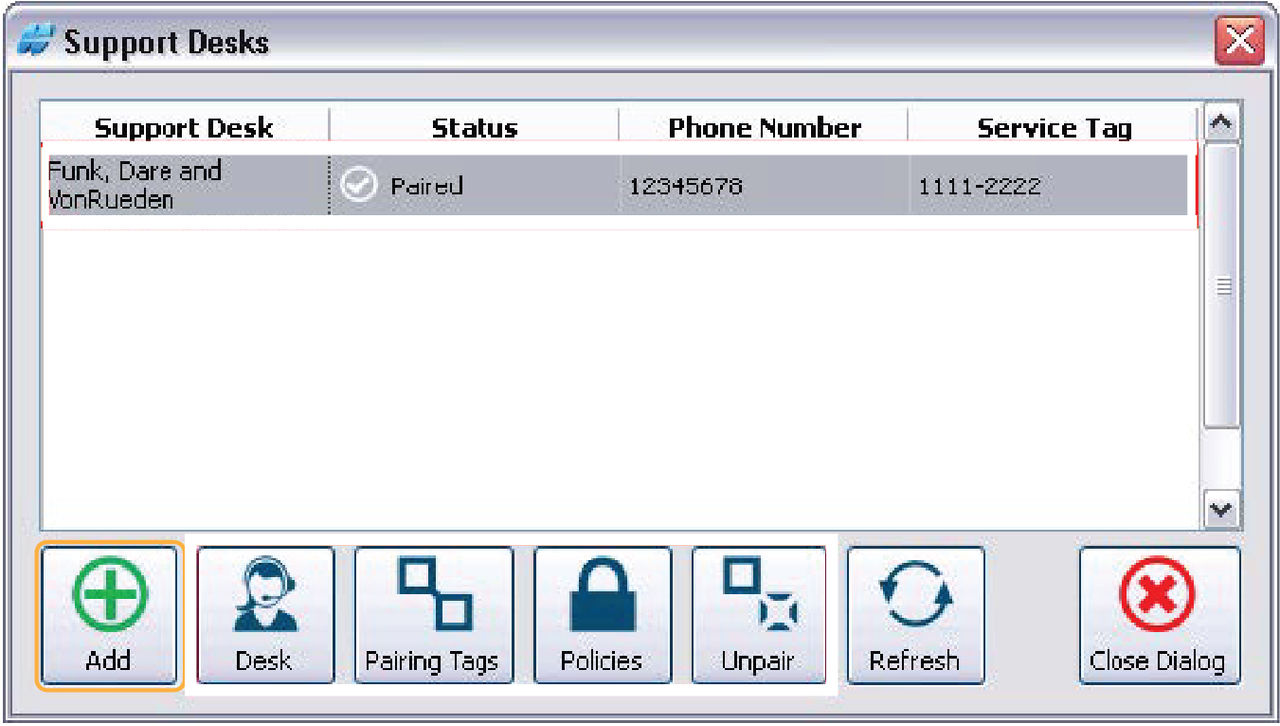
- Select .ADDITIONAL INFORMATION:
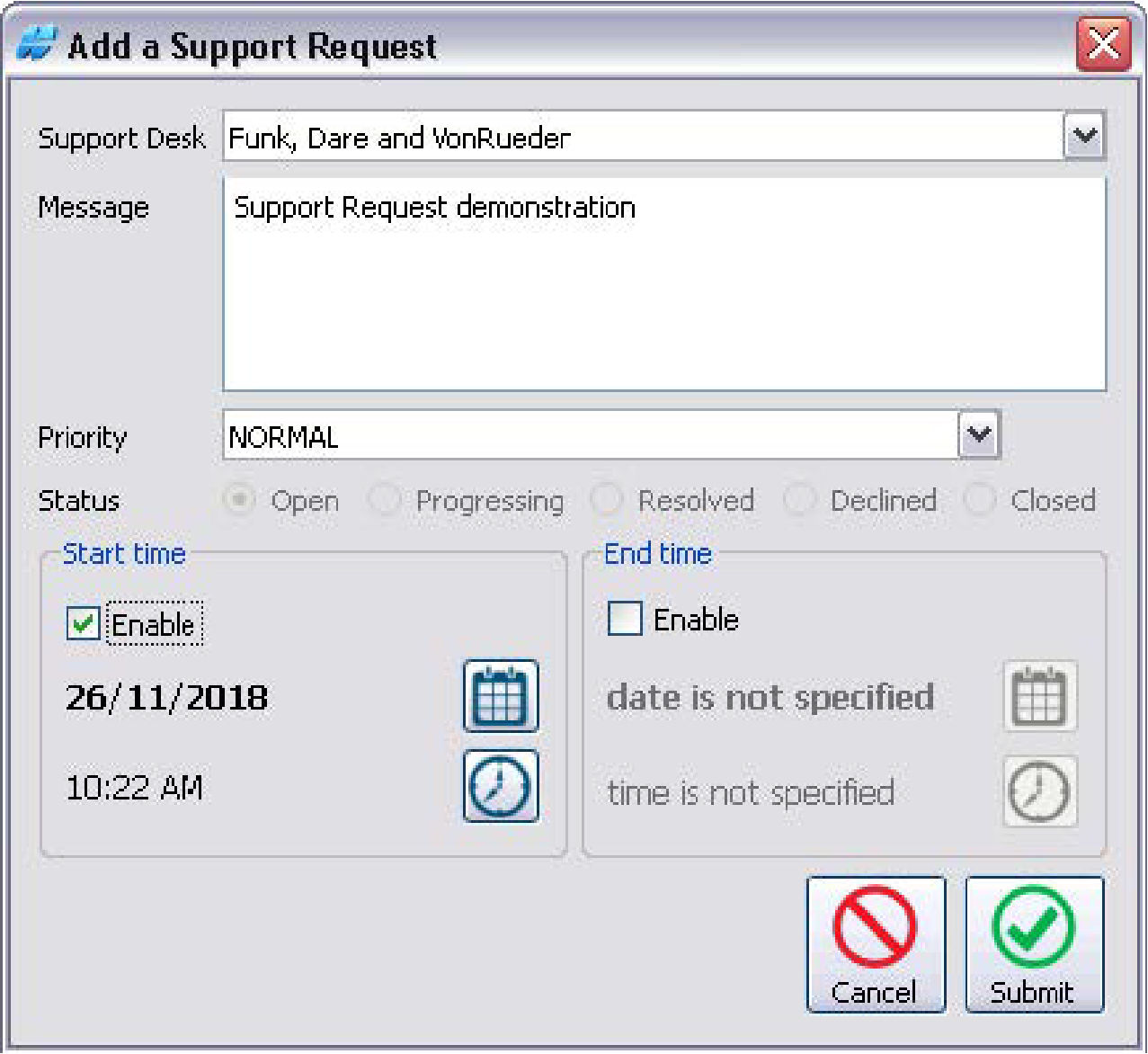
- Select the Support Desk to submit the support request.
- Enter a description of the support required in the Message location.ADDITIONAL INFORMATION:Be as detailed and accurate as possible when you enter this message.
- Select the priority of the support request from the drop-down list.
- Select the status to change it at any point after you submit the request.ADDITIONAL INFORMATION:Both the Remote Support Client and Support Desk can change the status of a support request.
- Select the following optional settings:ADDITIONAL INFORMATION:
- Start time: select Enable and set a date and time after which it is convenient to receive support
- End time: select Enable and set a date and time after which it is inconvenient to receive support
- Select Submit. ADDITIONAL INFORMATION:
Previous:
Support desks pairings
Next:
Installation
myTopcon NOW! support
Take your Topcon experience to the next level with myTopcon NOW! This platform is a self-service tool for your desktop or mobile device.





