
- Insert a USB drive that has the firmware update file into your display or computer.
- Copy the firmware file to the local drive.
- Remove the USB drive.
- Select .
- Select Choose File.ADDITIONAL INFORMATION:The Windows Explorer dialog opens.
- Find and select the applicable controller firmware for the MC-X.
- Select Load Firmware.ADDITIONAL INFORMATION:
Figure: MC-X gateway firmware tab 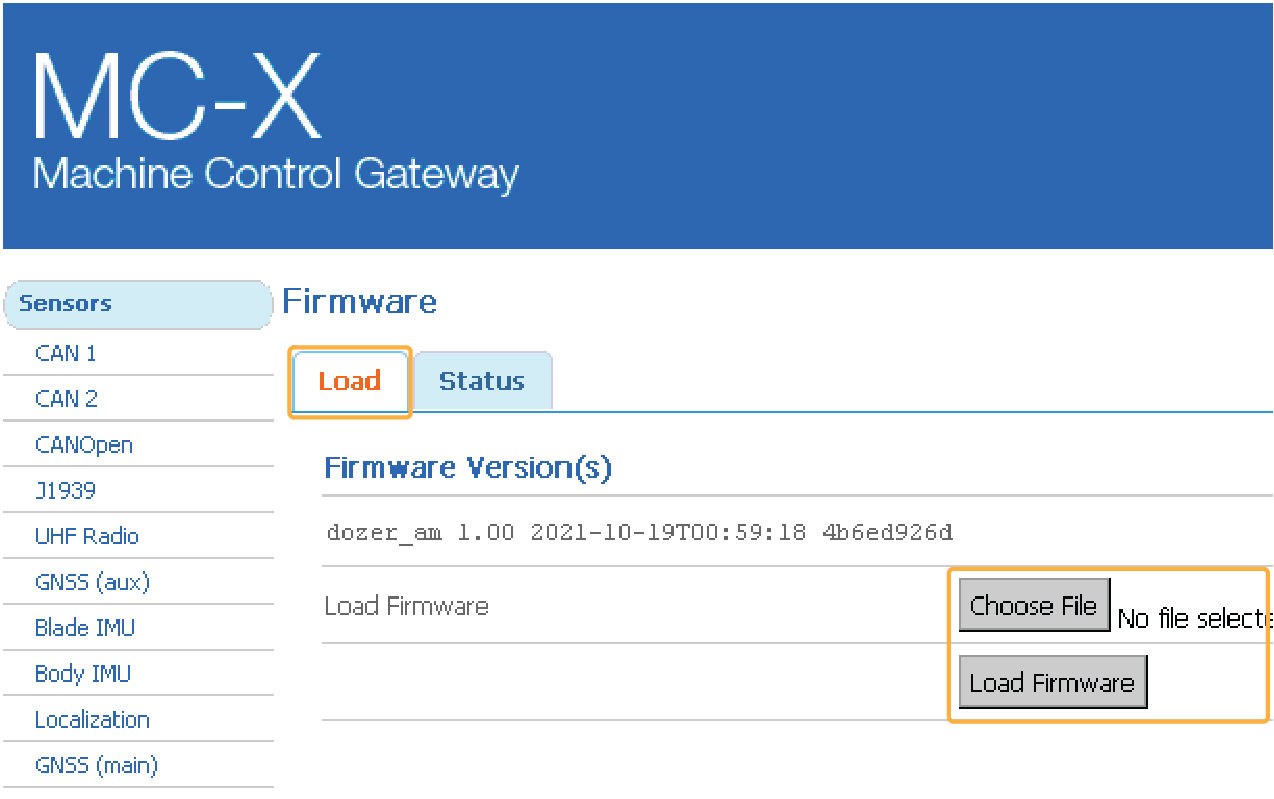 Caution:Do not close the web browser or set the system power to OFF during the firmware upload process.Note:When the upload process is complete, the system tells you to restart the controller.
 - Select Reboot to complete the firmware upgrade process.ADDITIONAL INFORMATION:
Figure: Restart the interface 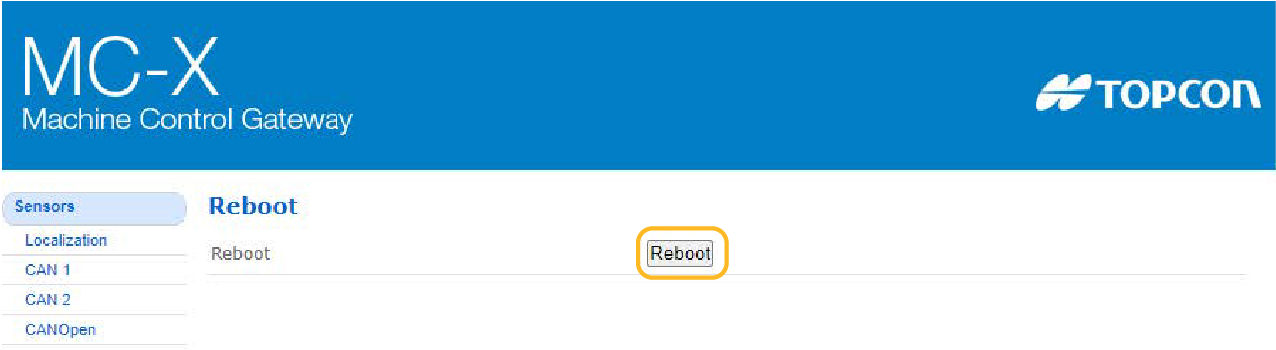
Previous:
View general information and firmware
Next:
Reset the MC-X
myTopcon NOW! support
Take your Topcon experience to the next level with myTopcon NOW! This platform is a self-service tool for your desktop or mobile device.





