
- Select tab.ADDITIONAL INFORMATION:A list of log files shows.
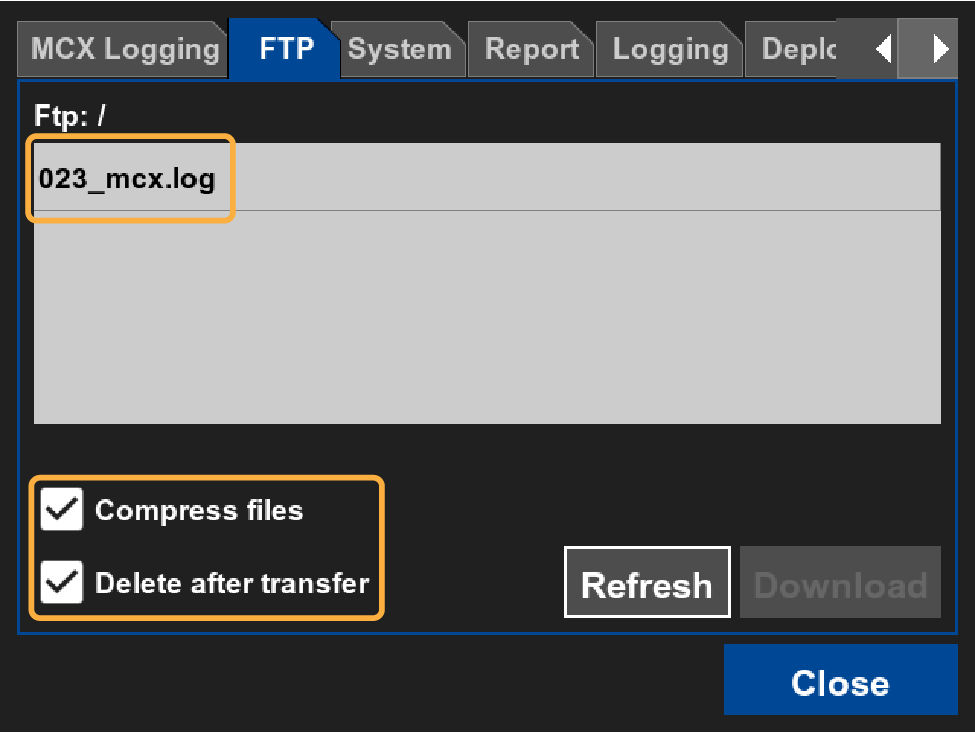
- Insert the USB device into the USB port on the GX-Series display to transfer the log file from MC-Max.ADDITIONAL INFORMATION:If a USB storage device is not inserted into the GX-Series display, only the 3DMC folder is available as a save location for log files.
- Select the log file to transfer.
- Select the applicable checkboxes:ADDITIONAL INFORMATION:
- Compress files: compresses the transferred log file.
- Delete after transfer: deletes the log file after transfer is complete.
Topcon recommends that you compress the log file on transfer. Compressed files are saved as a tar.gz files. - Select Download.ADDITIONAL INFORMATION:The Save Incident Report dialog shows.
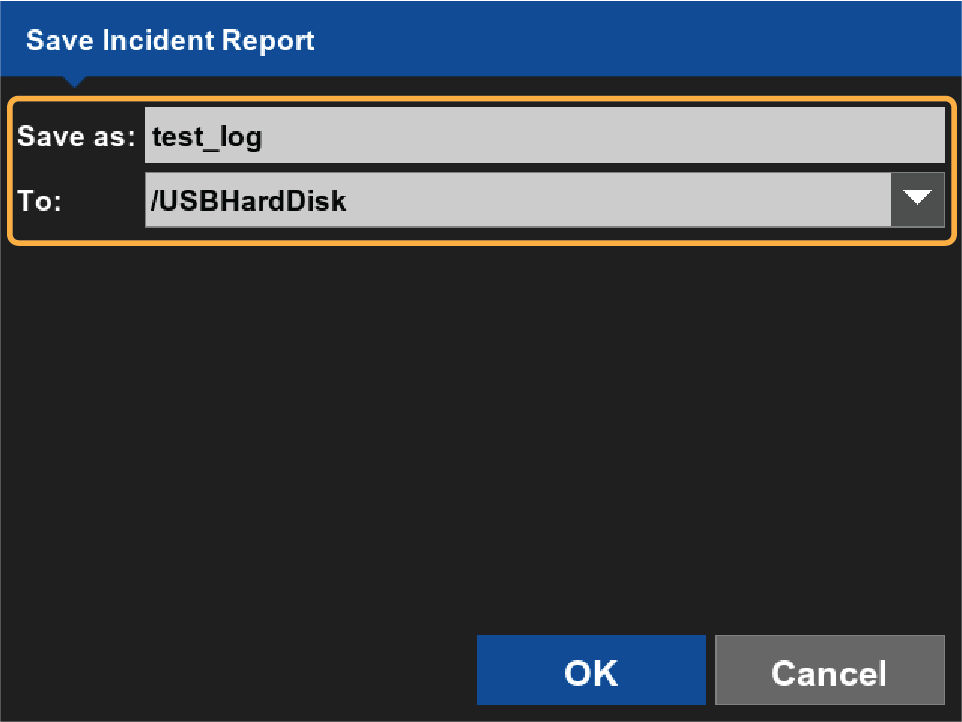
- Select Save as and enter a name for the log file.
- Select a location to save the log file.
- Select OK.ADDITIONAL INFORMATION:The log file downloads to the selected location (either the 3D-MC folder on the GX-Series display or USB drive).
- Open a support request with Topcon Professional Services.
- Use Topcon.wetransfer.com to email the log folders to support@topcon.com.ADDITIONAL INFORMATION:Make sure to include the case number of the support case in the email.
Previous:
Stop logging
Next:
Troubleshooting
myTopcon NOW! support
Take your Topcon experience to the next level with myTopcon NOW! This platform is a self-service tool for your desktop or mobile device.





