
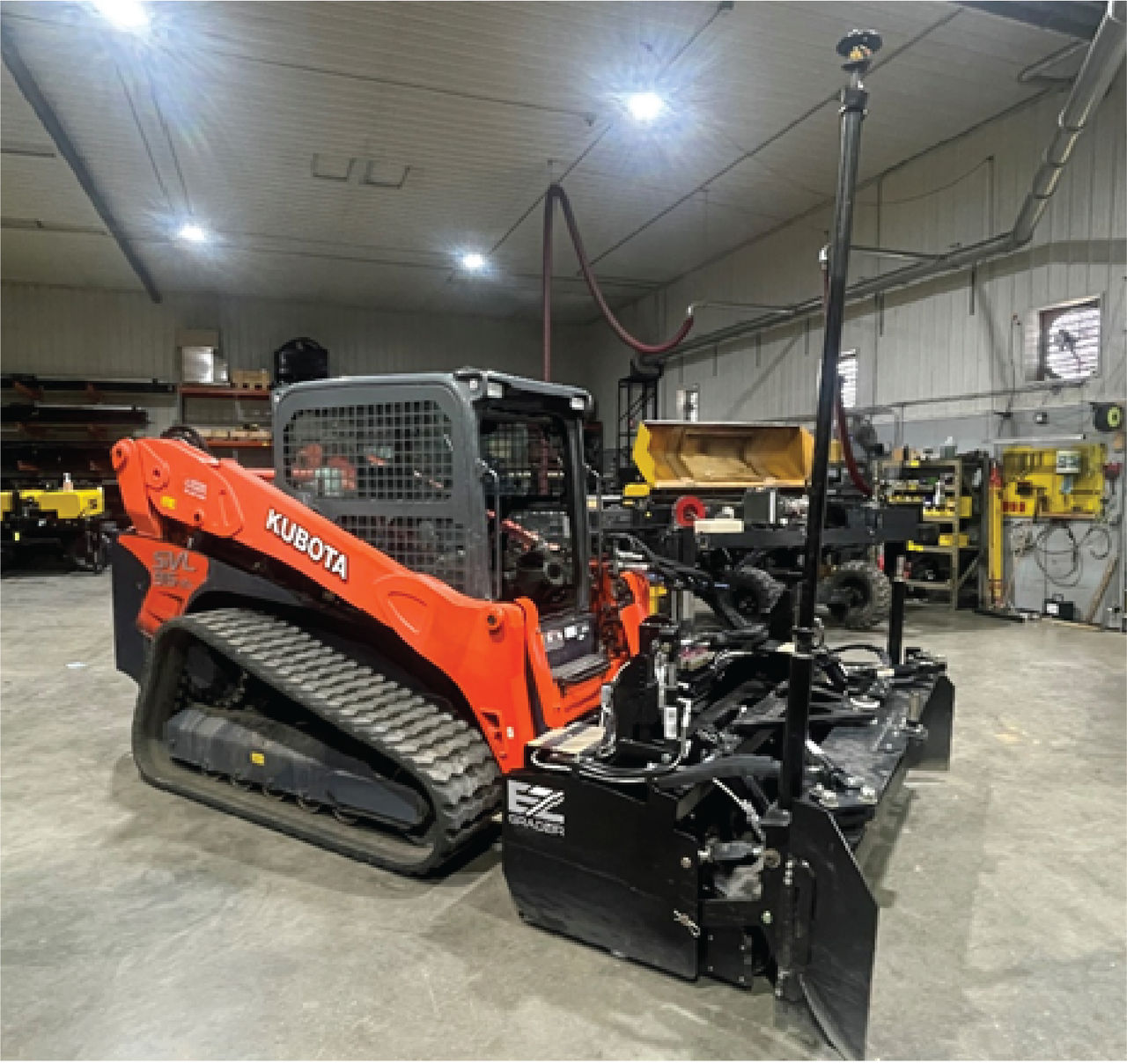
- Connect the attachment to the machine using the hitch plate tilt. Make sure that the attachment is fully locked to the hitch plate with both the left and right lock pins fully engaged.
- Tilt the hitch plate in and out to make sure nothing is loose between the attachment mount plate and the machine hitch plate.
- Connect the two hydraulic lines from the Ligchine Box Blade attachment to the machine quick connect couplers. There is a click sound when they are fully seated. Give the hoses a careful tug to make sure that they are locked into place.
- Connect the 14-pin female end of Ligchine harness to the machine 14-pin male connector. Line up the tabs and twist to tighten in place. Make sure that the connector is fully seated into the plug.
- Each CTL make and model has different pin-outs on the machine 14-pin connector. The correct harness and pin-out must be obtained from Ligchine. This connection is used to supply power to the controller on the attachment.ADDITIONAL INFORMATION:Ligchine supplies a remote to control the blade from the cab.
- Examine the machine surroundings and then start the machine. Lower the safety lap-bar and remove lock or parking brake to let machine movement.ADDITIONAL INFORMATION:Note: The Ligchine Box Blade requires continuous flow of hydraulic fluid from the machine to the attachment. Each machine has a unique button sequence to enable continuous flow. Refer to the Ligchine documentation or videos for applicable information. After the unique button sequence is determined, make a note of the steps for the customer on how to send continuous flow.
- Make sure that all machine functions are operating normally. The Topcon system will not operate unless all manual blade functions are working. Do not continue with installation until this is confirmed.
Previous:
Ligchine box blade installation
Next:
System installation
myTopcon NOW! support
Take your Topcon experience to the next level with myTopcon NOW! This platform is a self-service tool for your desktop or mobile device.





