
You can select preconfigured surface and alignment data through Sitelink. If the surface and alignment are not configured, you can do this in 3D-MC. You can also configure materials and delays (if necessary).
- Select , then Surface, Alignment, Operator, Material, Delay, or As-Built in 3D-MC.ADDITIONAL INFORMATION:Each dataset has a separate screen in 3D-MC.
Figure: Active submenu 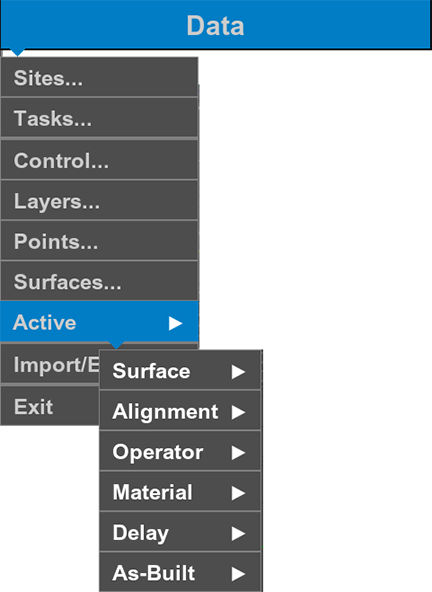
- Select .
- Select a task, then select
 to open the Edit Task screen in Sitelink.ADDITIONAL INFORMATION:If necessary, enter or adjust entries in the Client Default Alignment, Client Default Surface, and Client Default Elevation Offset fields. You can select the necessary Materials radio button and select the necessary Client Default value from the drop-down list. If necessary, select the necessary checkbox to lock the Client Default Alignment and/or Client Default Surface.
Figure: Sitelink edit task 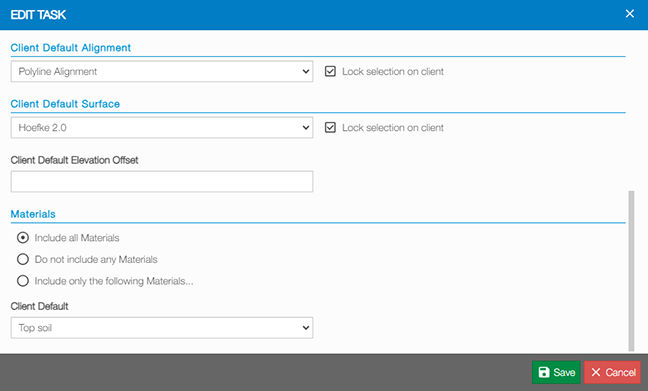
- Select to open the Metadata screen.ADDITIONAL INFORMATION:You can configure different operators. An operator can select their name during machine operation. The example below shows a machine with several operators.
Figure: Metadata 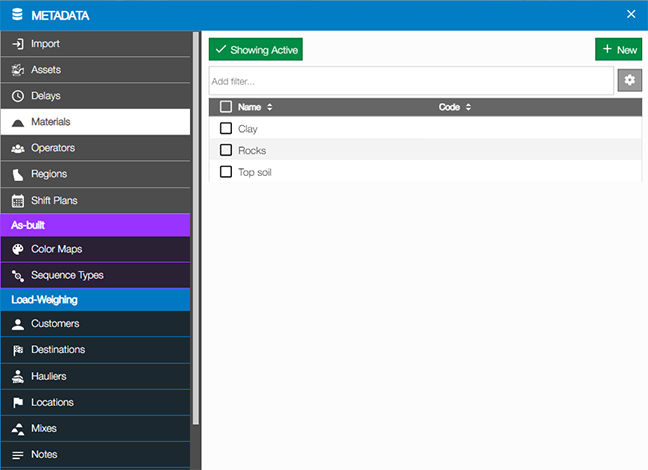
Previous:
3D-MC task selection
Next:
Sequence
myTopcon NOW! support
Take your Topcon experience to the next level with myTopcon NOW! This platform is a self-service tool for your desktop or mobile device.





