
The hotspot, location, and Bluetooth settings must be correctly configured on CTX2 to let the data flow between the MC-X1 and the 3D-MC software on the CT8X2 display.
- Start the 3D-MC app on the mobile device (if not already started).ADDITIONAL INFORMATION:During a new configuration, the machine shows a red “Waiting for Connection” status message. If there is no connection, the message shows “Controller Offline.”
- Select .ADDITIONAL INFORMATION:
Figure: Control menu 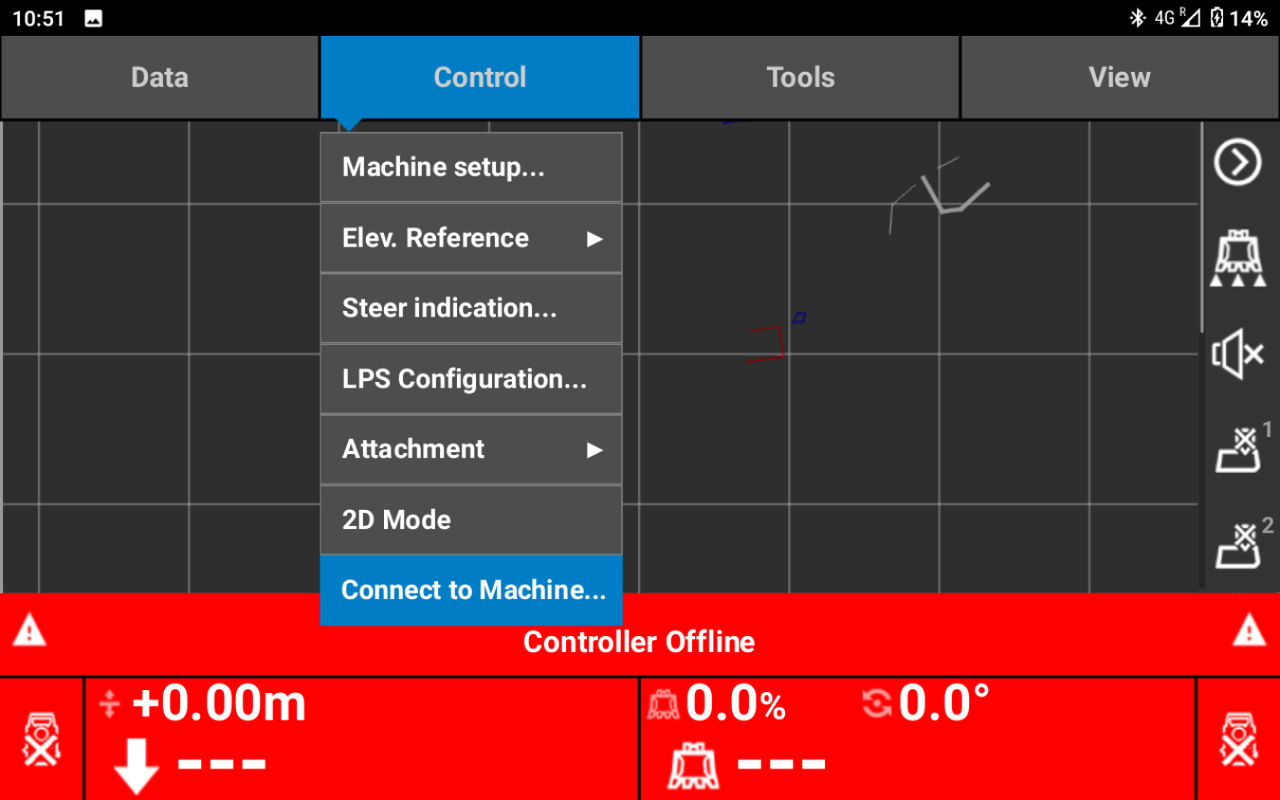 The Connect to Machine screen opens.
 - Select Settings for access to the mobile hotspot settings.ADDITIONAL INFORMATION:
Figure: Connect to machine 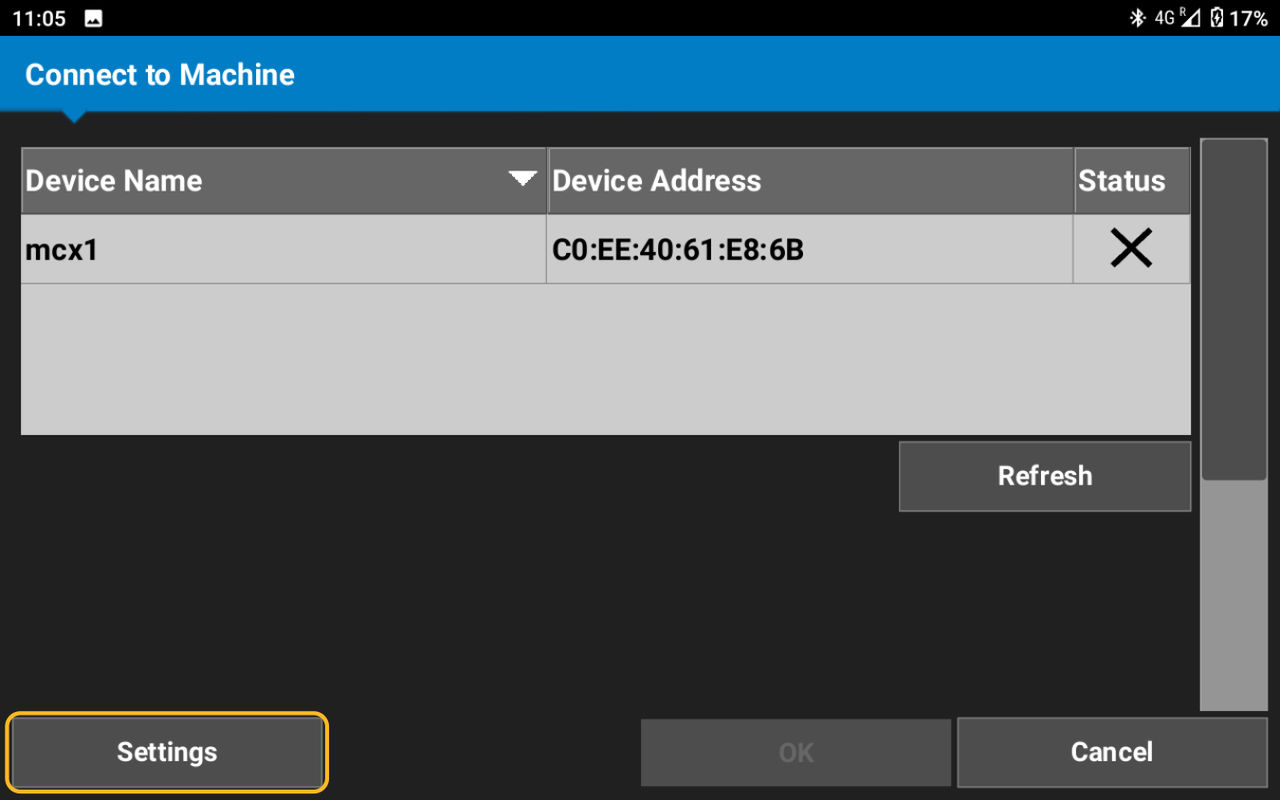 The hotspot configuration is only necessary for the first connection. If a hotspot is already configured, go directly to Step 10.
 - Select Network & Internet.ADDITIONAL INFORMATION:
Figure: Network and Internet settings 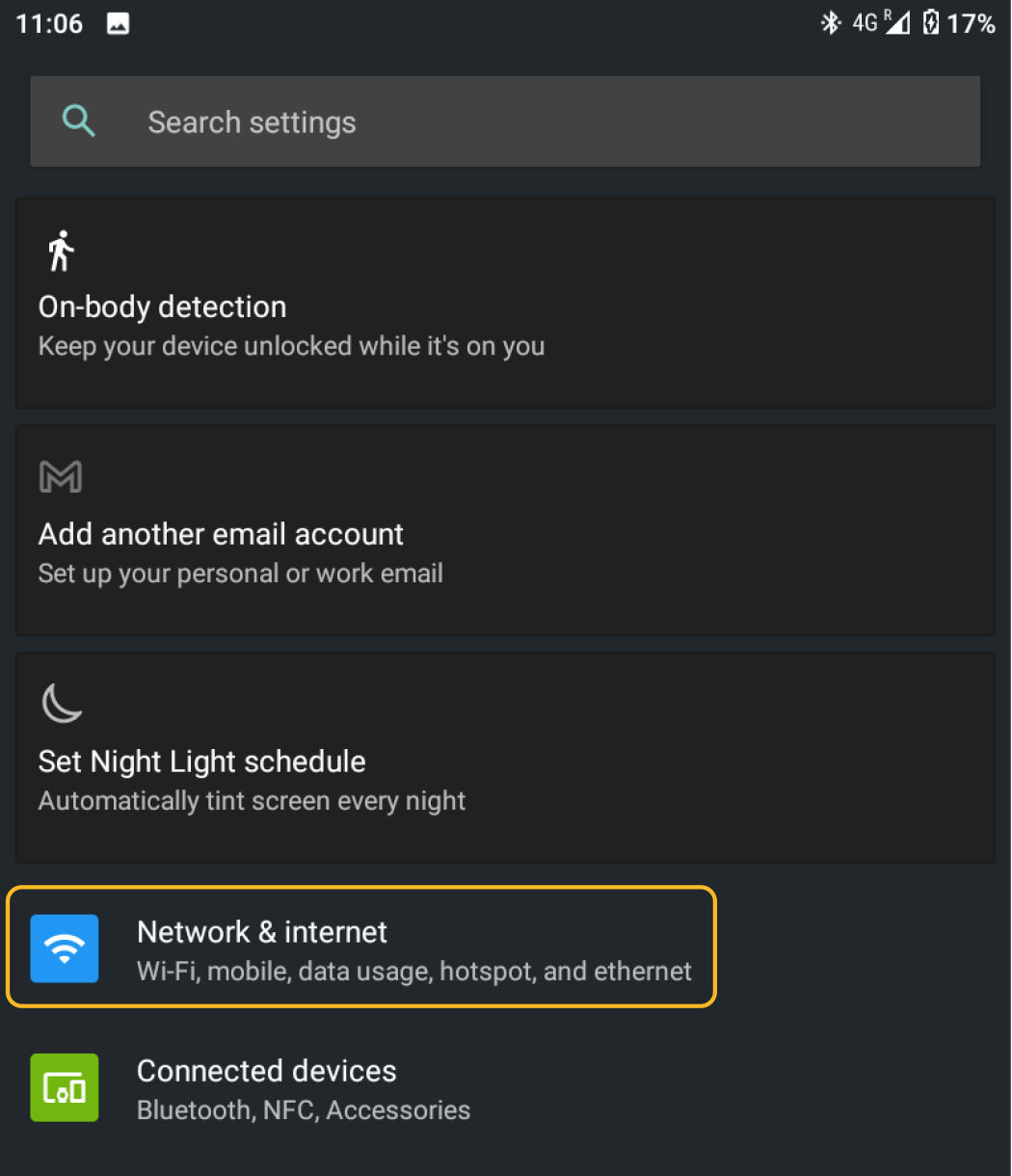
- Select Hotspot & tethering.ADDITIONAL INFORMATION:
Figure: Hotspot and tethering 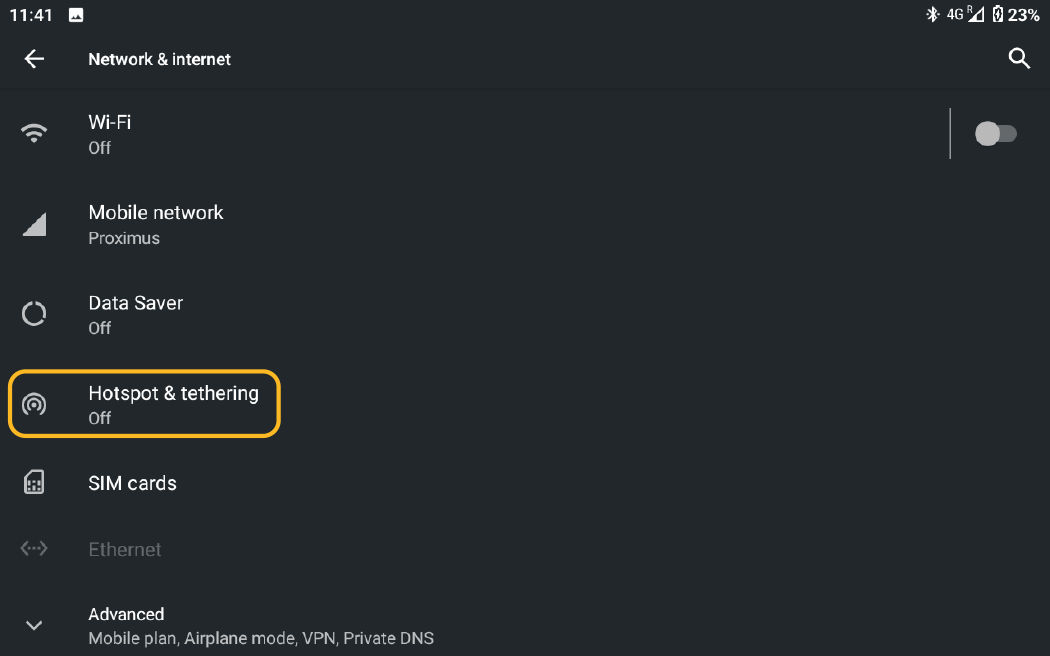
- Select Wi-Fi Hotspot.ADDITIONAL INFORMATION:
Figure: Wi-Fi hotspot 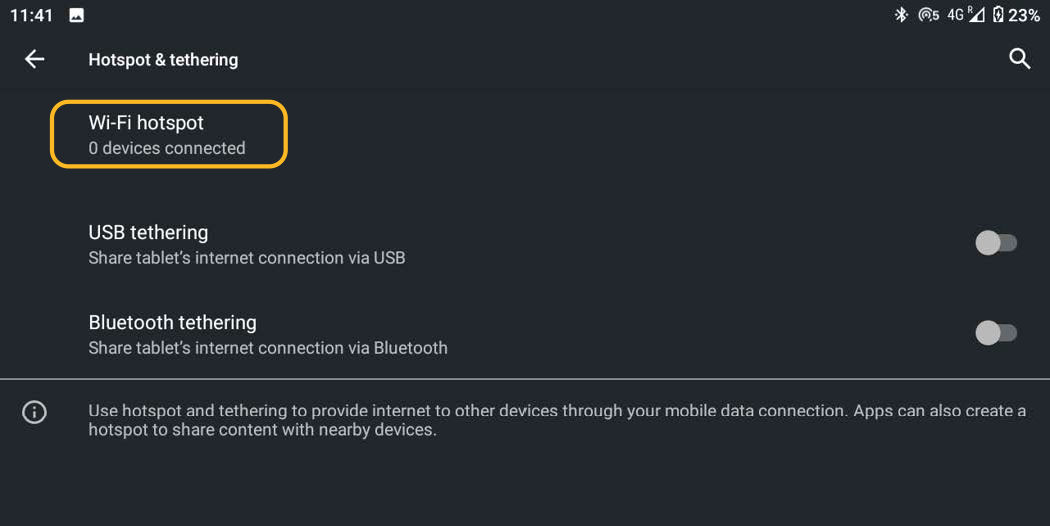
- Activate the Wi-Fi Hotspot.ADDITIONAL INFORMATION:
Figure: Activate Wi-Fi hotspot 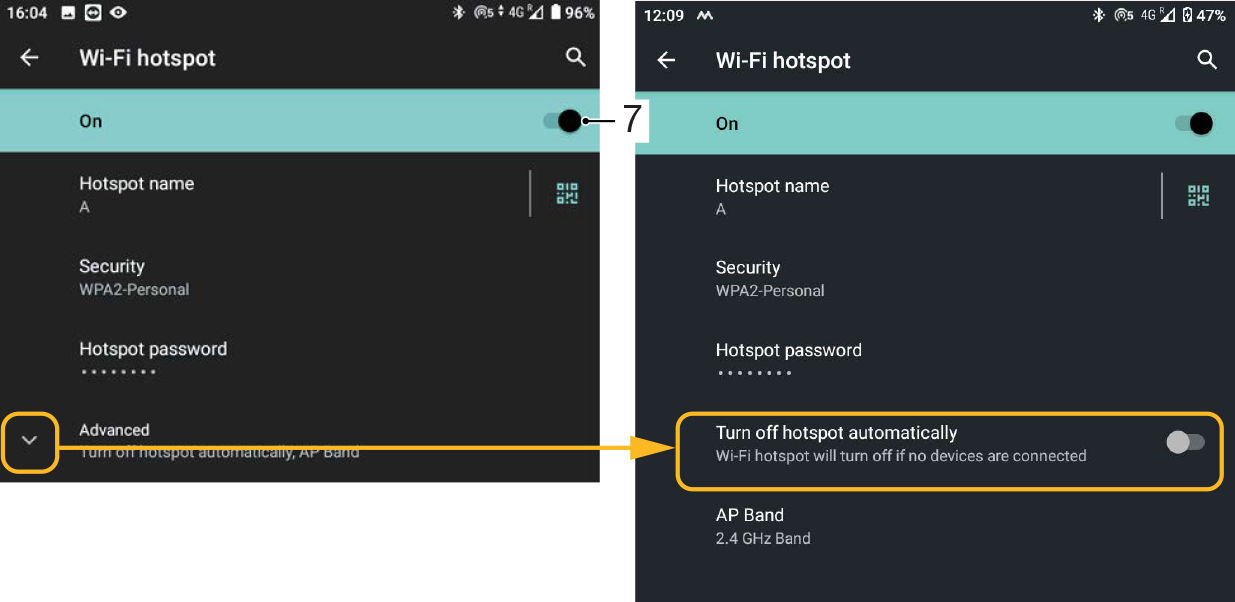 Topcon recommends that you enable the hotspot permanently.
 - Disable Turn off hotspot automatically on the Advanced screen (optional).
- Create a Hotspot username and password. Keep them at hand for steps 11 and 12.ADDITIONAL INFORMATION:3D-MC automatically scans for all available MC-X devices. The default device name is mcx1 or mcx3, for each model.
- Select the device from the Device Name drop-down list.ADDITIONAL INFORMATION:
Figure: Device name 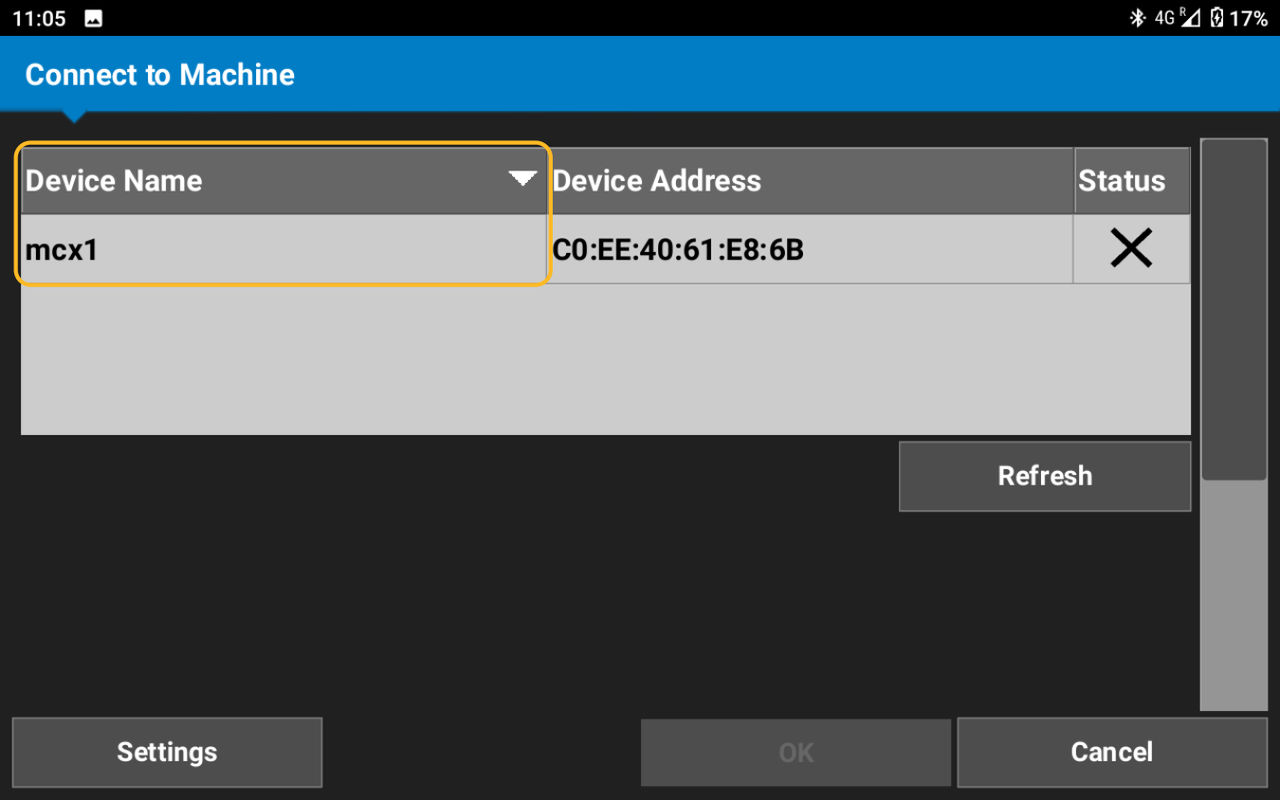 The Hotspot settings screen opens.
 - Enter the Hotspot username.
- Enter the hotspot Password.ADDITIONAL INFORMATION:
Figure: Hotspot and password 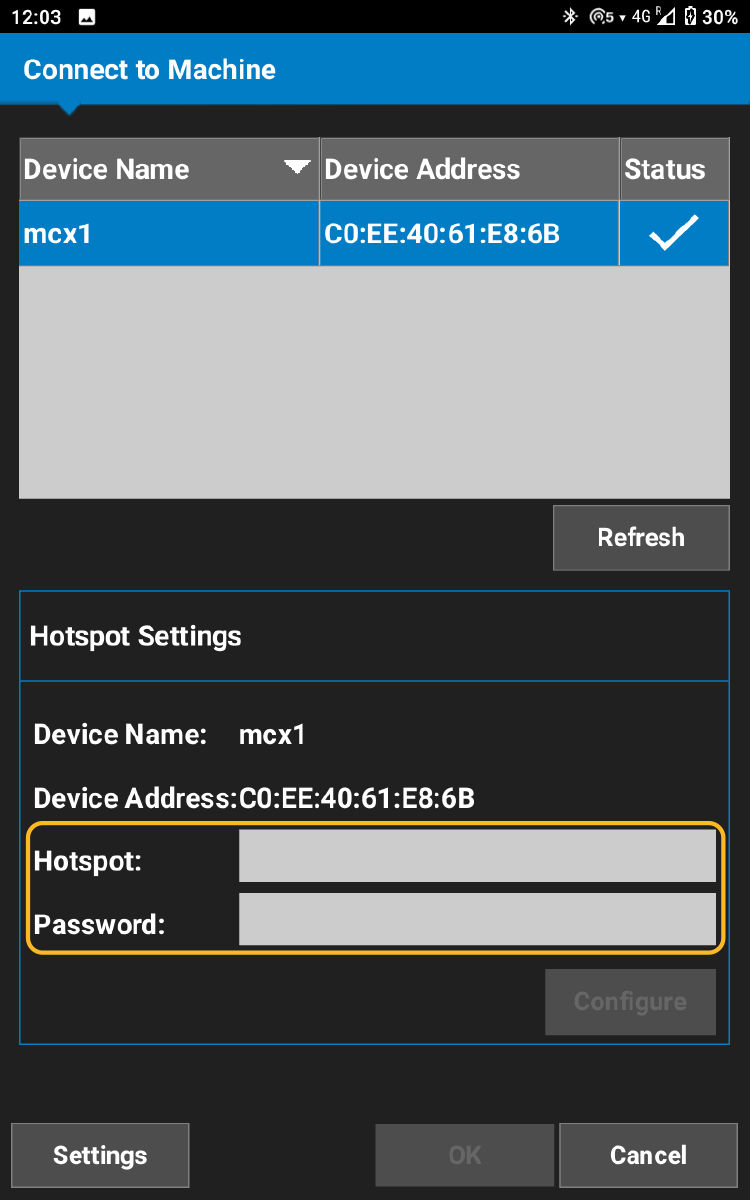
- Select on the MCX-Config page to change the device name (optional).ADDITIONAL INFORMATION:
Figure: MC-X1 device name 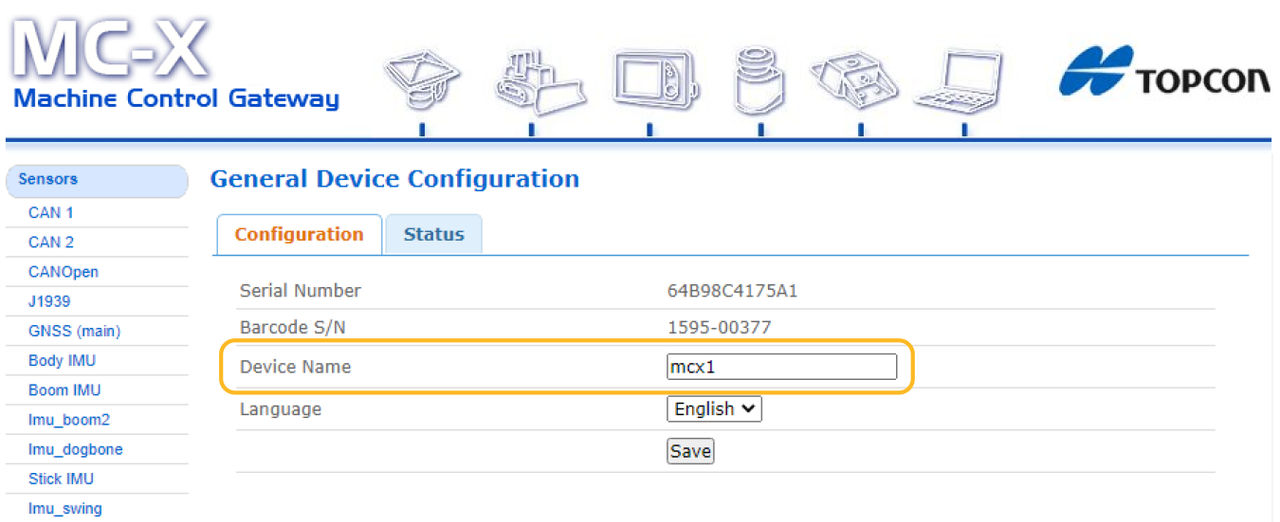 Make sure you enter the username and password correctly to enable communication.The Connect to Machine screen opens.
 - Select OK to return to the 3D-MC main screen.ADDITIONAL INFORMATION:
Figure: Device connected 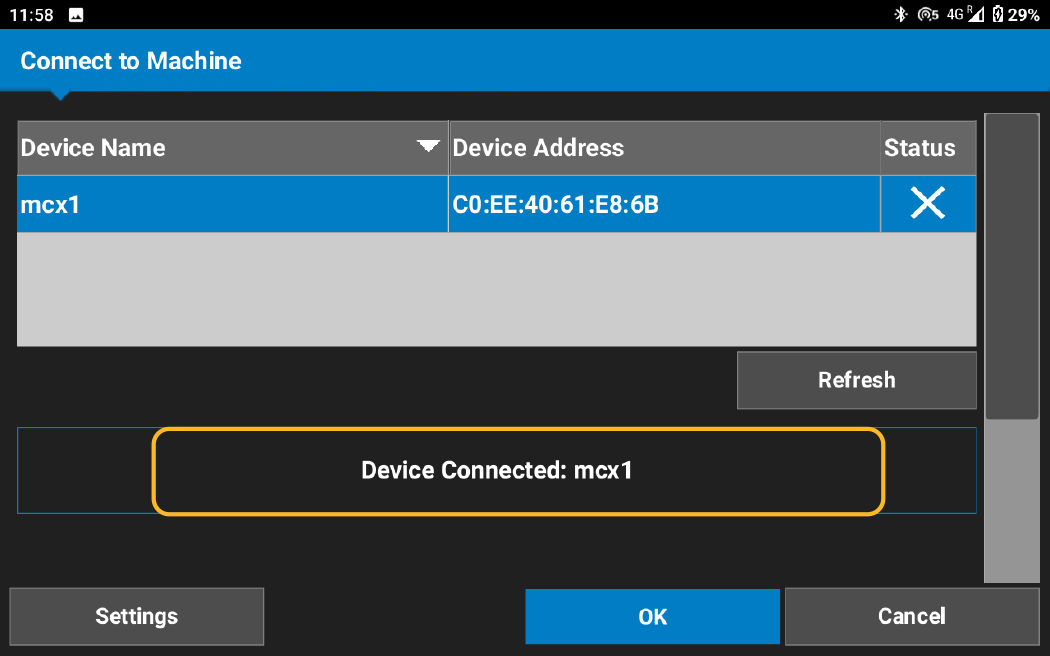
- Select from the main menu to stop all communications correctly between the MC-X1, the CT8X2 Android device, and the Total Station.
Previous:
Pair the CT8X2 wireless display
myTopcon NOW! support
Take your Topcon experience to the next level with myTopcon NOW! This platform is a self-service tool for your desktop or mobile device.





