
Communication between the CT8X2 and MC-X1 uses a pairing process to enable subsequent connections between MC-X1 and the CT8X2.
First connection
3D-MC tells you to do the pairing process first. It creates a trusted relationship between the CT8X2 and the MC-X1.
Notice:
You must follow the onscreen instructions to successfully complete the pairing process to have a connection between the CT8X2 and the MC-X1.
Subsequent connections
Subsequent connections are automatic after a successful pairing. This happens when the paired CT8X2 and MC-X1 are online. Active communication occurs between a paired CT8X2 and MC-X1.
If an automatic connection fails the system gives you two options: Pair to Machine and Connect to Machine.
Controls
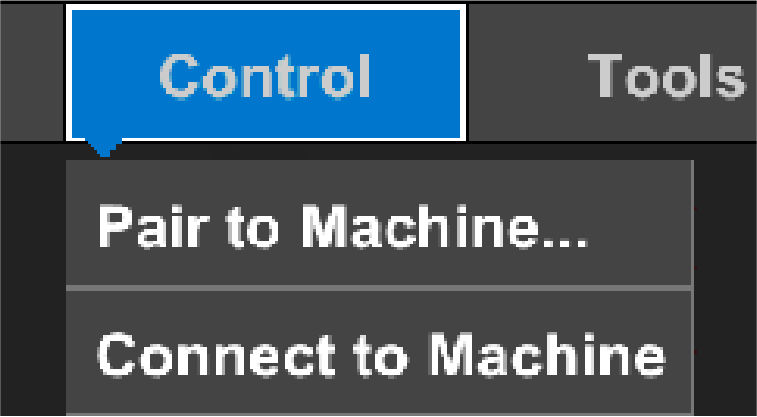
| Pair to Machine | This starts the pairing process. You must enter your username and password. Pair to Machine is necessary if the CT8X2 is used with another machine. |
| Connect to Machine | This process uses your saved username and password to connect to the machine. If this process fails, you must complete Pair to Machine again. |
Note: If a different CT8X2 display uses the MC-X1, a warning shows when the auto-pairing process starts. If you continue the pairing process, the system disconnects the currently connected CT8X2.
MC-X1 already connected to another device
If the MC-X1 is connected to a different CT8X2 and auto pairing process starts, a warning message shows:
Warning:
The MC-X1 is already connected to a different CT8X2. Would you like to reconfigure?
If you select Yes, the system starts the pair to machine process and disconnects the currently connected CT8X2.
Previous:
Connect to CT8X2 wireless display
Next:
Excavator user interface
myTopcon NOW! support
Take your Topcon experience to the next level with myTopcon NOW! This platform is a self-service tool for your desktop or mobile device.





