
The excavator user interface has configurable layouts, shows indicators and the main menu, and gives quick access to frequently used controls and configuration options.
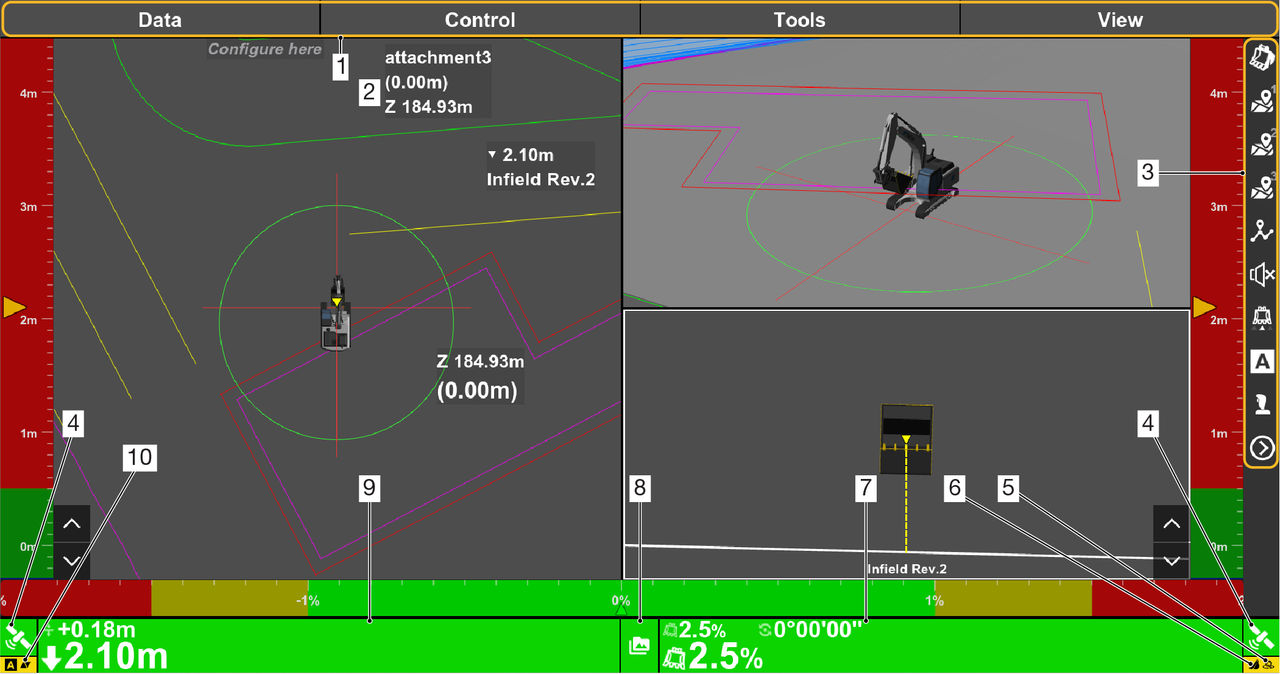
- Main menu – top level menu
- Main screen – excavator user interface with adjustable layout
- Shortcut bar
- 2D/3D Elevation Type and Status Indicator – shows the mode of operation and connection status
- Slope AUTO indicator – a yellow background shows and engaged AUTO
- Bucket AUTO indicator – a yellow background shows an engaged AUTO
- Slope Control button – shows the design slope, bucket tilt, bucket rotation, and opens the Reference Point screen
- Site Type and Status button/indicator – opens the Sites menu and shows the status icons of the active site
- Elevation Control button – shows cut/fill, offsets, and opens the Elevation screen when selected
- Elevation AUTO indicator – a yellow background shows an engaged AUTO
Controls on the shortcut bar enable, disable, or change the functionality of an option. Frequently used functions show as icons.
Previous:
Pairing versus connecting
Next:
Main screen layout
myTopcon NOW! support
Take your Topcon experience to the next level with myTopcon NOW! This platform is a self-service tool for your desktop or mobile device.





