
You can select a point for navigation/stakeout from a layer in the project file. To see a list of available points, select Data Points .
- From the main screen, select and hold the point.ADDITIONAL INFORMATION: A context menu opens.
- Select .ADDITIONAL INFORMATION: The Navigation wizard starts and shows the navigation information on the main screen.
- To stop the navigation to a point, select .
- Select the point.
- Select OK.ADDITIONAL INFORMATION: The main screen opens with stakeout information.
Figure: Points navigation 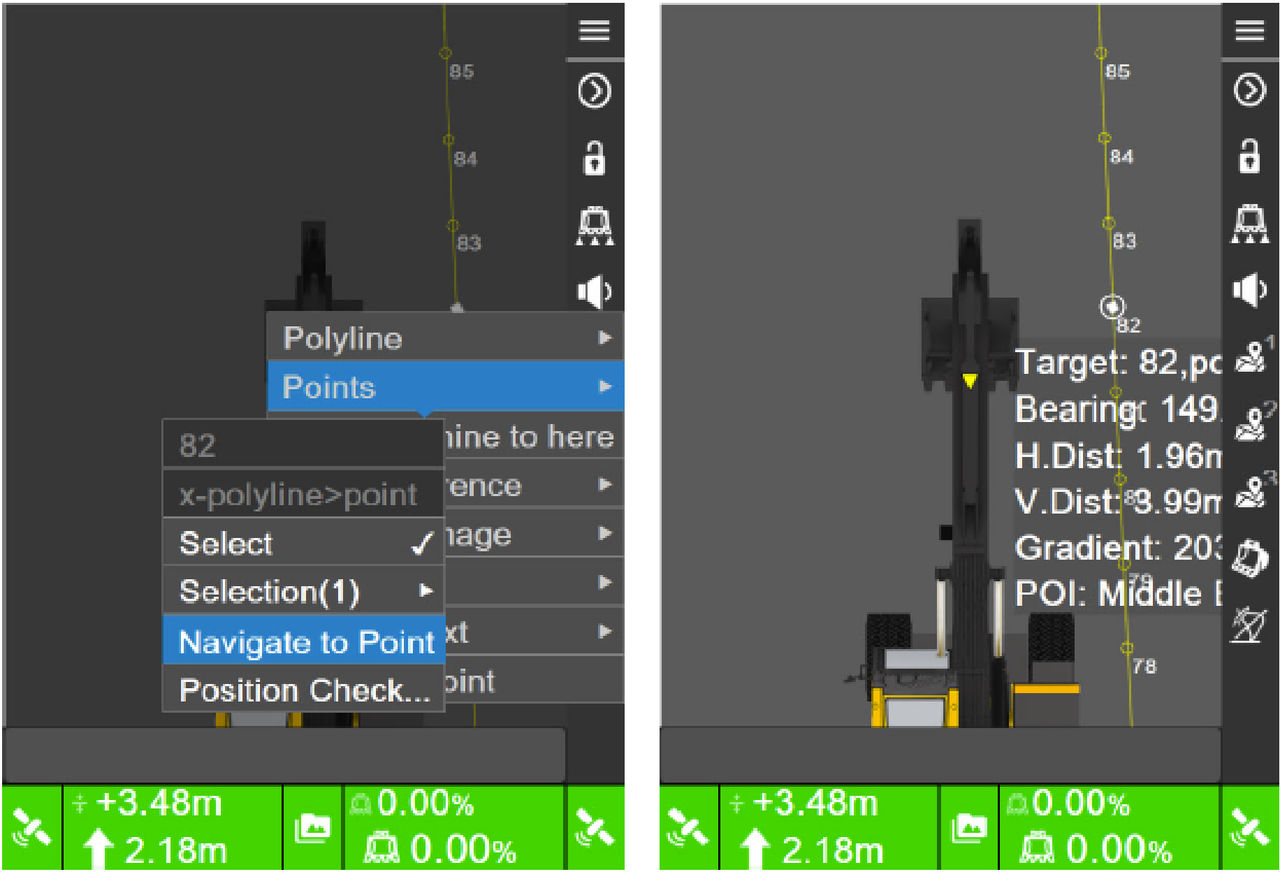
- Select the Options tab to add options.ADDITIONAL INFORMATION:
Figure: Options tab 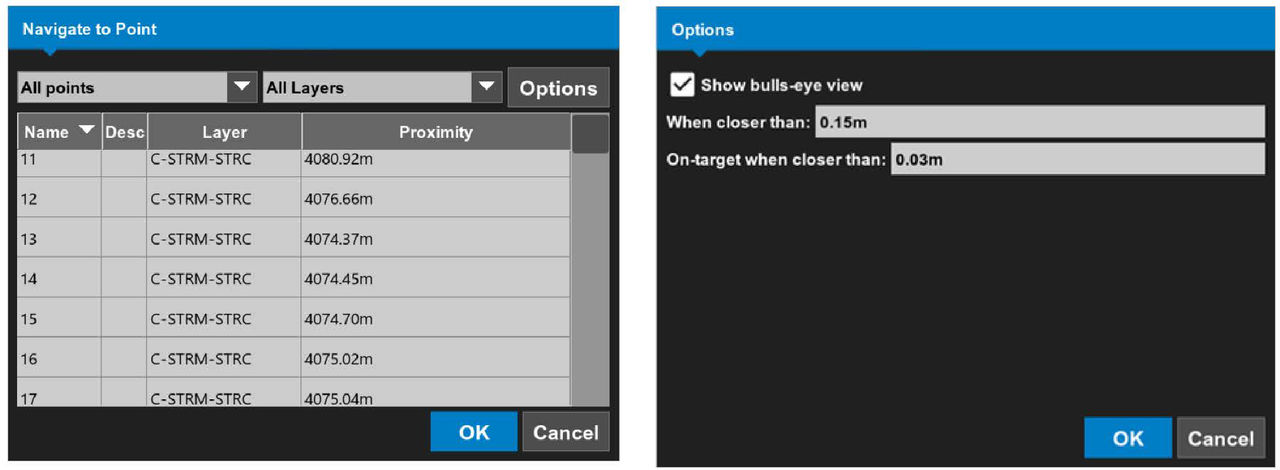
- Select the Show bulls-eye view checkbox.
- Select the desired settings for the bulls-eye view.ADDITIONAL INFORMATION:
Figure: View settings 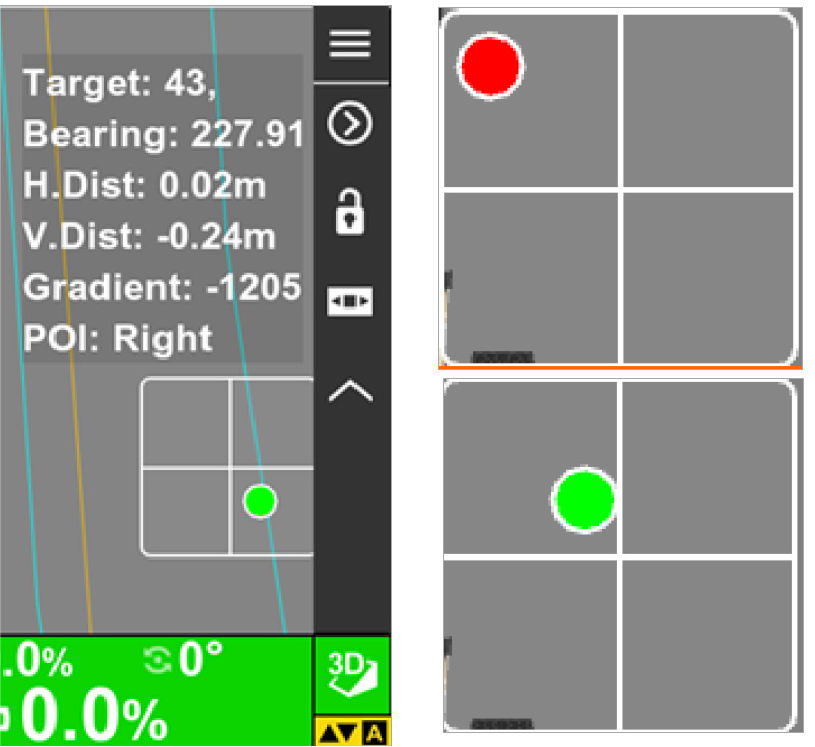
- To end the navigation, select .ADDITIONAL INFORMATION: The system removes the stakeout information from the main screen.
Previous:
Select an active alignment
Next:
Temporary offset
myTopcon NOW! support
Take your Topcon experience to the next level with myTopcon NOW! This platform is a self-service tool for your desktop or mobile device.





