
- Select .ADDITIONAL INFORMATION:The Sites screen opens.
- Select Add.ADDITIONAL INFORMATION:The Add Site screen opens.
- Select the Existing Sitelink3D Site radio button.ADDITIONAL INFORMATION:The Finish button is active.
- Select Finish.ADDITIONAL INFORMATION:
Figure: Add existing Sitelink sites 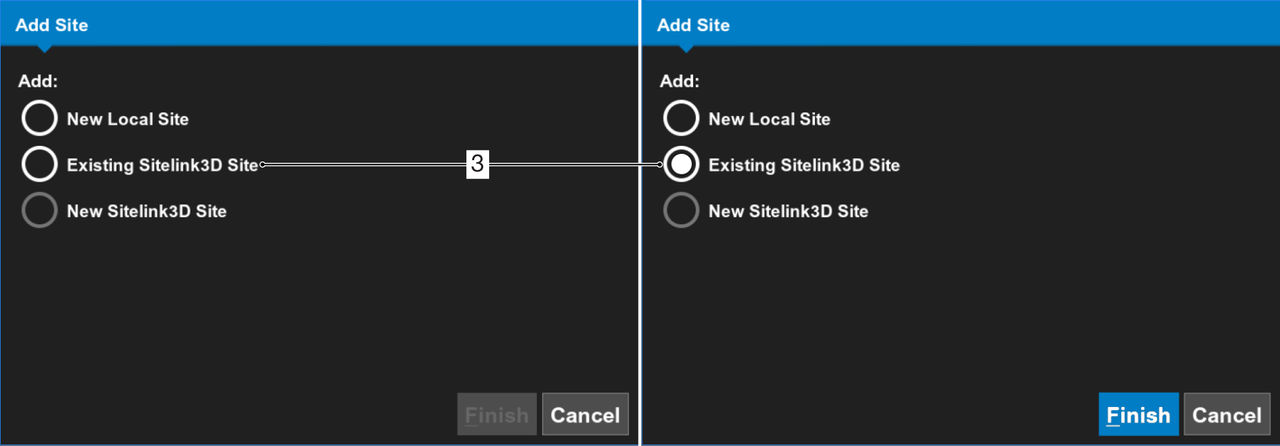 The Add Site: Existing Sitelink3D Site screen opens.
 - Select by Site Discovery ID from the drop-down list.
- Enter the 12-digit identification in the Site Discovery ID field.
- Enter the code that your site manager supplied in the Access Code field.ADDITIONAL INFORMATION:This must be a minimum of six digits.
- Select Next.ADDITIONAL INFORMATION:
Figure: Add existing Sitelink site by discovery ID screen 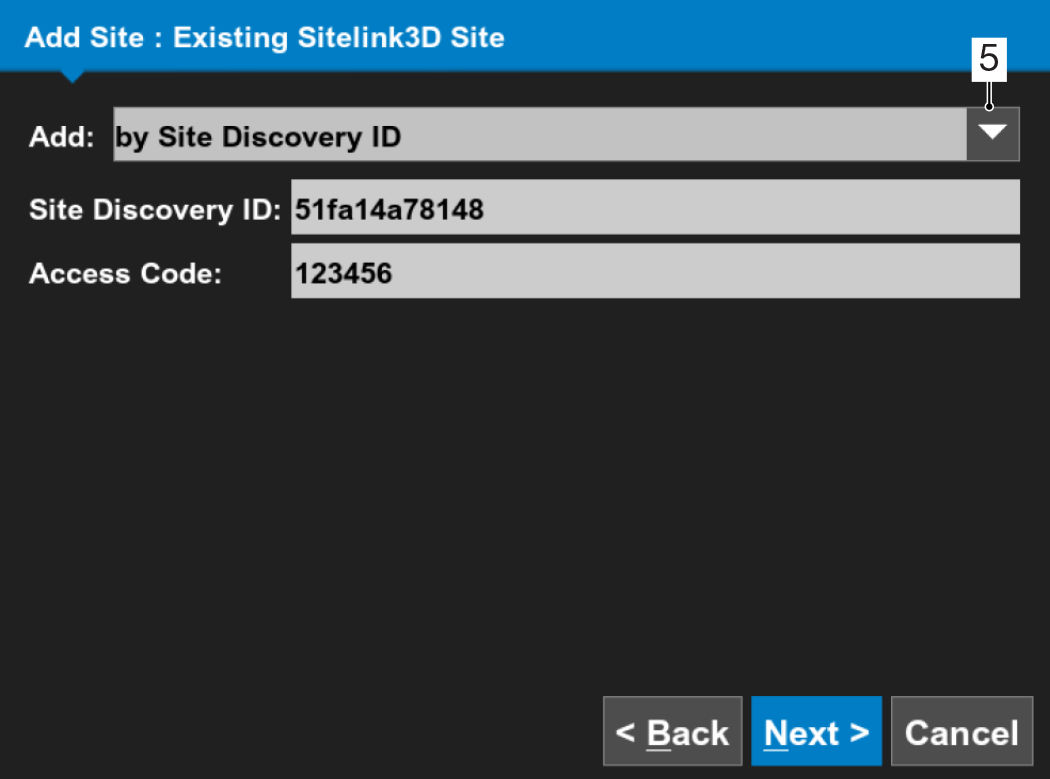 The Site Summary screen opens.
 - Make sure that the site information is correct, then select OK.ADDITIONAL INFORMATION:
Figure: Site summary 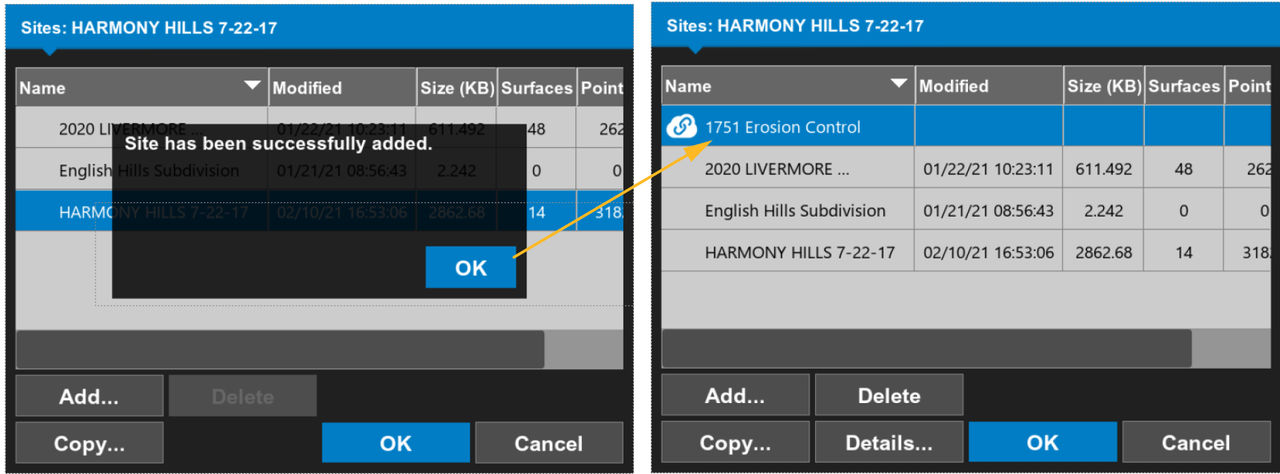
- Select a task at the site.
myTopcon NOW! support
Take your Topcon experience to the next level with myTopcon NOW! This platform is a self-service tool for your desktop or mobile device.





