
- Select Tools.
- Select Supervisor.ADDITIONAL INFORMATION:
Figure: Enable supervisor mode 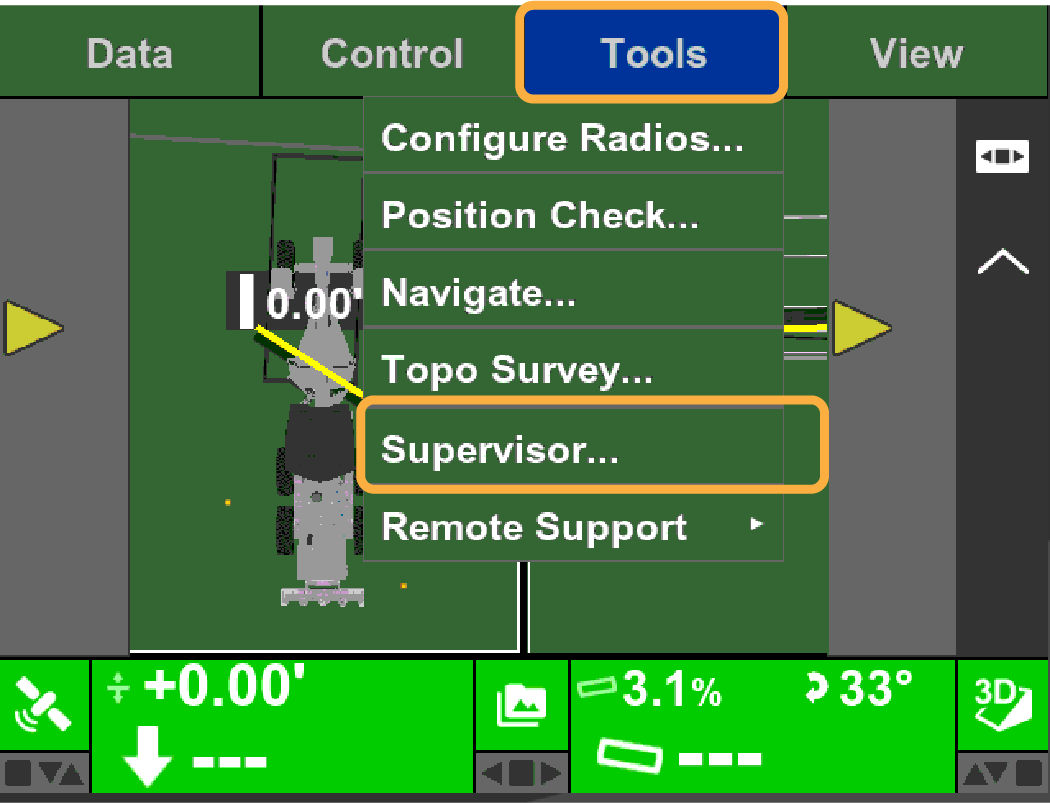 The Input Supervisor Password dialog shows.
 - Enter the password from the alphanumeric keyboard.ADDITIONAL INFORMATION:Note: The default password is: topcon
Figure: Enter supervisor password .png/_jcr_content/renditions/cq5dam.web.1280.1280.jpeg)
- Select OK.
- Select Tools.
- Select Supervisor.
- Select Settings.ADDITIONAL INFORMATION:
Figure: Operator feature summary 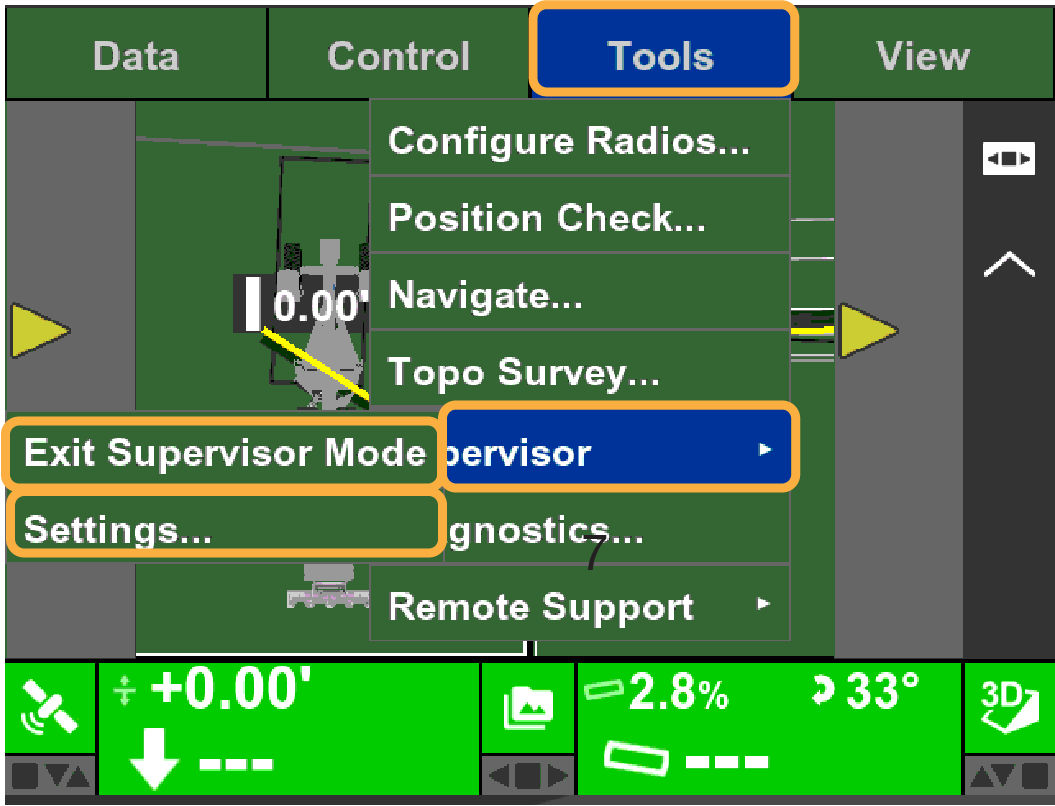 The Supervisor screen shows the Feature Summary.
 - Enabled operator features are displayed with a check mark in the Feature Summary list. The check marks function as toggle buttons. Select the blank box to select it. A check mark is displayed and the feature is enabled.
- Select a check mark to remove it and disable the feature.ADDITIONAL INFORMATION:
Figure: Supervisor menu 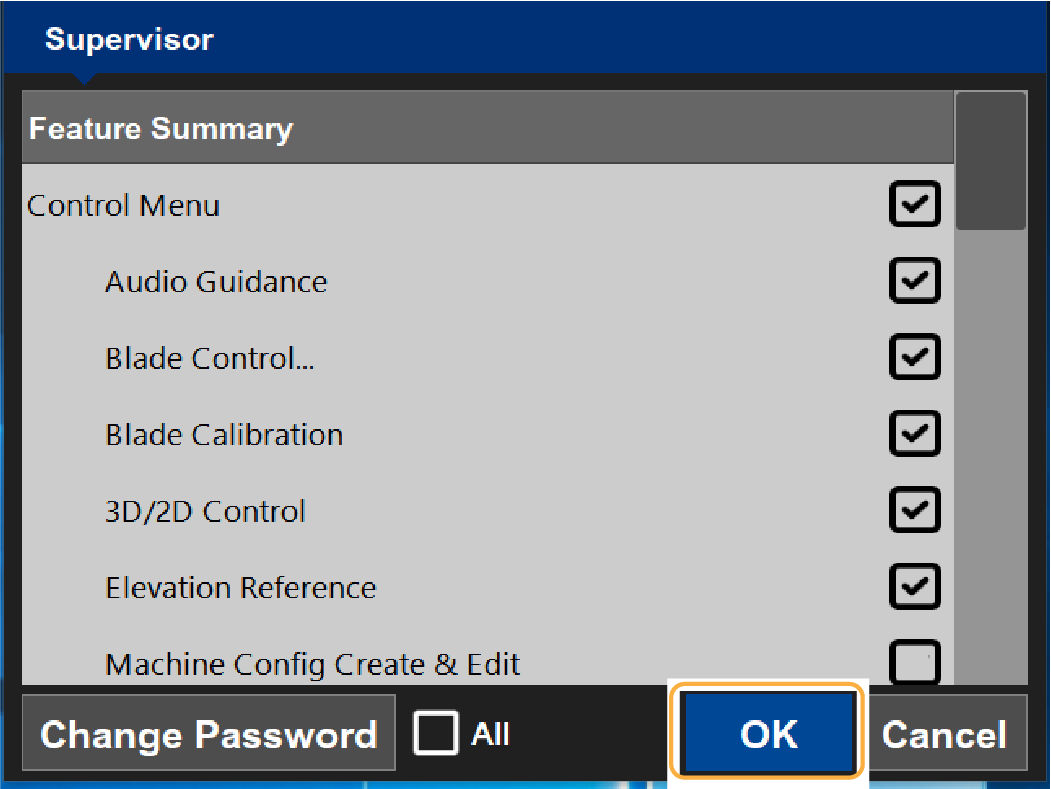
- Select OK to save the displayed operator feature settings.
- Select Exit Supervisor Mode to exit Supervisor mode.
Previous:
Enter Supervisor Mode
myTopcon NOW! support
Take your Topcon experience to the next level with myTopcon NOW! This platform is a self-service tool for your desktop or mobile device.





