
- Select .ADDITIONAL INFORMATION:The Project Surfaces screen opens.
- Select New to create a new flat or sloping surface file.ADDITIONAL INFORMATION: The Surface Name and Type screen opens.
- Enter a name for the surface file.
- Select Flat plane surface, then select Next.ADDITIONAL INFORMATION:
Figure: Project surfaces screen - new flat surface 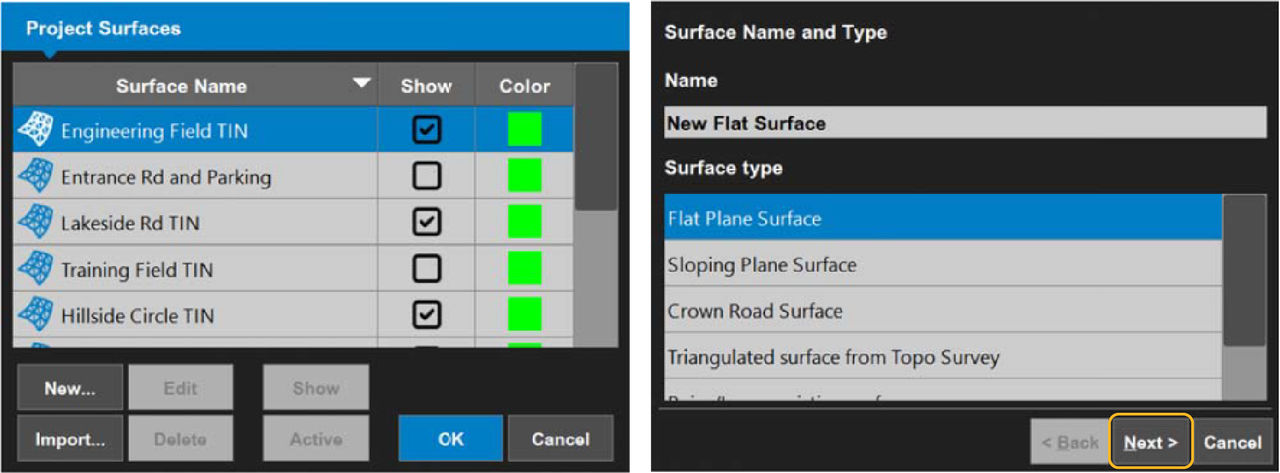 The Flat Plane Surface screen opens.
 - There are three methods to enter coordinates for the reference point:ADDITIONAL INFORMATION:
- Manually enter the reference points for N, E, and Z.
- Put the machine in the applicable location, then select Measure.
- Select Points, then select a point.
- Select Finish to go back to the Surfaces screen.
- Select OK.
- Select Yes to make the new surface active, or select No to make it inactivate.ADDITIONAL INFORMATION:
Figure: Flat plane surface 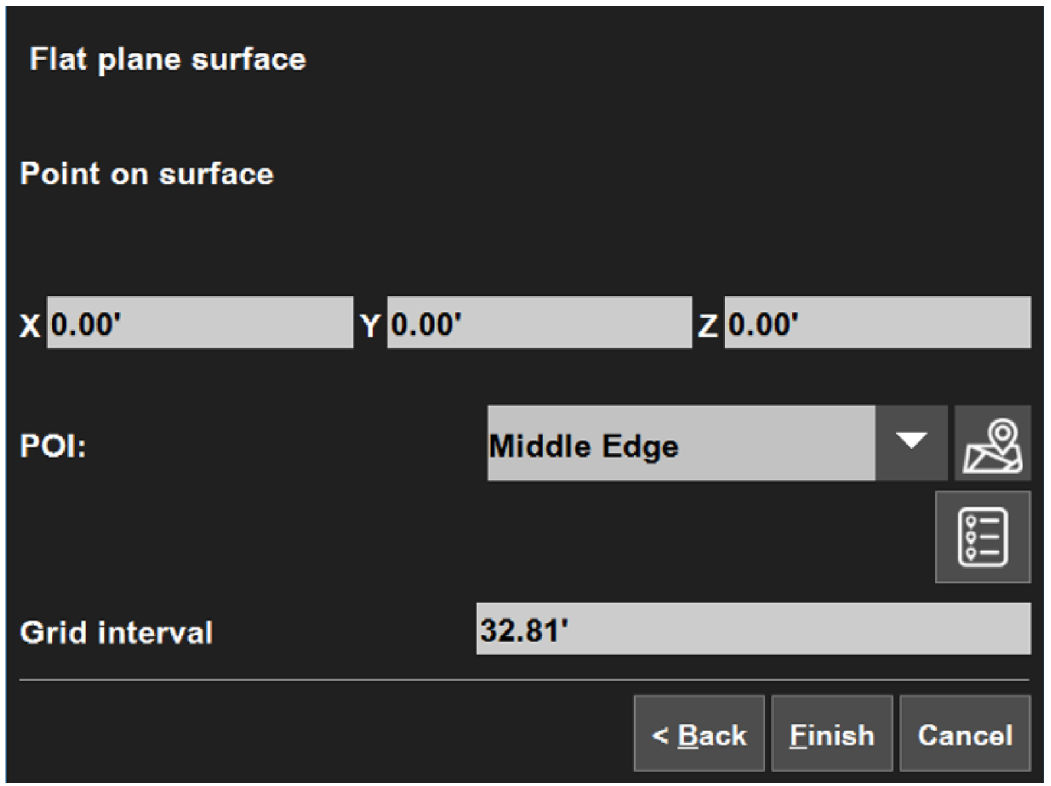 The main screen opens.
Previous:
Surface file types
myTopcon NOW! support
Take your Topcon experience to the next level with myTopcon NOW! This platform is a self-service tool for your desktop or mobile device.





