
Configuration of the MC-X requires a connection to the MC-X Gateway. This is necessary in order to load the firmware and license and to activate the MCX1 Wi-Fi access point.
Note: To log into MCWEB the first time, the Role field defaults to the
Admin value, but the Password field is blank. A factory reset may be necessary for you to create a new password. 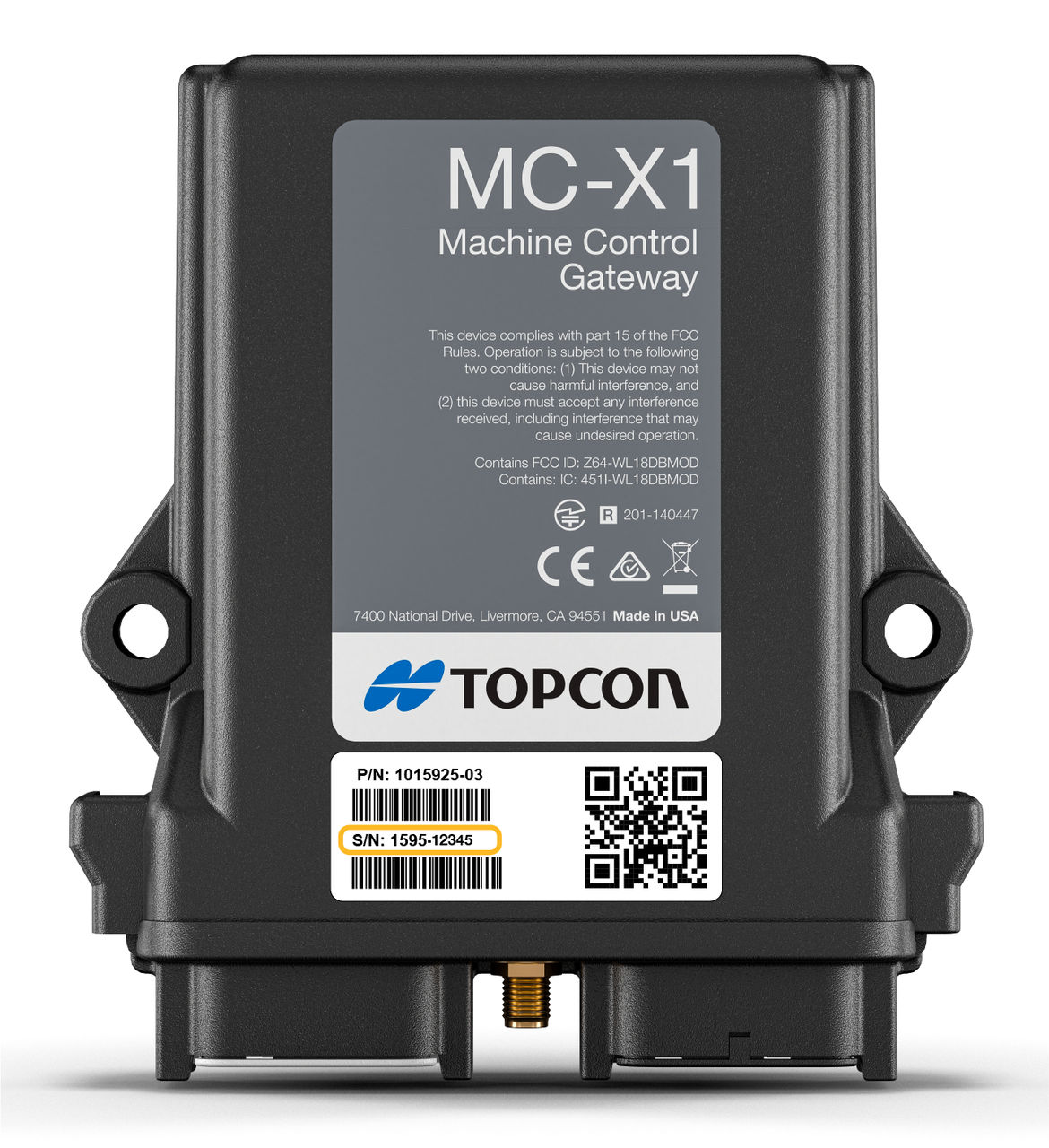
Note: The MC-X serial number is on the MC-X1 label. MC-X1 units with serial numbers after 1595-02652 are sent with a second decal that includes the MC-X1 serial number. This second label must be put in a visible area in the cab or engine compartment so a technician can see it without difficulty.
Use one of these methods:
- Connect computer directly with MC-X1 programming cable (P/N 1017799-01)
- Connect to the MC-X controller using a wired GX-90 display
- Connect computer with MC-X access pointNote:
- This method is only available after you have made a programming cable or wireless pairing connection.
- Also, access points are disabled by default from the factory. It is necessary to enable the access point setting: In MCWEB, select and select Access Point Enabled.
- Open MCWEB in 3D-MC on a wireless tablet
- Pair wireless display and MC-X (tablet hotspot)
myTopcon NOW! support
Take your Topcon experience to the next level with myTopcon NOW! This platform is a self-service tool for your desktop or mobile device.





