Looking for your apps? Click the account icon in the upper right corner of the page.

Update MC-X firmware

MC-X firmware is specified for the controller. If you select the incorrect firmware file, the load operation will not occur. The firmware file name contains an X1 . Make sure to choose the correct file.
Update MC-X firmware

Caution: An upgrade of the MC-X controller to RED-complaint firmware will disable Wi-Fi by default. Topcon recommends that you upgrade the firmware with a programming cable. This allows the controller to have Wi-Fi re-enabled.
  1. Open MCWEB.
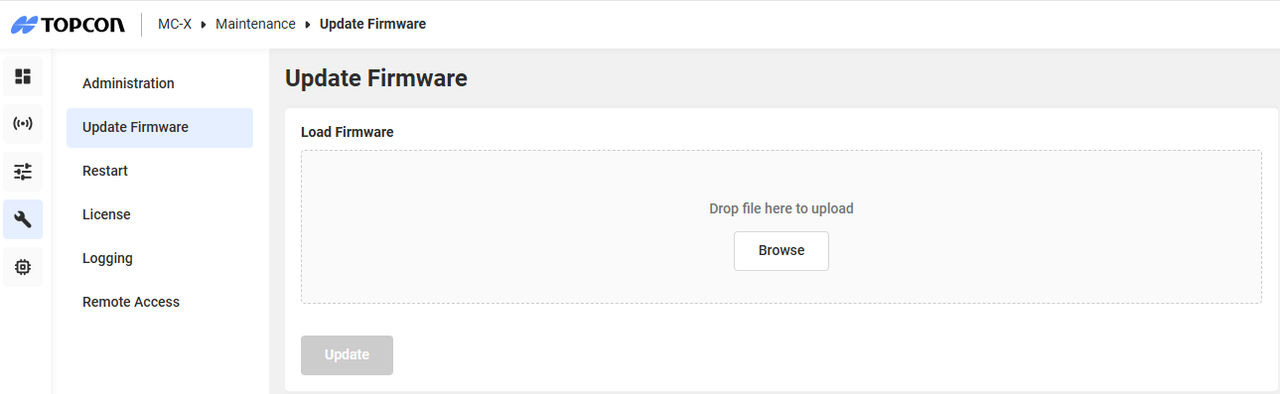
  2. Select MaintenanceUpdate Firmware.
    ADDITIONAL INFORMATION:
    Figure: Update firmware
  3. Select one of the two methods to load the .ITB firmware file:
    • Select Browse, go to the file in Windows Explorer, and select Open
    • Open Windows Explorer, select the file and drag it into the Load Firmware pane
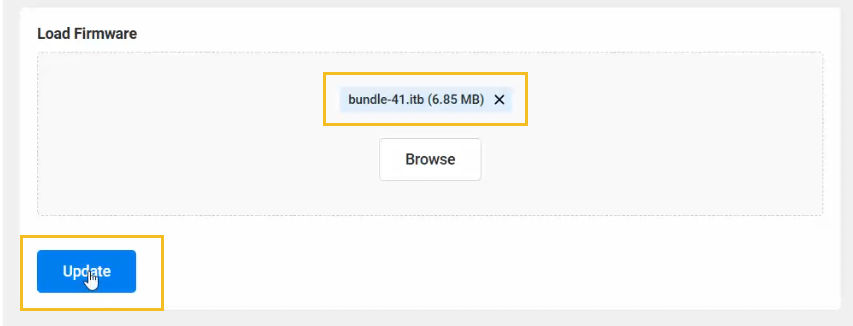
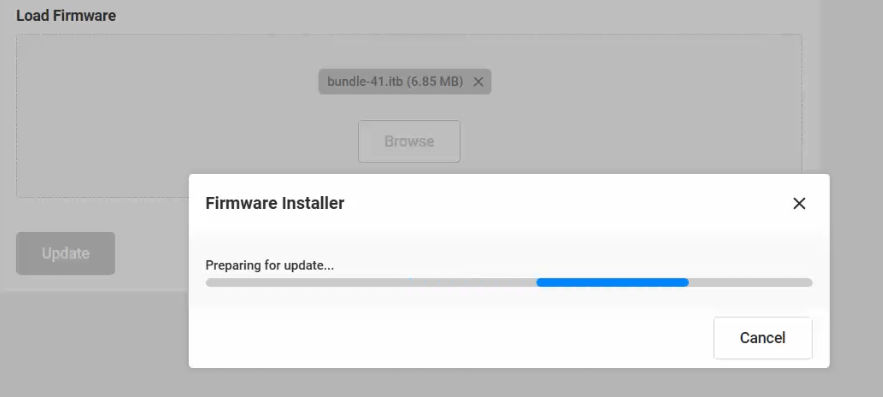
  4. With the .ITB file added to the Load Firmware pane, select Update. The Firmware Installer starts to prepare the update.
    ADDITIONAL INFORMATION:
  5. When the preparation is done, select Update.
  6. When the update is done, select Close.

myTopcon NOW! support

Take your Topcon experience to the next level with myTopcon NOW! This platform is a self-service tool for your desktop or mobile device. 

Product manuals
paper icon
Communications
phone icon
E-learning
hat icon
Quick start guides
support icon
Firmware & software updates
cloud icon
Troubleshooting
webinars icon