You must enable and calibrate the PanoCam in the CR-P1 scanner GUI before you proceed with scanning. To enable the PanoCam:
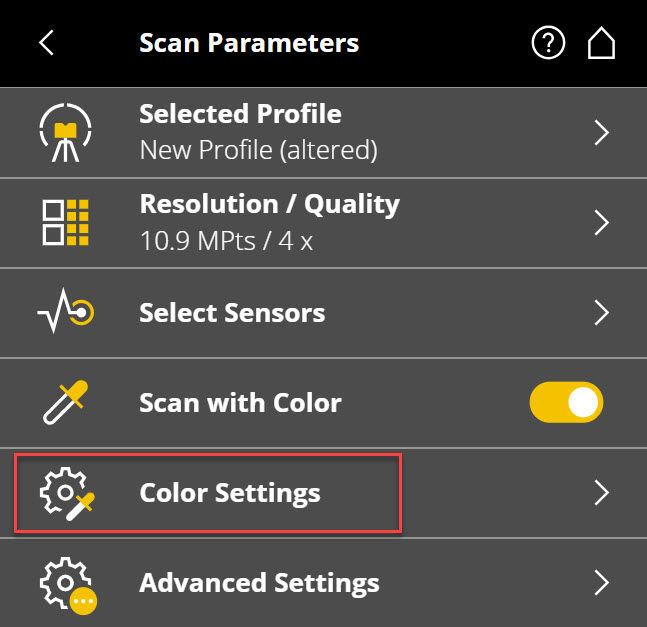
- From the Home screen, tap the Parameters button.

- Tap Color Settings.
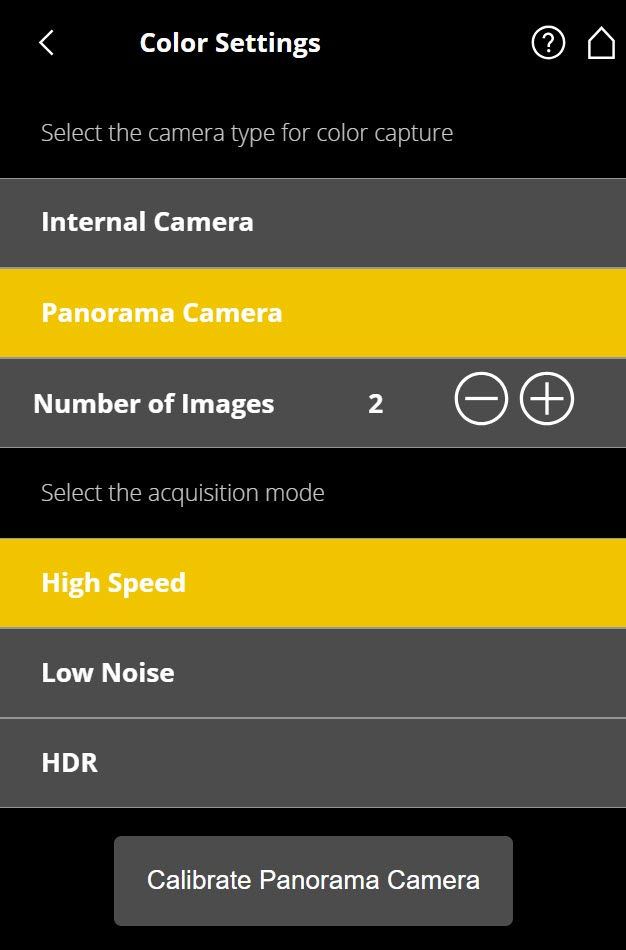
- Tap Panorama Camera.
- Note:If you see the error, Please connect a panorama camera and ensure that it is switched on, ensure that the camera and the mounting bracket are properly connected to the scanner, and that the camera is powered on.
- For Number of Images, specify 1, 2, or 4. Use the + or - buttons to add/reduce the number. More images require additional acquisition time, and they consume additional space. 2 images are recommended.
- Note:We recommended that you enable the HDR option for best picture quality.
- Tap Calibrate Panorama Camera to perform a full system calibration.
- Note:In order to use color images in Collage Site, a valid calibration is required. This initial calibration must be handled by Collage Site (version 1.7.3 or later) to determine all system parameters required for the camera in the user account. A new calibration is always required if you change computers or use a different user account.
Next:
PanoCam calibration
myTopcon NOW! support
Take your Topcon experience to the next level with myTopcon NOW! This platform is a self-service tool for your desktop or mobile device.