Accelerated | Standard | Extended | Object HD | |
Remark | Accelerated scan with main objects of interests at a short distance. | Standard scan with main objects of interests at a medium distance. | Extended scan with main objects of interests at a larger distance. | Object scan where the details of objects are of interest. |
Scan Resolution | 1/8 | 1/5 | 1/4 | 1/2 |
Quality | 3x | 3x | 3x | 4x |
Vertical area | -60° to 90° | -60° to 90° | -60° to 90° | -60° to 90° |
Horizontal area | 0° to 360° | 0° to 360° | 0° to 360° | 0° to 360° |
Inclinometer | ON | ON | ON | ON |
Compass | ON | ON | ON | ON |
Altimeter | ON | ON | ON | ON |
Use GPS | ON | ON | ON | ON |
Color | OFF | OFF | OFF | ON |
Clear Contour | ON | ON | ON | ON |
Clear Sky | ON | ON | ON | ON |
Distance Range | Near 1 | Normal | Normal | Near 1 |
Resolution [MPts] | 10.9 | 28 | 43.7 | 174.8 |
Duration 2 [sec] | 59 | 99 | 137 | 969 |
Point Distance [mm @ 10 m] | 12 | 8 | 6 | 3 |
Scan File Size 3 (MB) | 41 | 98 | 138 | 538 |
Scan Size (Pt) | 5120 x 2133 | 8192 x 3413 | 10240 x 4267 | 20480 x 8533 |
As previously mentioned, the CR-P1 L, CR-P1 M and CR-P1 S come with factory-predefined scan profiles (Service for an overview of the available factory predefined scan profiles). These scan profiles are read-only, and thus cannot be changed or deleted, but you can add and manage your own custom scan profiles based on these pre-defined profiles.
This view shows all scan profiles that are available on the scanner.
1 Normal with the CR-P1 S scanner.
2 Times can vary depending on color capture settings and the objects being scanned.
3 With standard 8 MPx images.
To add a new profile, tap Add. You can also add new profiles by duplicating existing profiles. To do this, select the profile that you want to duplicate and tap Duplicate. Tap again on the profile. A new screen appears. Enter the profile name, and adjust its scan parameters.
To delete a custom scan profile, select it and tap the Delete button. You cannot delete factory predefined profiles.
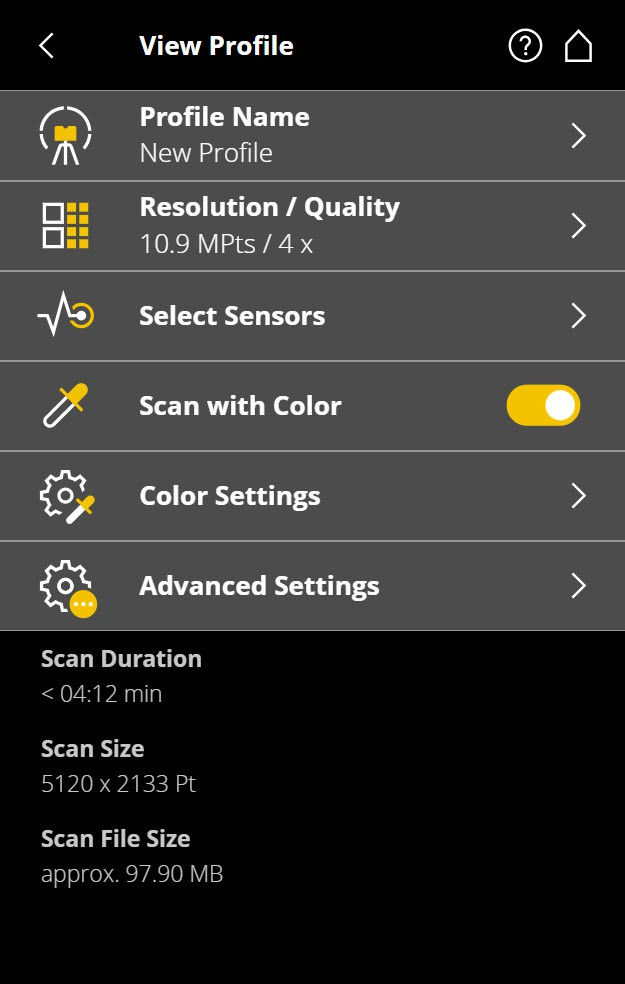
Profile Name - Name of the scan profile. Tap to change it.
The further settings in this view are similar to the settings of the scanning parameters. Scan Parameters .
Editing a Scan Profile
To edit a scan profile, select it in the list and tap it again to view its details. You cannot edit predefined profiles, but you can duplicate them and edit the copy.
To view the details of the selected profile, tap it again.
Previous:
Selected Profile
Next:
Sensors
myTopcon NOW! support
Take your Topcon experience to the next level with myTopcon NOW! This platform is a self-service tool for your desktop or mobile device.