Learn how to create and load a modem configuration file (*.mcf) for GNSS receivers with the Receiver Utility to operate UHF radios within the licensed 403-473 MHz frequency range.
These instructions tell how to make and load a modem configuration file (*.mcf) for HiPer XR GNSS receivers with a UHF radio modem that operates in the licensed frequency band of 403 MHz to 473 MHz.
Note: The Topcon dealer must configure and load a valid configuration file with your specified UHF frequencies before you get the receiver. Regional UHF frequencies can be licensed or unlicensed, but restrictions in the 403 MHz to 473 MHz range apply. Failure to understand and apply this procedure can cause non-operation of the modem or breach of local regulatory laws. Write to Topcon technical support at support@topcon.com.
To make a dealer modem configuration file (*.MCF):
- Download and install the Topcon Receiver Utility (TRU) version 3.7 or higher on a Windows device. A valid Dealer/Advanced license for TRU is necessary.
- Open TRU.
- Select .
- Select Satel from the list of modems on the receiver utility screen.ADDITIONAL INFORMATION:
Figure: TRU modems 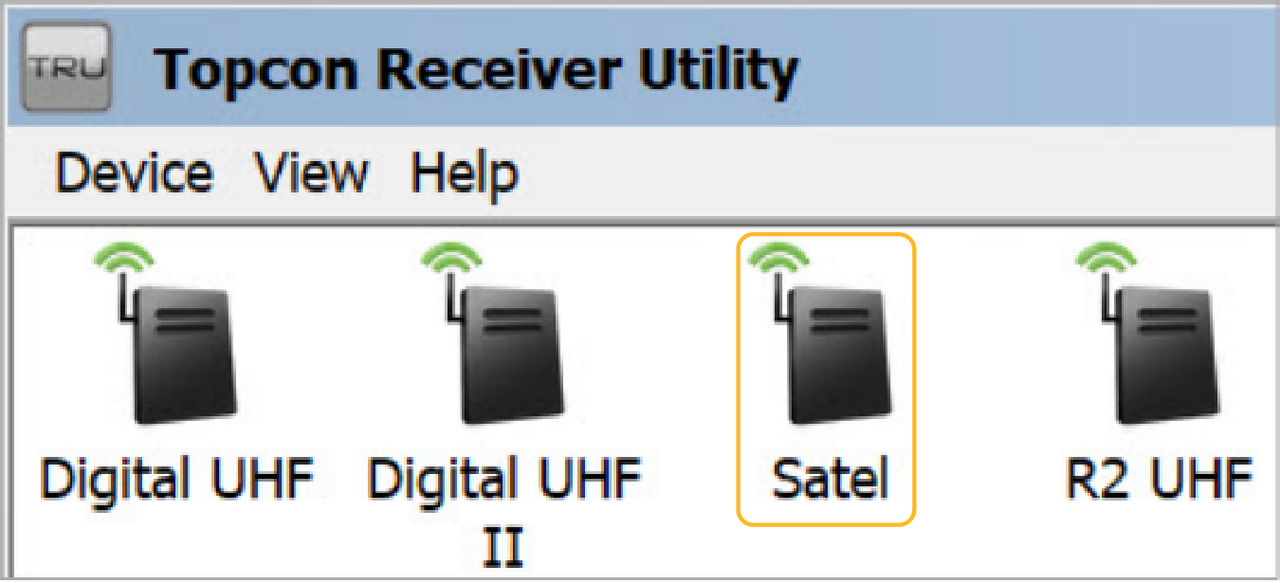
- Select Dealer Configuration
 .
. - Select Add on the MCF Creator screen.ADDITIONAL INFORMATION:
Figure: MCF creator 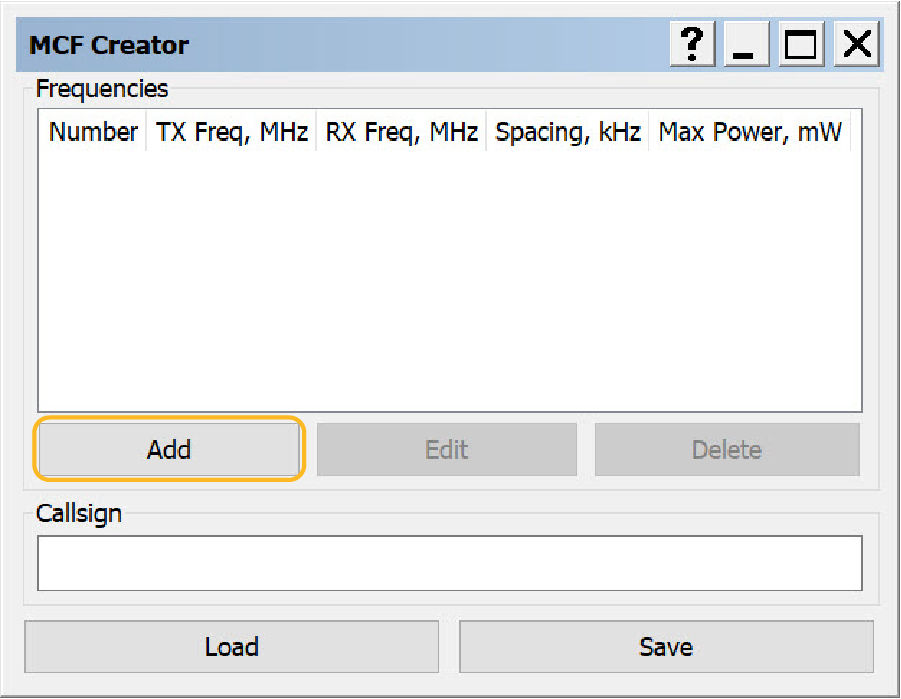
- Enter the modem parameters on the MCF Entry screen.
- Select OK.ADDITIONAL INFORMATION:
Figure: MCF entry 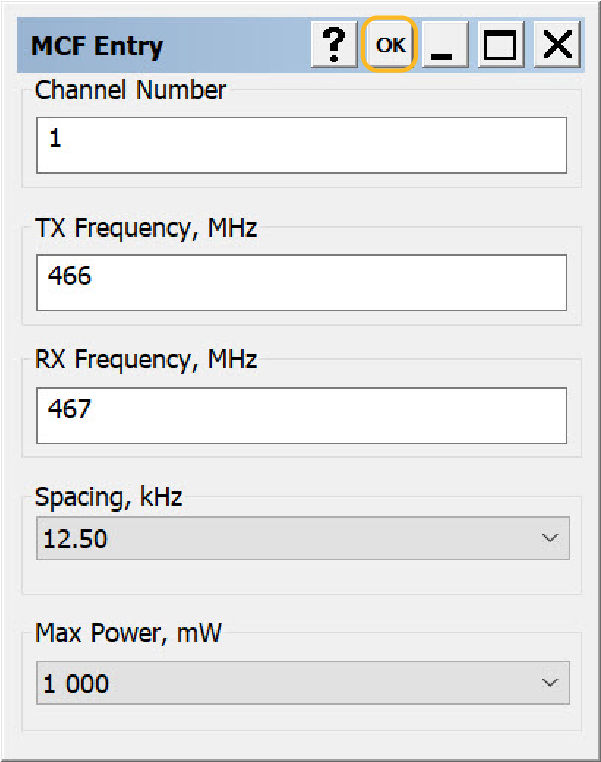
- Select Save on the MCF Creator screen to make a file with a *.MCF extension for the Satel-TR4+ modem.ADDITIONAL INFORMATION:
Figure: MCF creator with extension 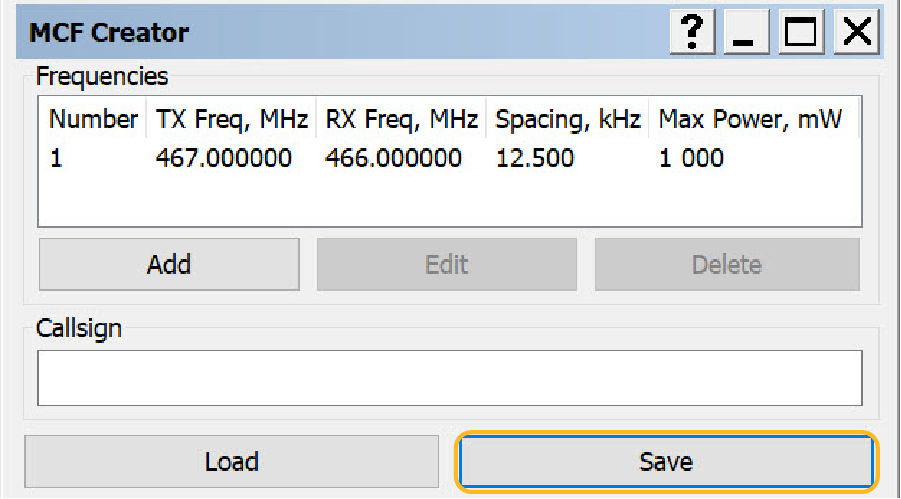
Previous:
Integrated radio configuration
myTopcon NOW! support
Take your Topcon experience to the next level with myTopcon NOW! This platform is a self-service tool for your desktop or mobile device.