Connect the receiver to a field controller, open the web UI, and upload the MCF file to configure radio frequency settings.
- Connect the receiver to a field controller or computer to open the on-board web UI.
- Select .ADDITIONAL INFORMATION:The installed radio modem model, its current hardware/firmware versions, and modem serial number show.
- Select Upload MCF.
- Open the folder in which the dealer configuration file *.MCF is saved, then select OK.
- Select Upload MCF to execute the process and apply the radio frequency settings that are specified in the *.MCF file.ADDITIONAL INFORMATION:
Figure: Upload MCF file 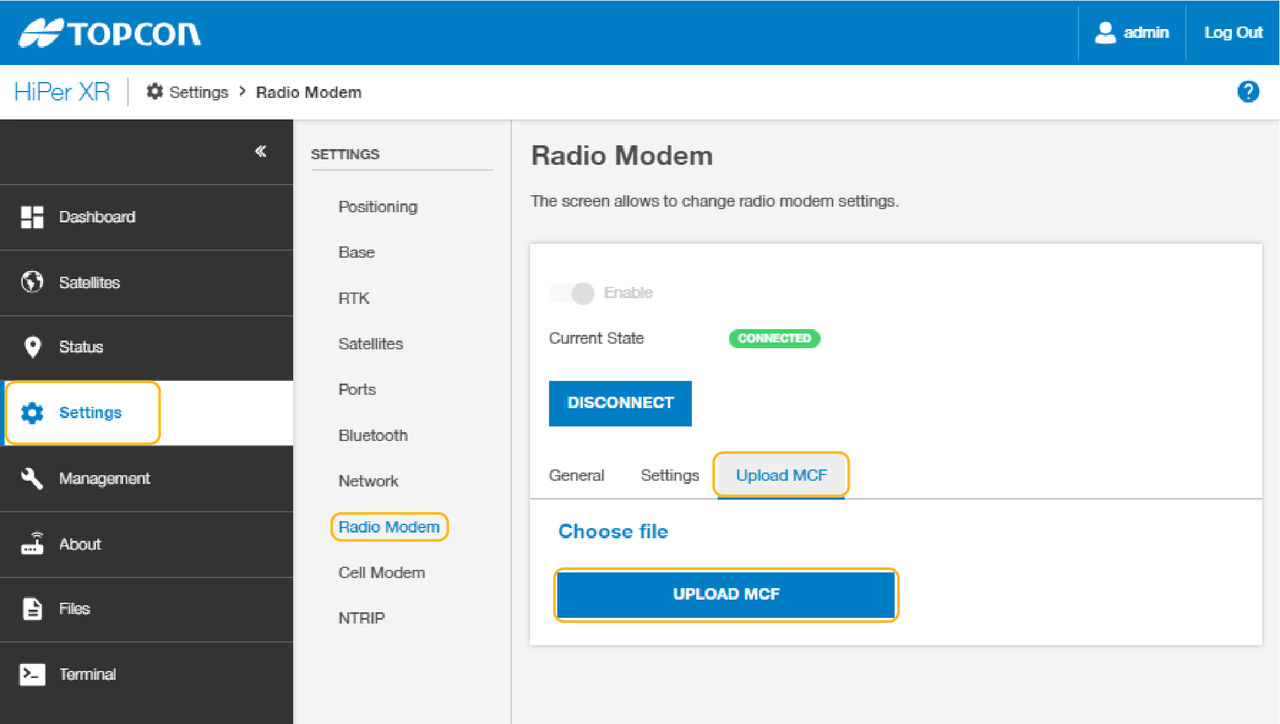
Previous:
Modem configuration file creation
myTopcon NOW! support
Take your Topcon experience to the next level with myTopcon NOW! This platform is a self-service tool for your desktop or mobile device.