Select options like eLevel and Compensate to adjust pole inclination and view virtual bubble indicators for accurate tilt correction.
- Open Topcon Field.
- Select to open the TILT Settings screen. STEP RESULT:
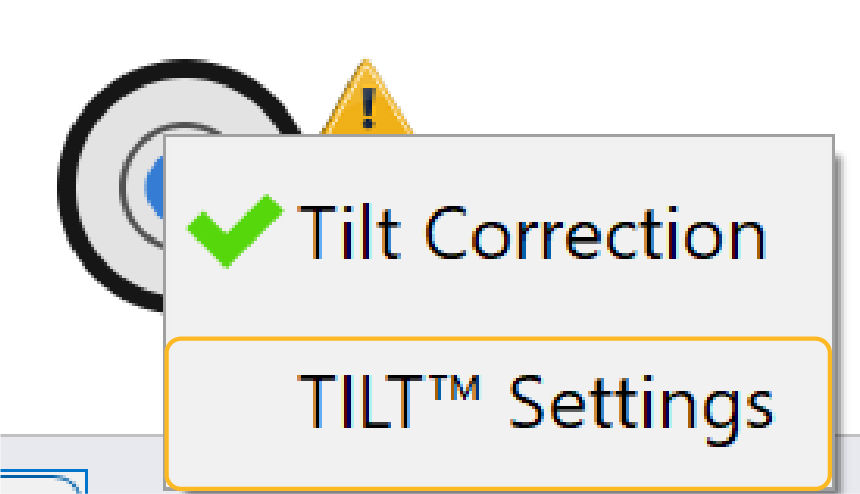
- Select the Show eLevel checkbox.ADDITIONAL INFORMATION:The virtual bubble shows on the screen when you select the eLevel checkbox. The virtual bubble shows green when the pole inclination is within the parameters. It shows red when the pole inclination is out of parameters.
- Select Compensate.
- Select Next.ADDITIONAL INFORMATION:
Figure: TILT settings 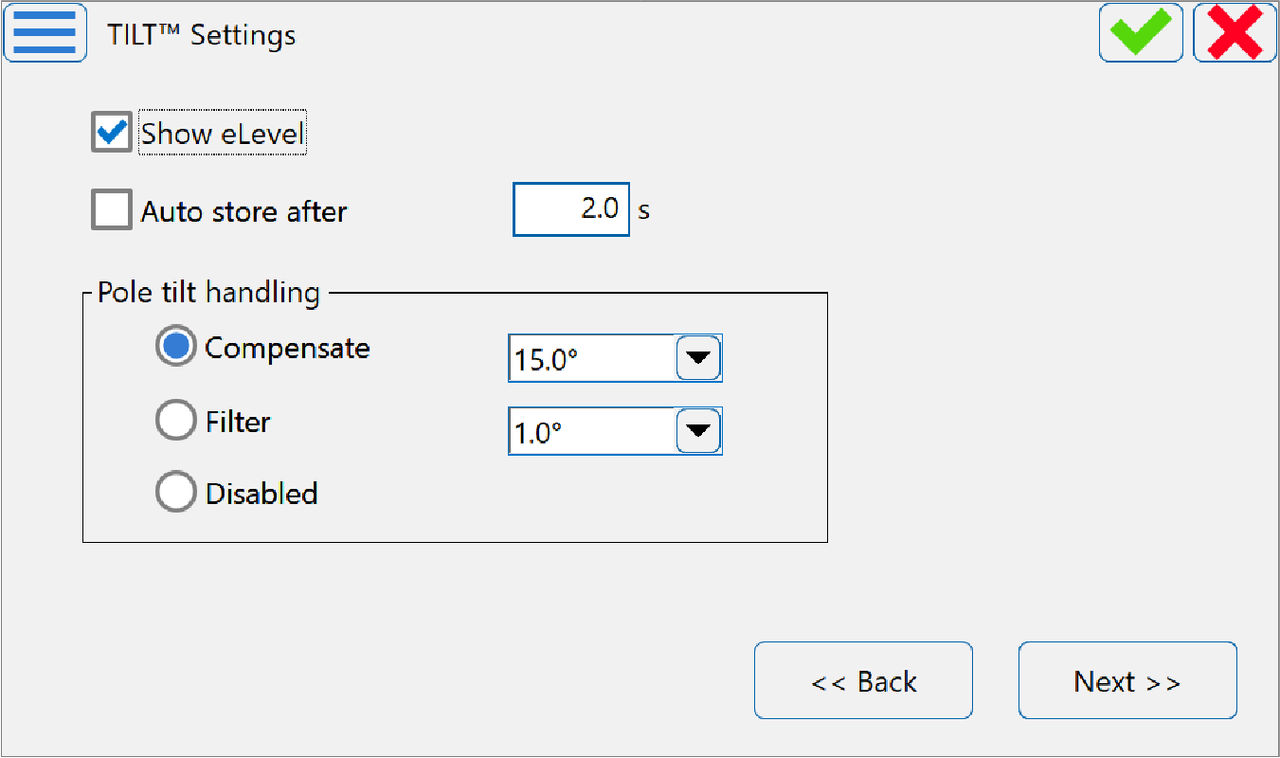
Figure: TILT correction mode impeded movement 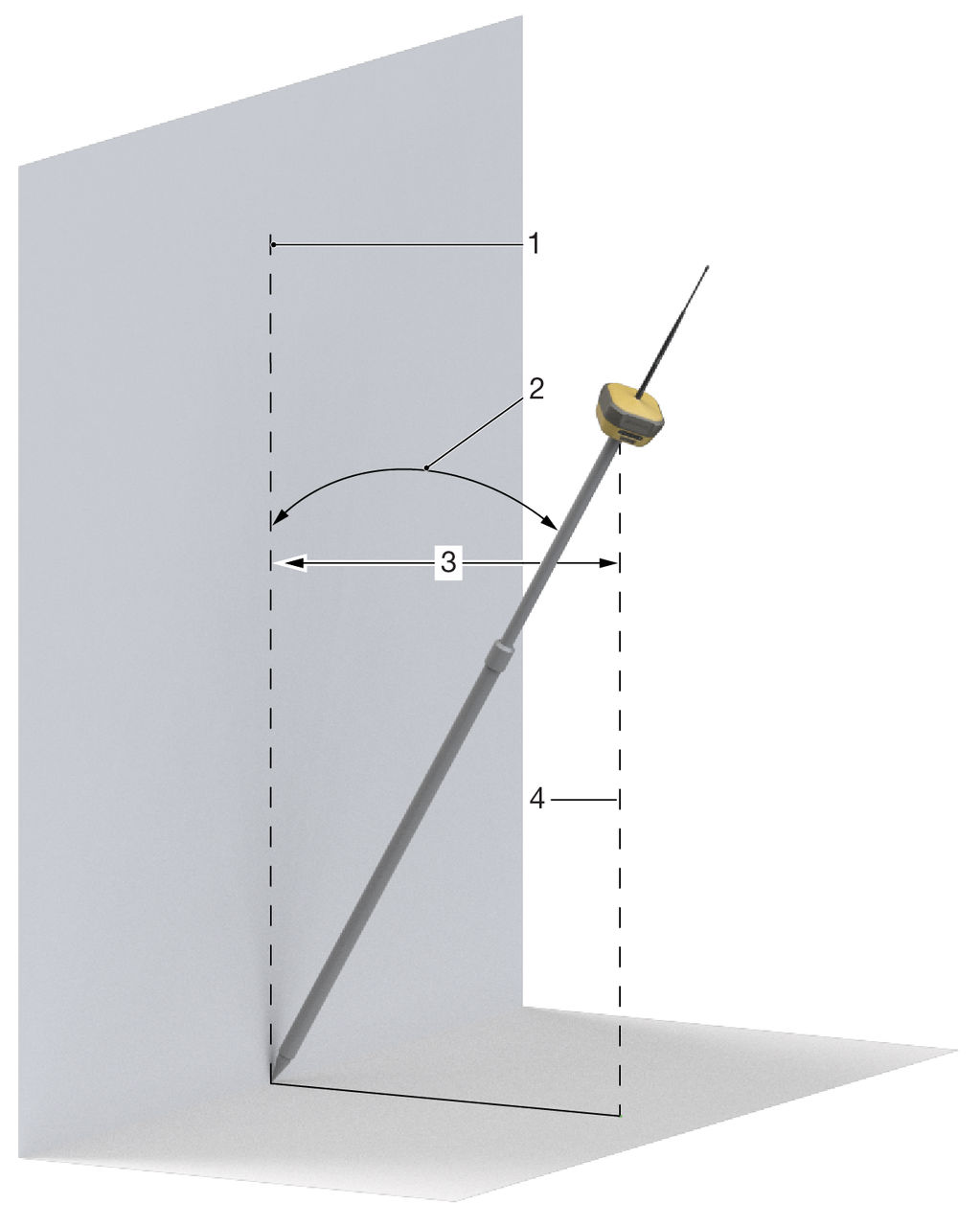
- True projection of the phase center
- TILT pole incline
- Offset dN/dE
- False projection of the phase center
Previous:
Dynamic TILT compensation
myTopcon NOW! support
Take your Topcon experience to the next level with myTopcon NOW! This platform is a self-service tool for your desktop or mobile device.