- Select from the main menu.ADDITIONAL INFORMATION:
Figure: Support desks 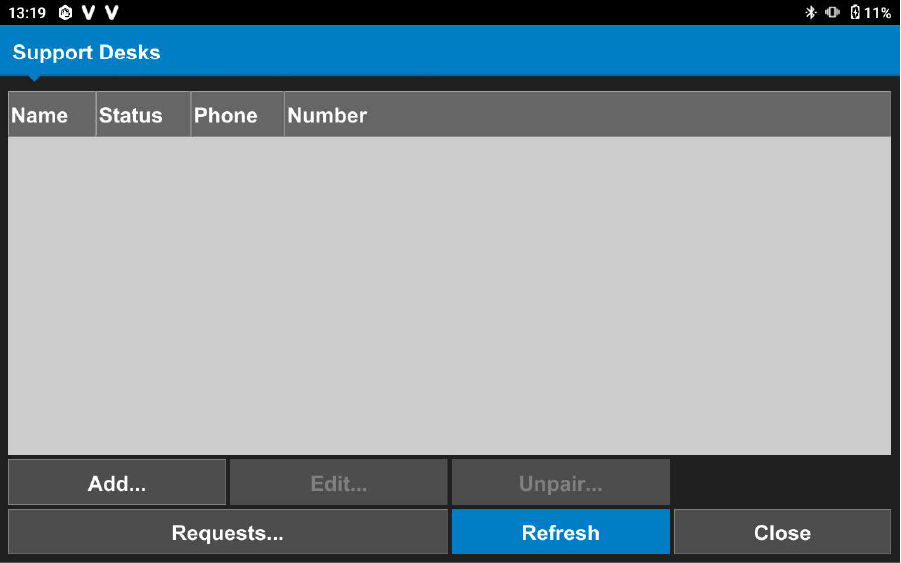
- Select Add.
- Enter the Support Desk Number and if needed, the Auto-Pair PIN.
- Select Next to validate the information.ADDITIONAL INFORMATION:
Figure: Support desk lookup 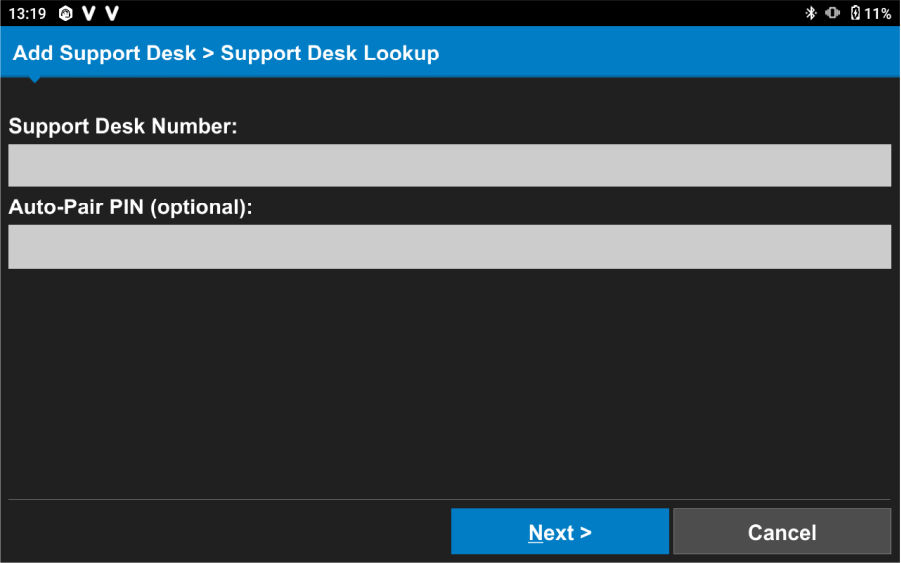 The system searches for the support desk. If the support desk credentials are incorrect, a warning message appears. If the support desk credentials are correct, the basic support desk information is shown.
Figure: Support desk information 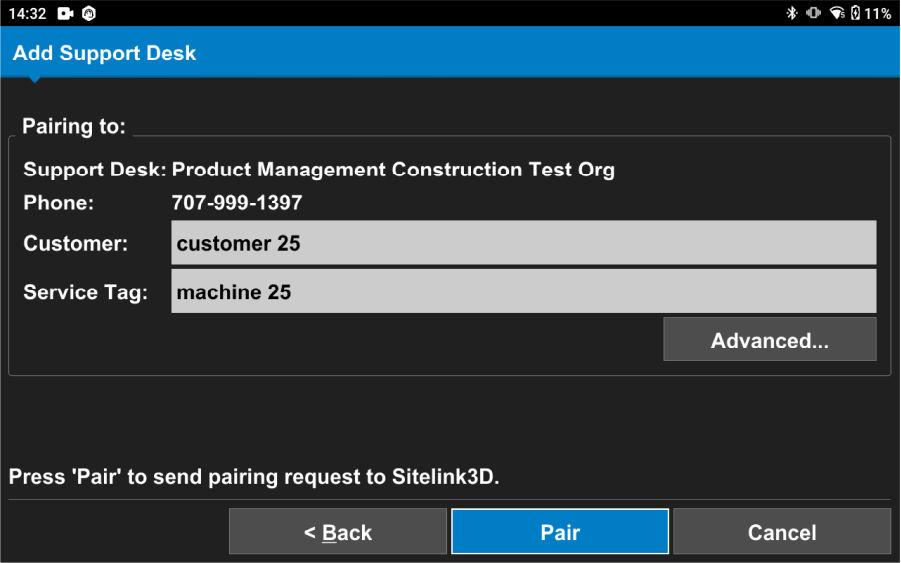 The user can view support desk information, such as the support desk name and contact phone number. The user can also enter a customer name and service tag for easy identification on the Sitelink web portal support desk.
Figure: Support desk 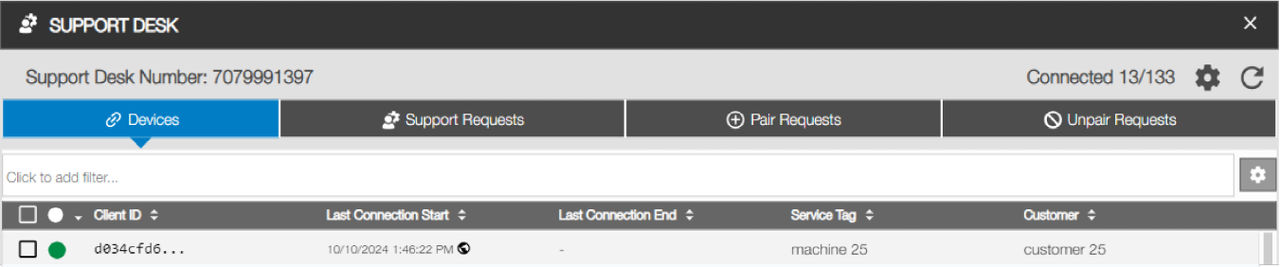 Topcon recommends using a unique service tag along with the customer name to easily find the support desk.
Previous:
Install the Remote Support application
Next:
Advanced options
myTopcon NOW! support
Take your Topcon experience to the next level with myTopcon NOW! This platform is a self-service tool for your desktop or mobile device.