- Select Advanced to see the advanced options for the service desk. Set the policies for remote view and file transfer here.ADDITIONAL INFORMATION:
Figure: Advanced support desk options 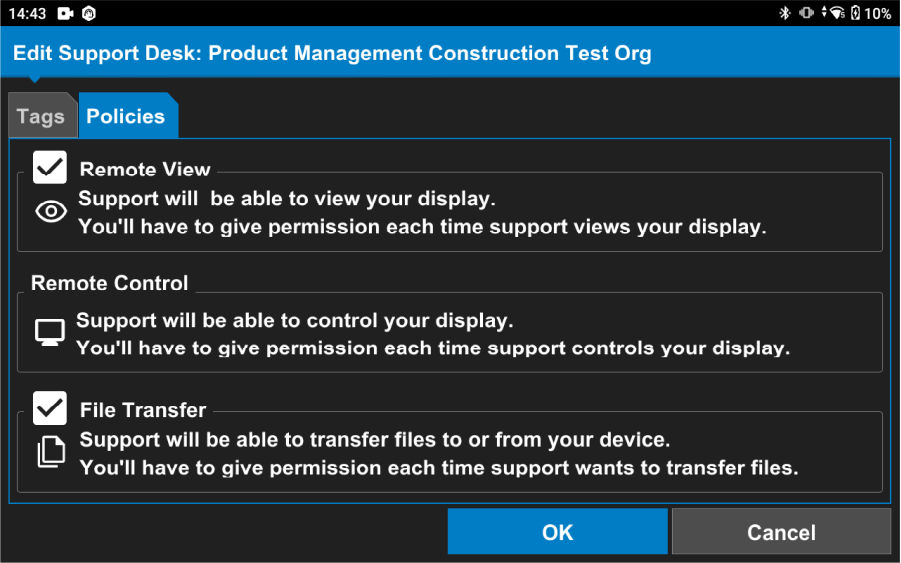
Functionality Description Remote View Support Desk can only view the client device display Remote Control Support Desk keyboard and mouse are connected to the client device, allowing the Support Desk to perform actions through the user interface in the same way as the local user File Transfer Support Desk can transfer files to and from the client device Policy Description Yes Allow the Support Desk to do this without further prompts No Do not allow the Support Desk to do this - Select Pair after the support desk settings are configured, the support desk status will show as Paired when the connection is successful.ADDITIONAL INFORMATION:
Figure: Paired support desk 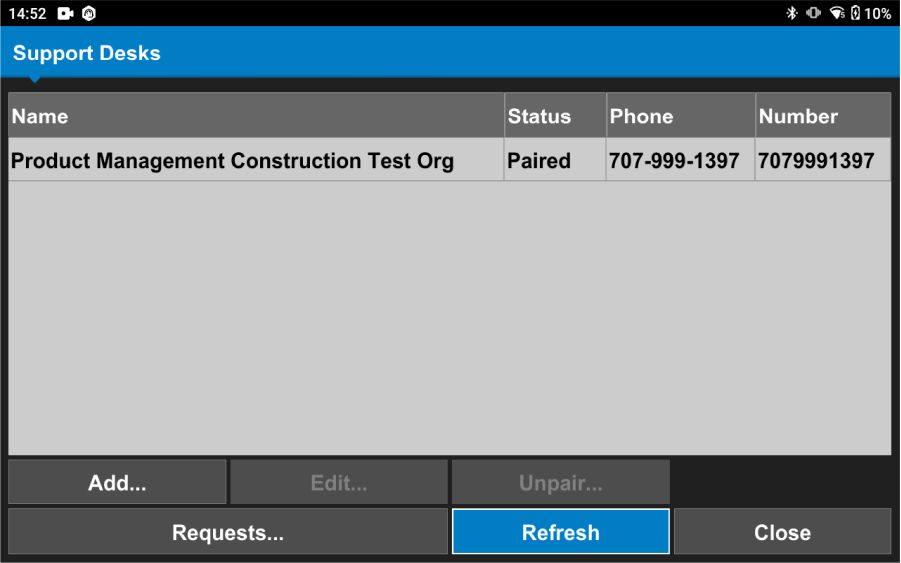 With one or more support desks paired, the operator can:
Functionality Description Unpair Unpairs the support desk after the auto-pin is entered correctly or it can be unpaired with approval on the Sitelink web portal Refresh Refreshes the support desk dialog and updates the paired/upaired support desks Edit Change the policies and tags Request Remote Support Request opens Add Add Support Request opens. The operator selects the destination and enters a short message. The operator can edit, delete or add a new support request. The request status (Open, Progressing, Resolved, or Declined) is shown.Remote support requests are shown on the Sitelink web portal.Figure: Remote support requests 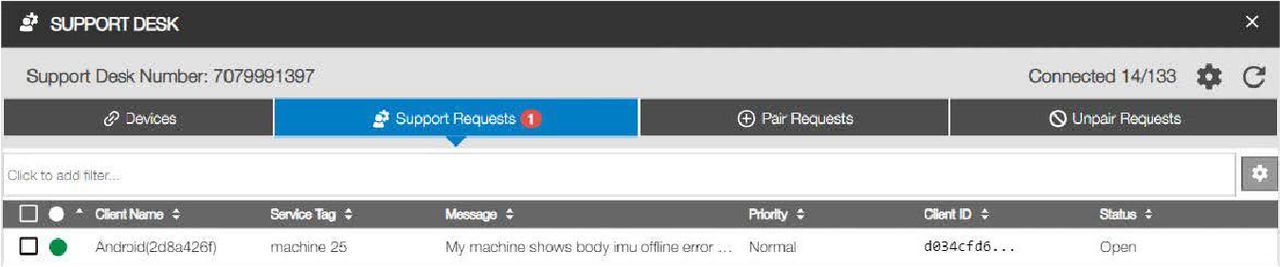
Previous:
Add support desk
Next:
Remote support
myTopcon NOW! support
Take your Topcon experience to the next level with myTopcon NOW! This platform is a self-service tool for your desktop or mobile device.