
- Select .ADDITIONAL INFORMATION:The Blade Rotation Calibration screen shows.
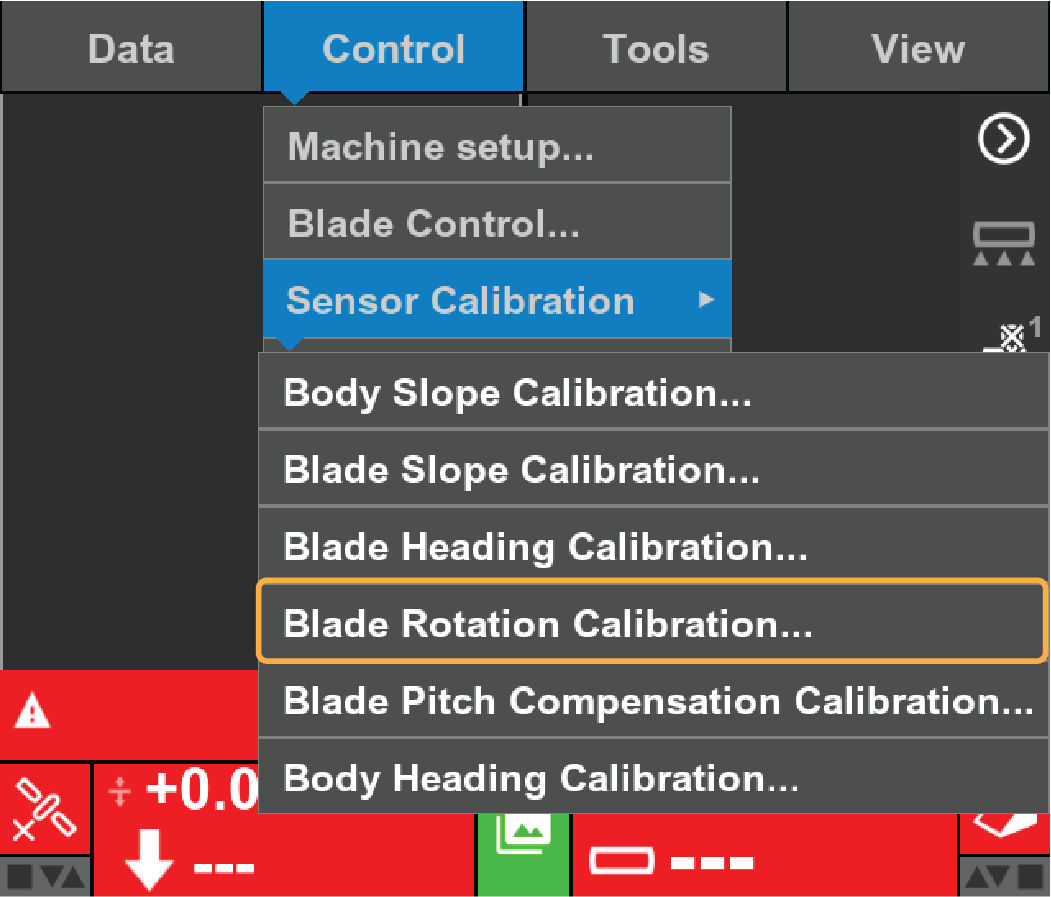
- Complete the steps on the Blade Rotation Calibration screen.ADDITIONAL INFORMATION:
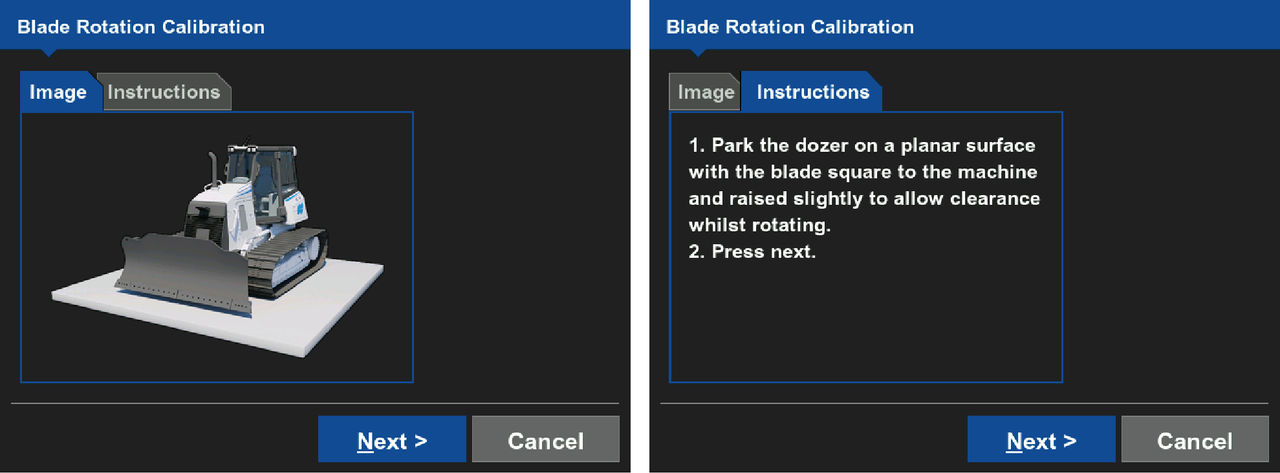
- Select Next.ADDITIONAL INFORMATION:A new Blade Rotation Calibration screen shows.
- Make sure that the blade is square to the body for system performance.ADDITIONAL INFORMATION:3D-MC tells the system that the blade is square.
- Complete the steps on the Blade Rotation Calibration screen for CW rotation.ADDITIONAL INFORMATION:
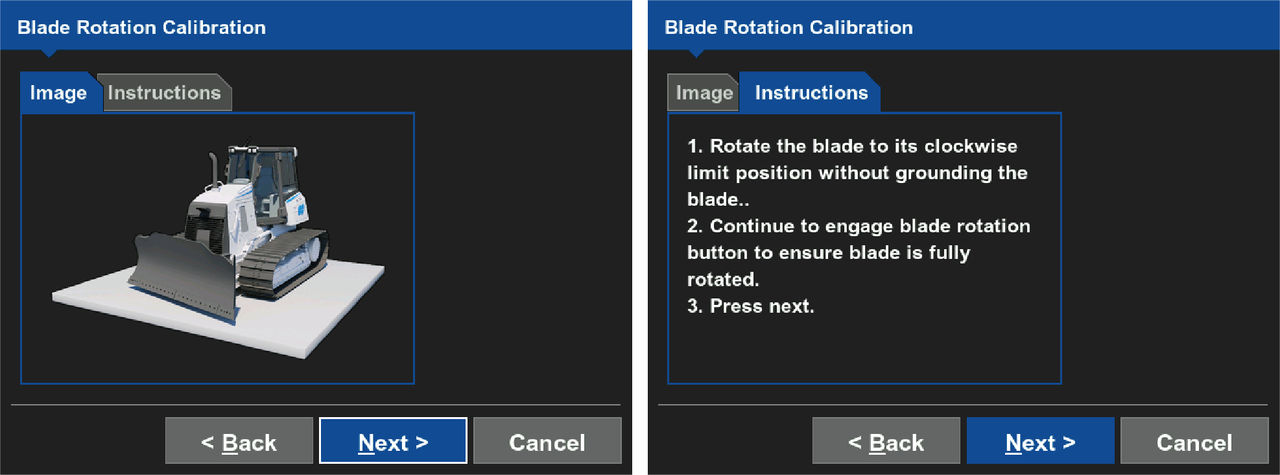
- Select Next.ADDITIONAL INFORMATION:A new Blade Rotation Calibration screen shows.
- Complete the steps on the Blade Rotation Calibration screen for CCW rotation.
- Select Finish. ADDITIONAL INFORMATION:The 3D-MC main screen will shows.
myTopcon NOW! support
Take your Topcon experience to the next level with myTopcon NOW! This platform is a self-service tool for your desktop or mobile device.





