
- Check component status (LED Status Lights). Each electronic component has an LED status light that shows normal operation. Make sure each component’s LED light is a solid green color (not blinking) indicating normal component operation.
- Check and update software/firmware versions using the MC-X Machine Control Gateway (MCXCONFIG):
- From the 3D-MC main screen, put the GX-Series display into Windows mode (e.g., long press on the + key).
- Select
ADDITIONAL INFORMATION:The MC-X Machine Control Gateway will open.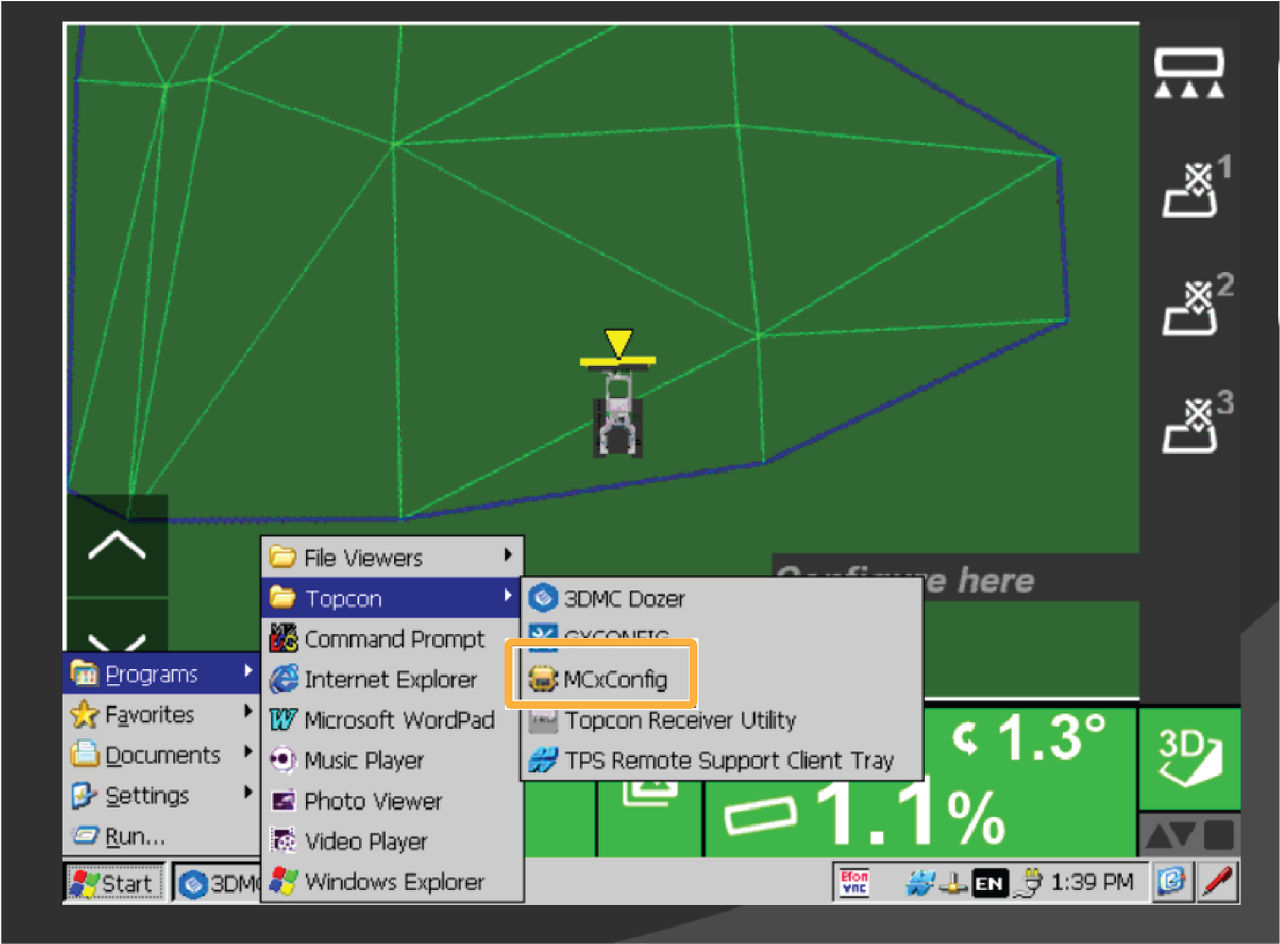
- Follow the instructions "MC-X Connectivity and Configuration” to query each component and view the software/firmware version. 6.
- Update software/firmware as necessary. See “Firmware and Software” for recommended software/firmware versions.
- To download the latest firmware/software versions, go to https://www.topconpositioning.com/support/updates.
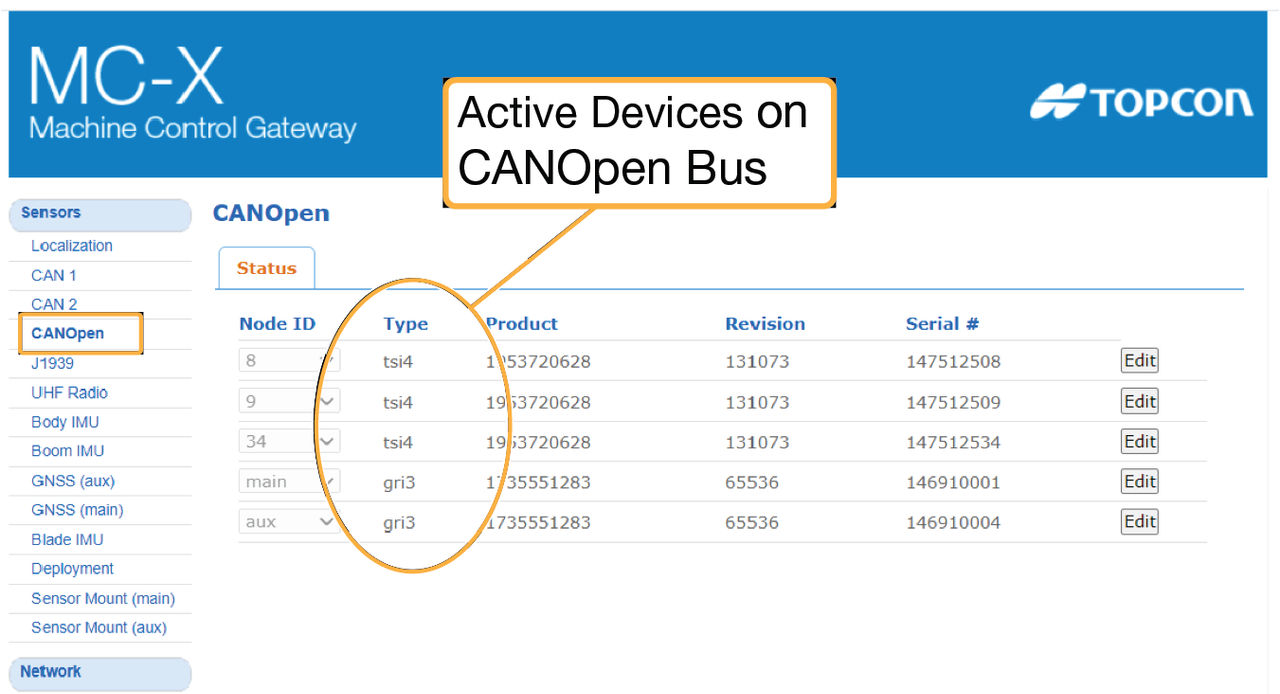
- Query CANopen bus. Check sensor, receiver, and controller communication using the CANopen bus.
- Open the MC-X Machine Control Gateway (MCXCONFIG).
- Select .
- Confirm the IMU sensors are listed (active devices) in the Status tab.ADDITIONAL INFORMATION:
Previous:
Blade response problems
Next:
CANOpen
myTopcon NOW! support
Take your Topcon experience to the next level with myTopcon NOW! This platform is a self-service tool for your desktop or mobile device.





