
A locked sequence is marked complete in 3D-MC. Therefore, a locked sequence does not show in the As-built view of Sitelink.
- Select to open the Level Sequences screen.
- Select a finished sequence, then select Lock to lock a sequence.ADDITIONAL INFORMATION:A dialog opens to show a warning about this action.
- Select YES to lock the sequence, or NO to cancel.ADDITIONAL INFORMATION:Locked sequences do not show. To unlock a sequence, select the Show inactive checkbox, select a locked sequence, then select Unlock.
Figure: Level sequences 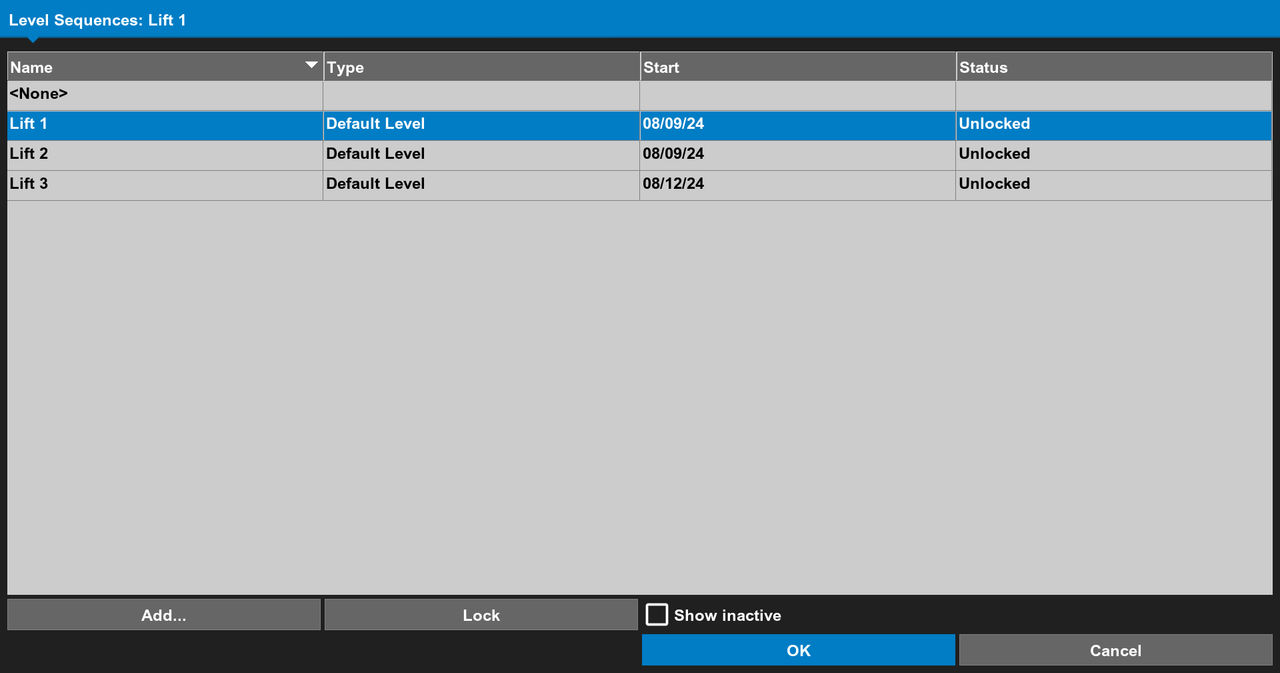 Multiple Level Sequences can have a live status at the same time. It is not necessary to lock a sequence before you create a new one.
Previous:
View as-built live
Next:
Height map report
myTopcon NOW! support
Take your Topcon experience to the next level with myTopcon NOW! This platform is a self-service tool for your desktop or mobile device.





