
Enable and configure Active Control from the menu or toolbar, adjust status and options, and monitor toolbar icons that show operational changes in the 3D-MC software.
- Select , or select the Active Control shortcut button on the toolbar to enable Active Control .ADDITIONAL INFORMATION:
Figure: Active control from Control menu or shortcut 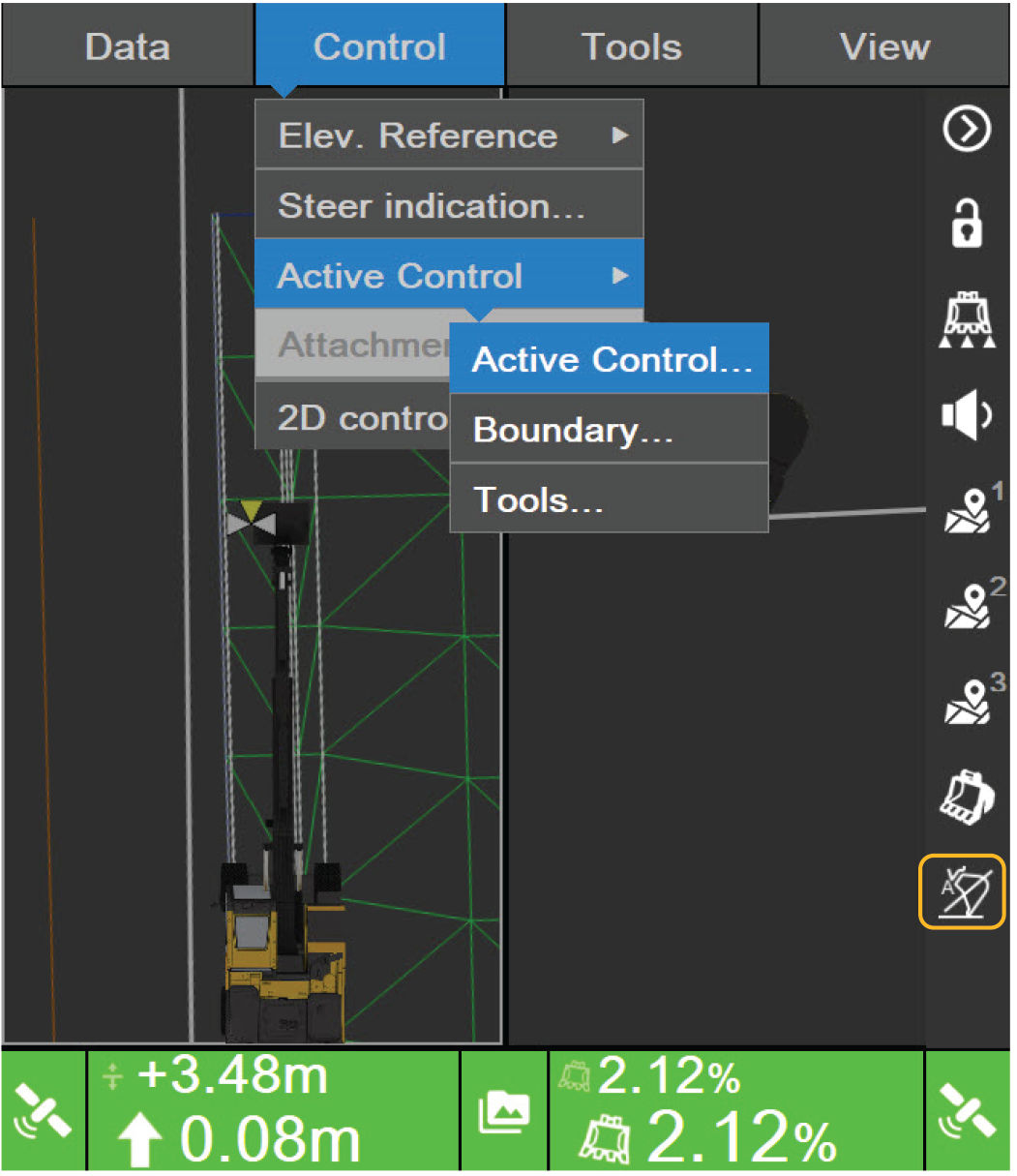 The Active Control screen opens.
Figure: Active Control 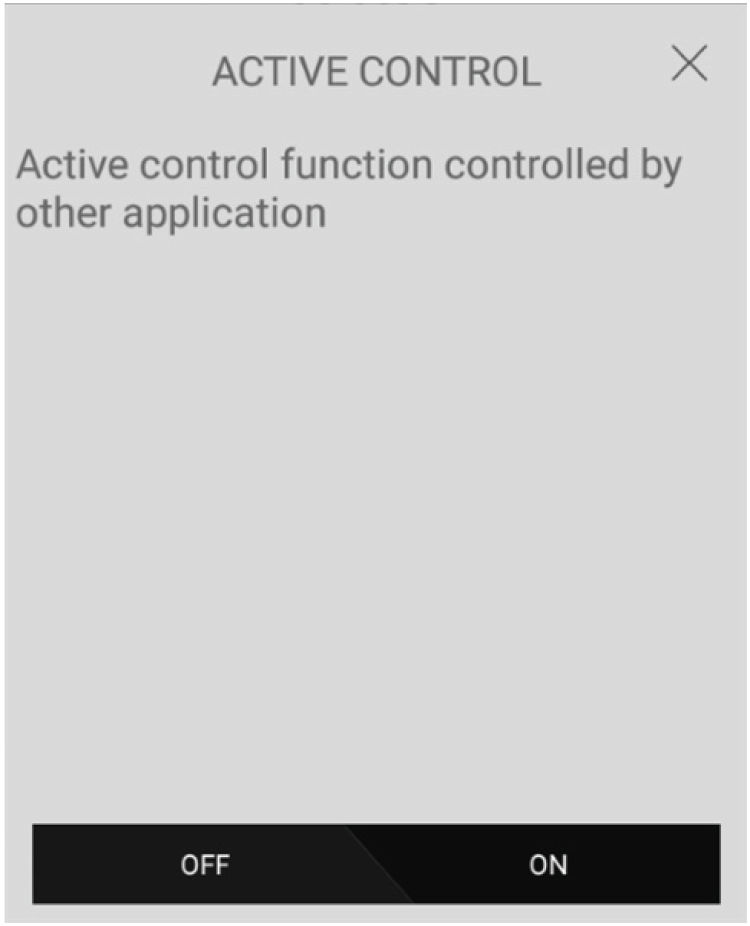
- Select ON to activate a menu with all Active Control Options.ADDITIONAL INFORMATION:
Figure: Active Control Options 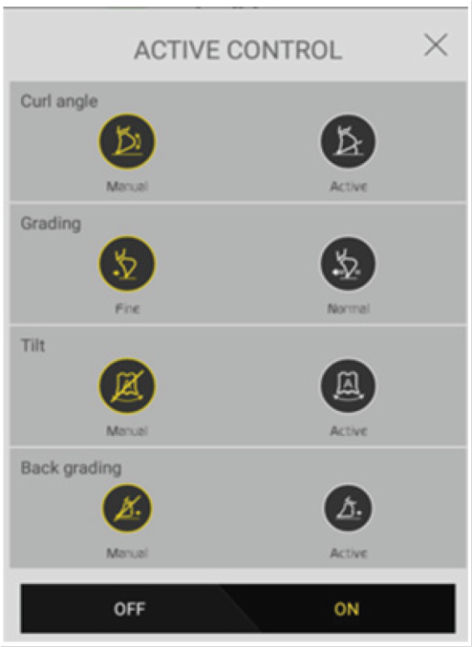 The Active Control status shows on the 3D-MC toolbar. The status can be disengaged (Off ), engaged (On ) or Active.
Figure: Active Control Window 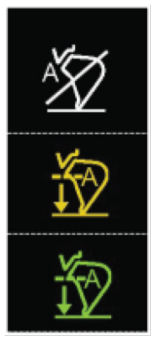 When Active Control is in an Active Status, the settings and selections cause different icons to show on the 3D-MC toolbar. The operation of the software causes these icons to change.
Figure: Active Control Icons 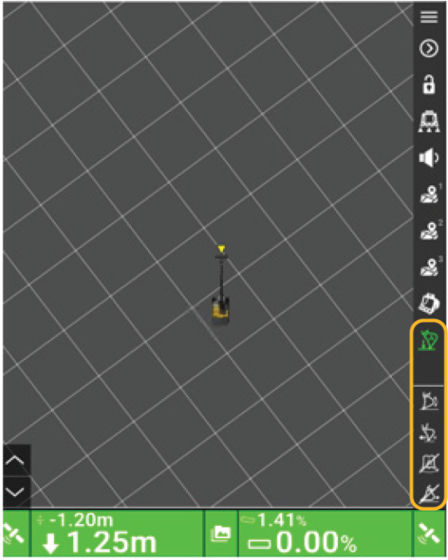
Previous:
Active control
Next:
Active control options
myTopcon NOW! support
Take your Topcon experience to the next level with myTopcon NOW! This platform is a self-service tool for your desktop or mobile device.





