
Use the Control Configuration AUTO, Reference Points, Elevation, and Steering tabs to configure system settings, improve precision, and set audible guidance.
Select .
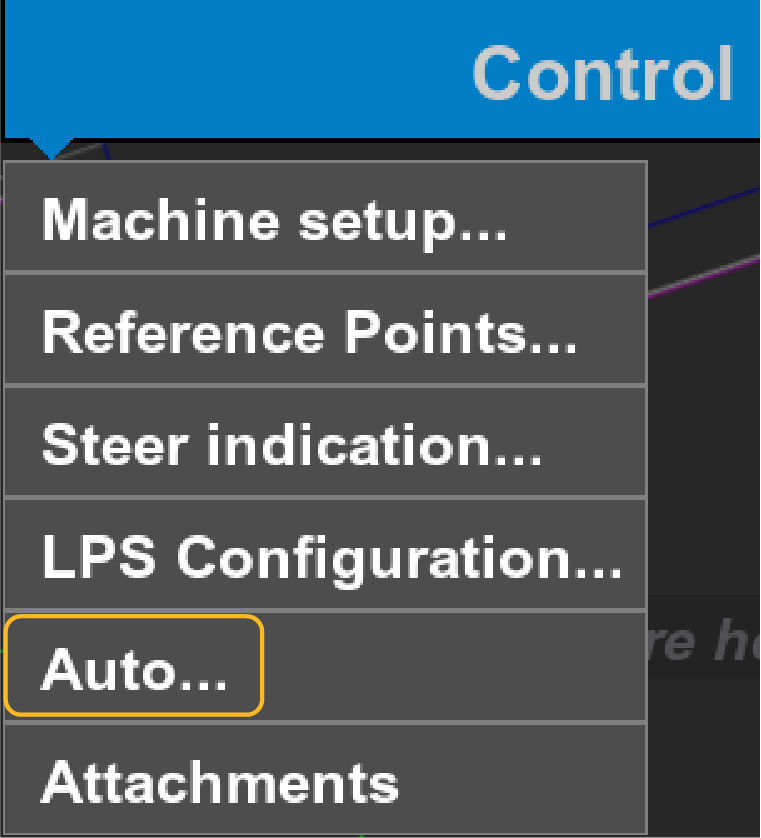
The Control Configuration screen opens with the AUTO tab active by default. You can select Elevation, Bucket, and Slope Control buttons. These options let you configure the system for precise movement and to make automatic performance adjustments for advanced slope creation and alignment. Select the  icon to open the Advanced Control Configuration screen on which you can make further adjustments.
icon to open the Advanced Control Configuration screen on which you can make further adjustments.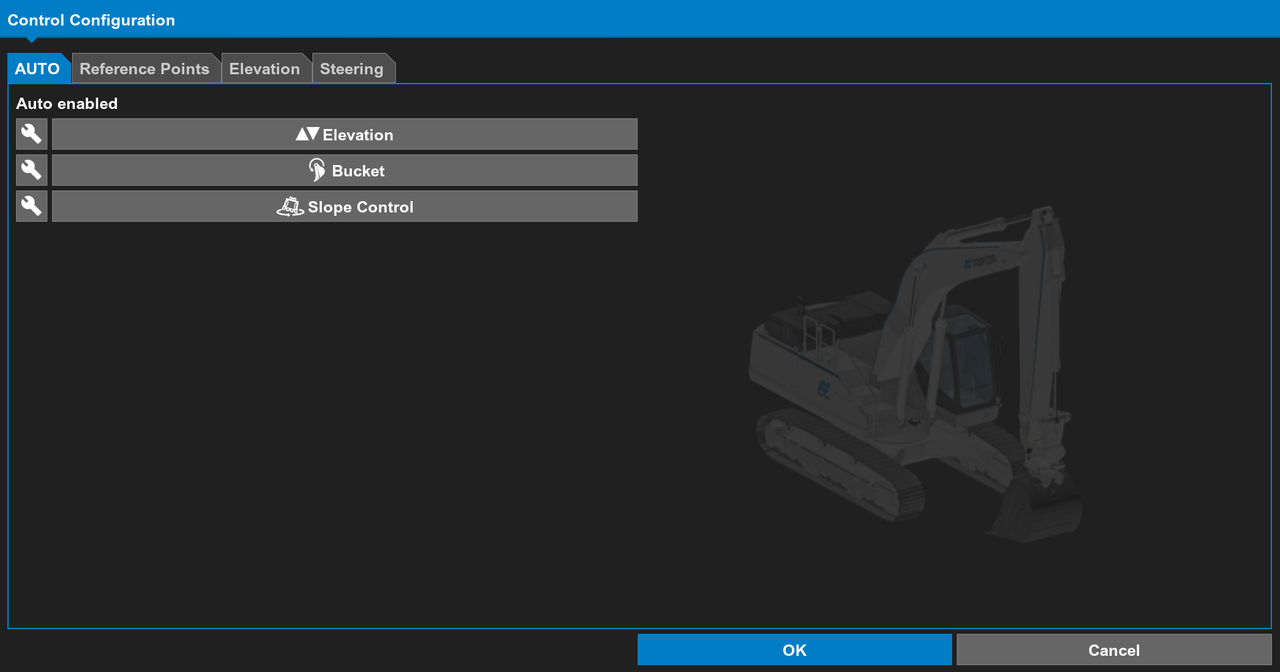
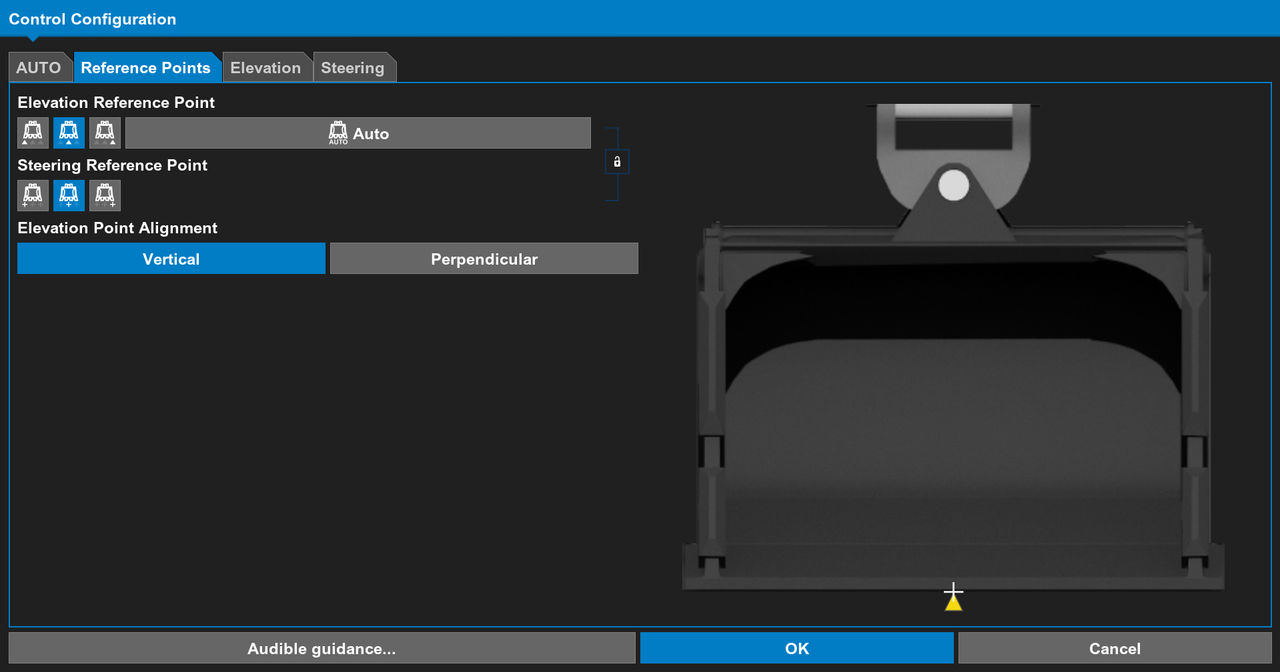
The Reference Points tab has the options to select the Elevation Reference Point or set the selection to Auto, select the Steering Reference Point, and set the Elevation Point Alignment to Vertical or Perpendicular. The Elevation Point Alignment controls the calculation of the Design Surface Offset on the Elevation tab. Select Audible guidance to open the Audible guidance config screen on which you can configure audible guidance.
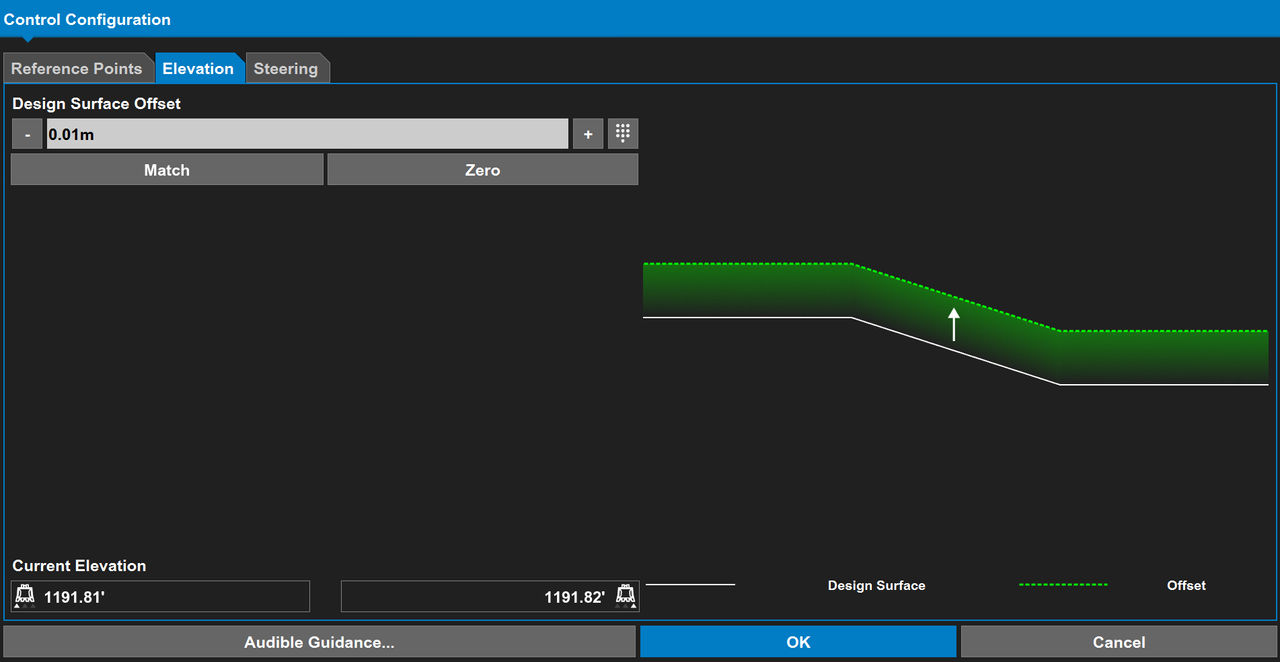
The Elevation tab shows the distance from the Design surface to the Offset. It shows the Current Elevation at both sides of the bucket. It has options to increment, decrement, configure, Match, and set the Design Surface Offset to Zero.
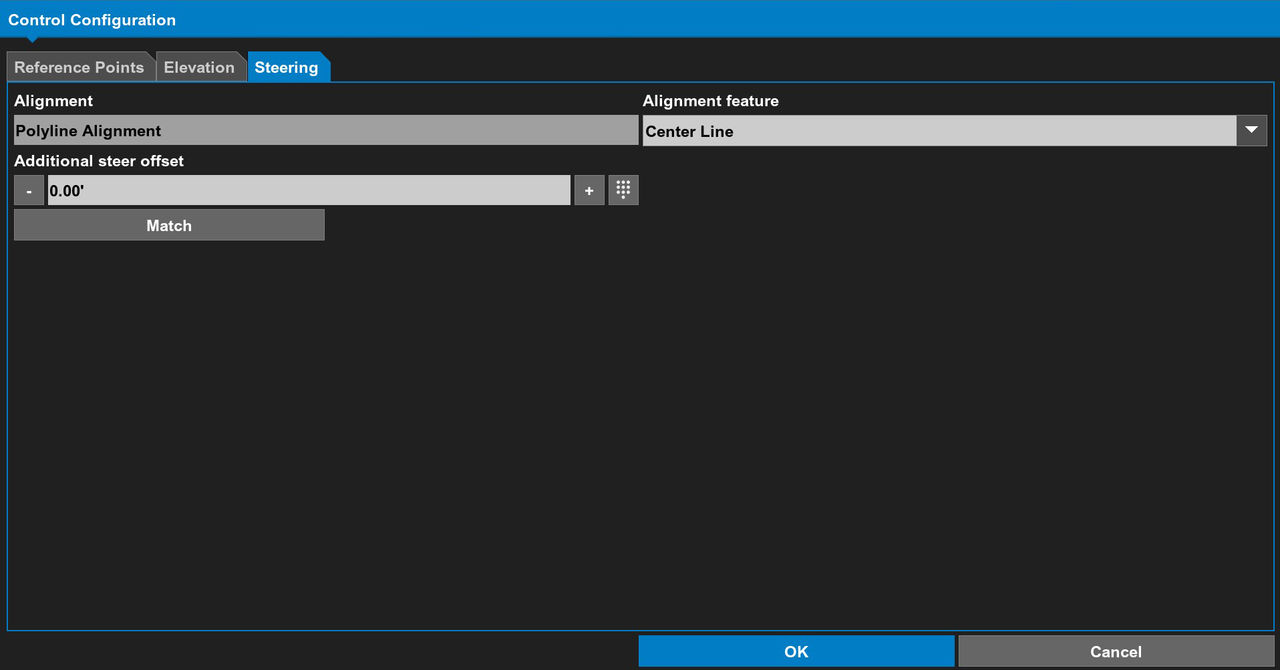
The Steering tab shows the selected alignment. You can select an Alignment feature from the drop-down list. It has options to increment, decrement, configure, and Match the Additional Steer offset.
Previous:
Change the password
myTopcon NOW! support
Take your Topcon experience to the next level with myTopcon NOW! This platform is a self-service tool for your desktop or mobile device.





