
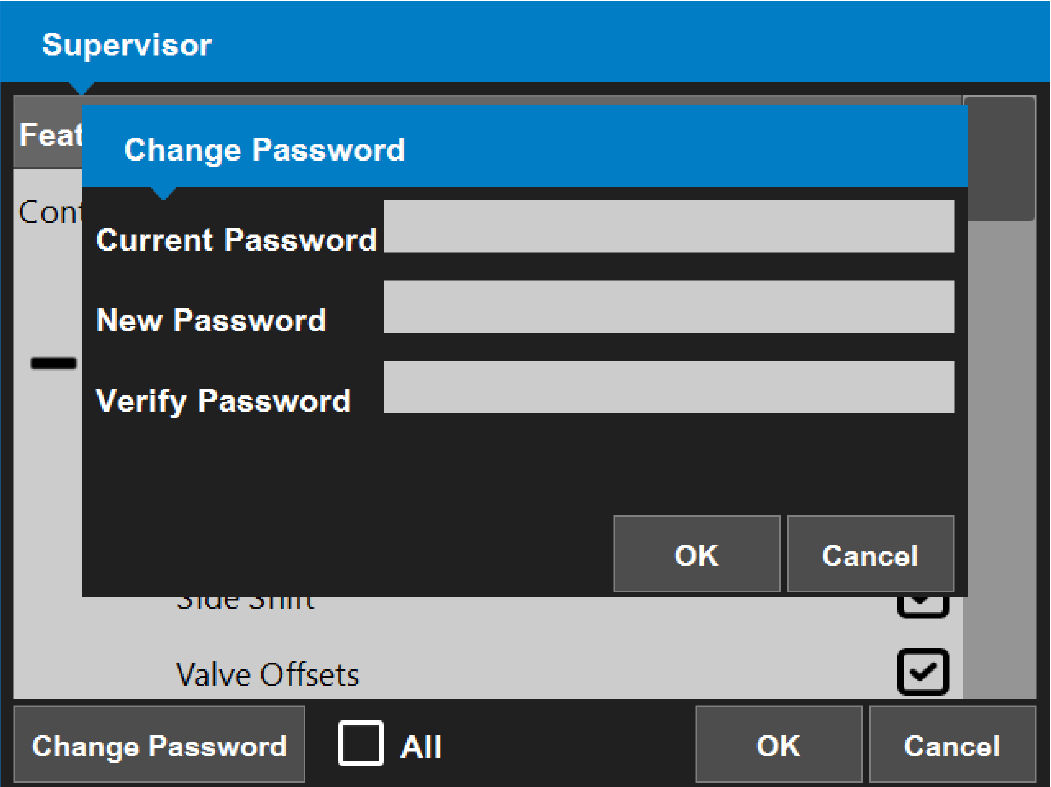
- Enter Supervisor mode.
- select Change password to show the Change Password dialog.
- Enter the current password, then enter the new password two times.
- Select OK. ADDITIONAL INFORMATION:A prompt shows that the new password is saved.
- Select OK to go back to the Supervisor screen.
Previous:
Check implement position
Next:
Auto control
myTopcon NOW! support
Take your Topcon experience to the next level with myTopcon NOW! This platform is a self-service tool for your desktop or mobile device.





