
- Select to open the Position Check screen.
- Select the Point.ADDITIONAL INFORMATION:This is the Left Edge, the Right Edge, or the Middle Edge.
- Select Measure. 3D-MC examines the blade position and shows the point on the job at the selected edge of the implement.
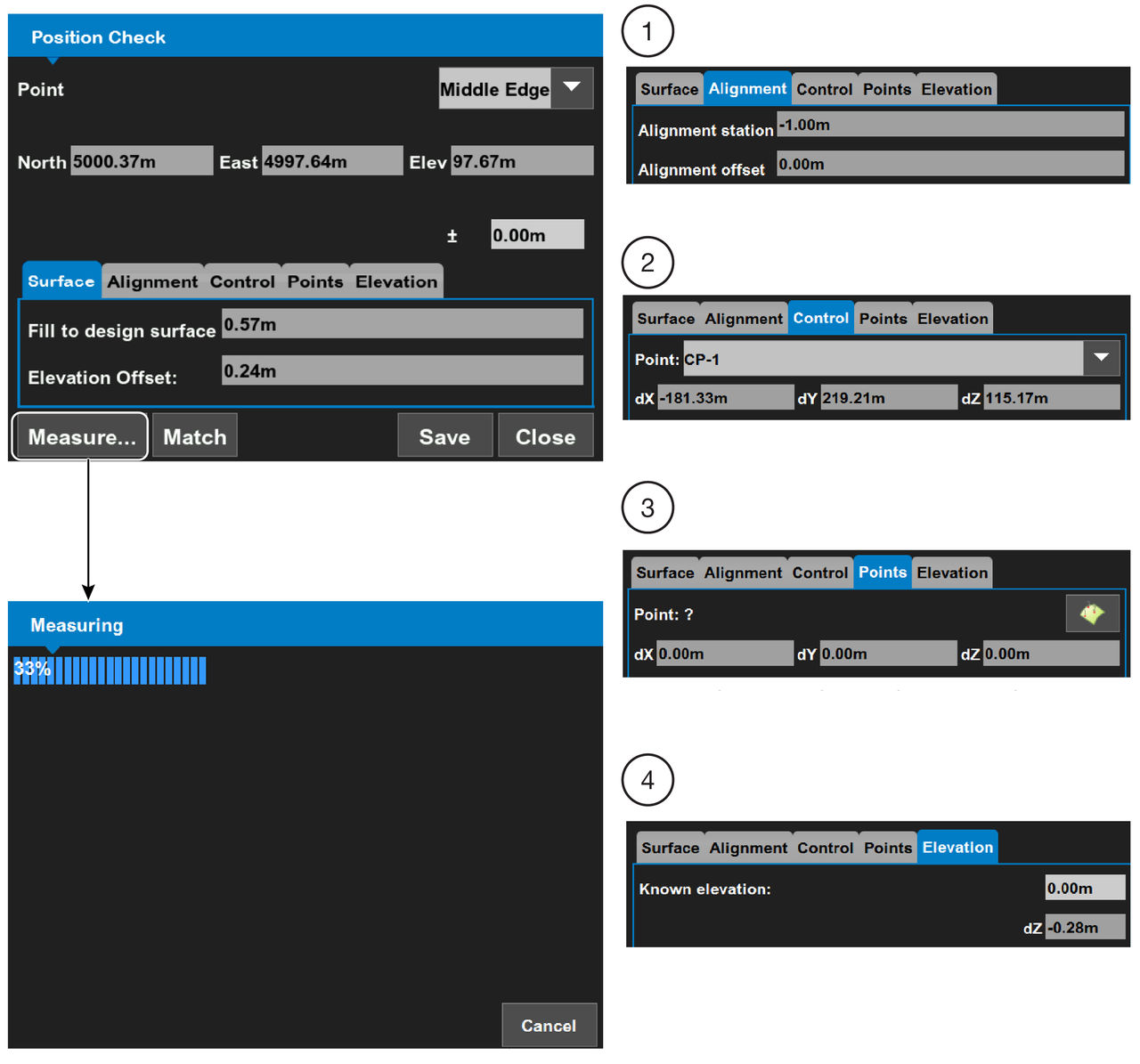
- Select Alignment
- Control - Select a control point from the drop-down list
- Points - Select the Points icon to select a point
- Elevation - Enter a known elevation to examine the current dZ
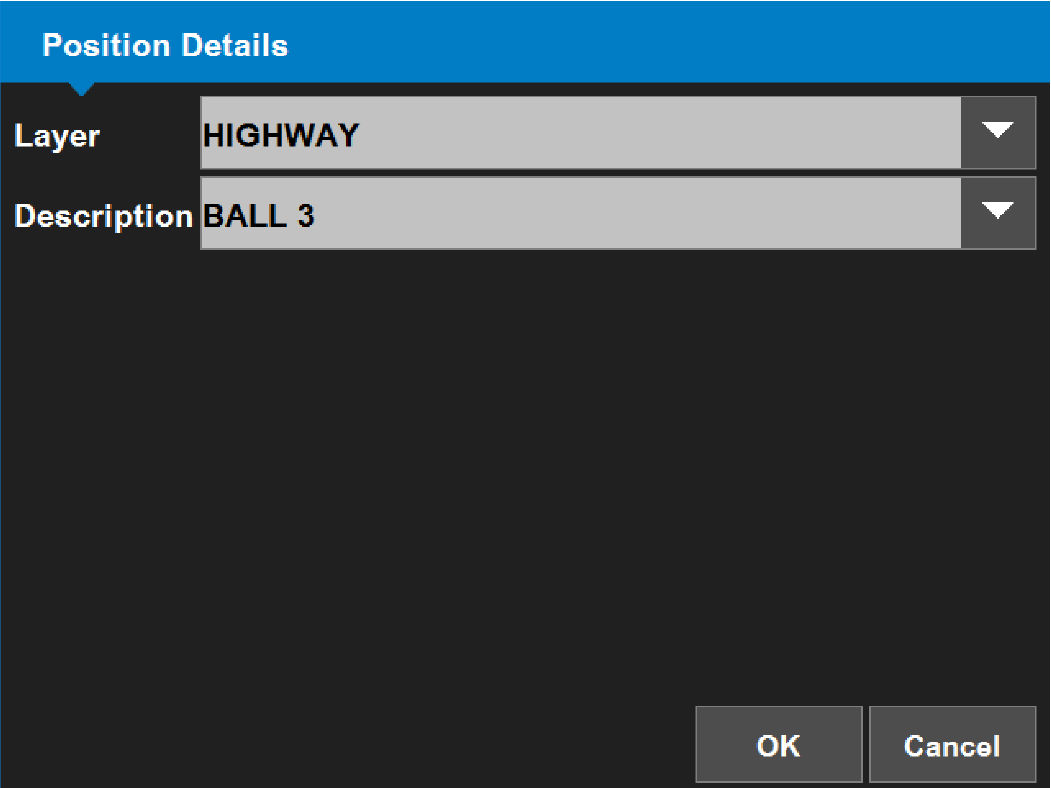
- Select Save to show the Position Details screen.
- Select a Layer name and a point Description, then select OK to go back to the Position Check screen.ADDITIONAL INFORMATION:
- Select OK to go back to the main screen.
Previous:
Configure audible guidance
Next:
Change the password
myTopcon NOW! support
Take your Topcon experience to the next level with myTopcon NOW! This platform is a self-service tool for your desktop or mobile device.





