
- From the main screen, tap and hold on the polyline to use for grading.
- From the context menu, select .ADDITIONAL INFORMATION:
Figure: Surface profile 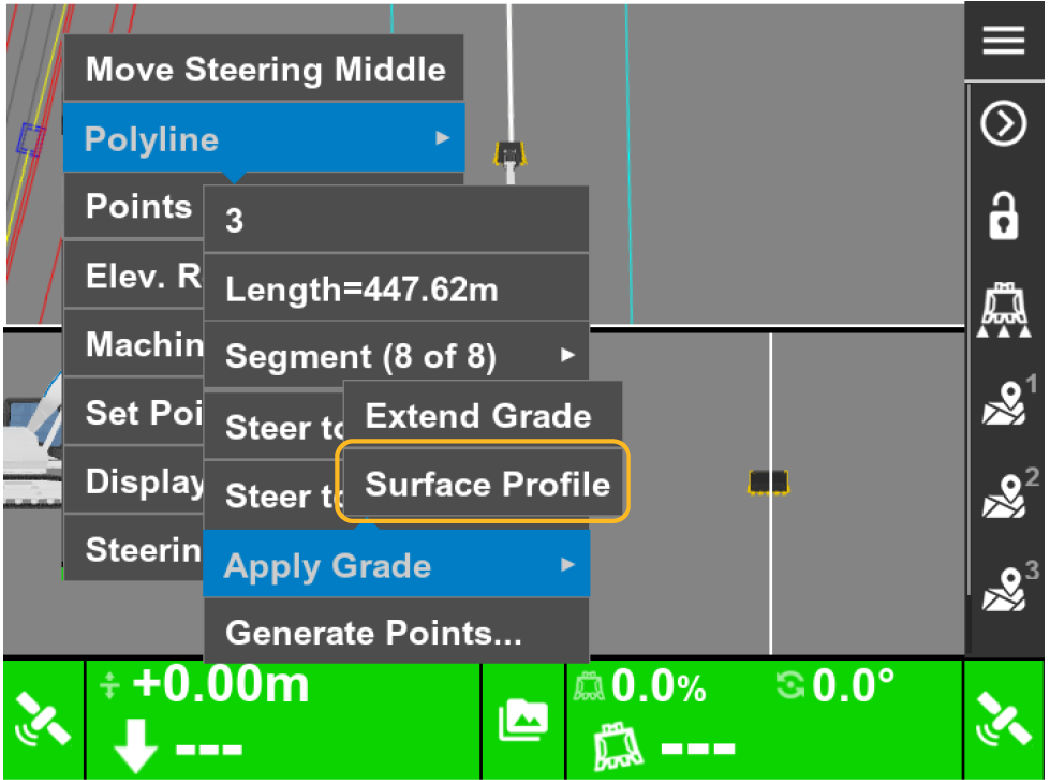 The Edit Surface Profile screen opens. You can import an RD3 file or create a new profile.
 - To create a new profile, select Add.
- Select the Name input box and enter a name for the profile.ADDITIONAL INFORMATION:
Figure: Enter a distance for grade 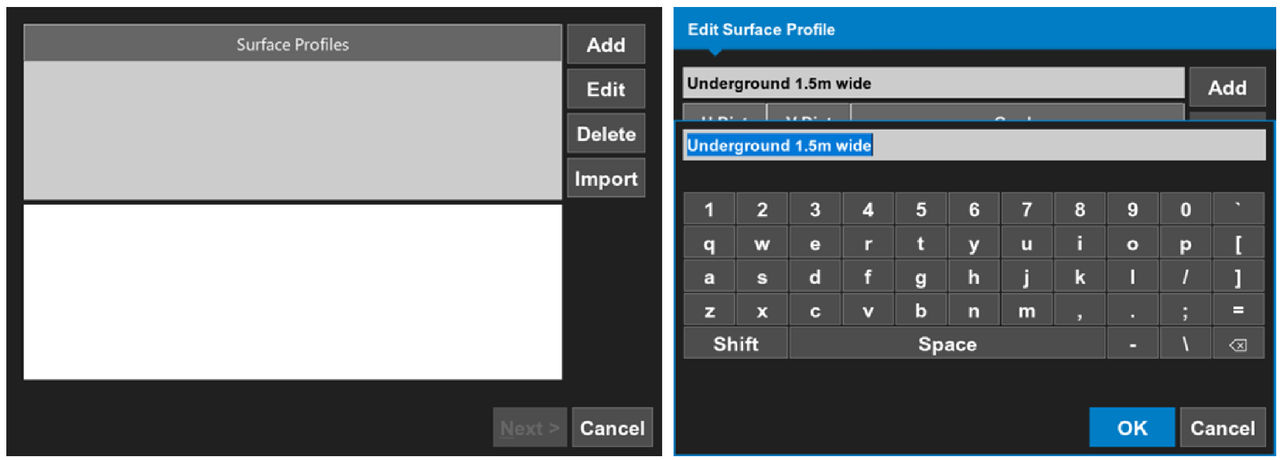
- Select Add to show the Edit Slope screen.ADDITIONAL INFORMATION:
Figure: Add a slope element 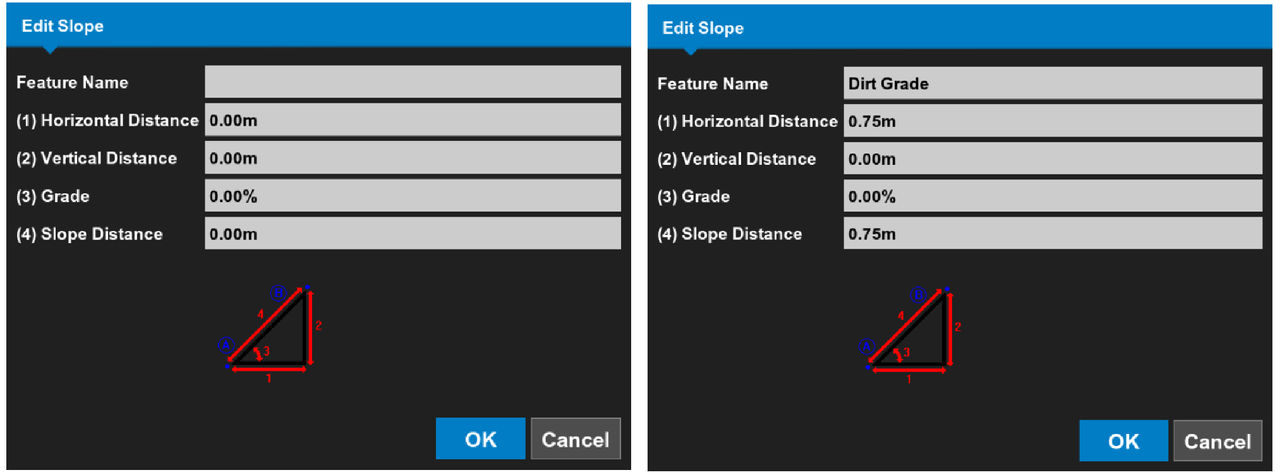
- Enter a Feature Name.
- Enter the applicable values, then select OK.
- Do Step 3 through Step 7 again to complete the profile, then select OK.ADDITIONAL INFORMATION:The Edit Surface Profile screen shows. From the Surface Profiles screen, you can Add, Edit, Delete, andImport more profiles.
Figure: Edit surface and surface profiles 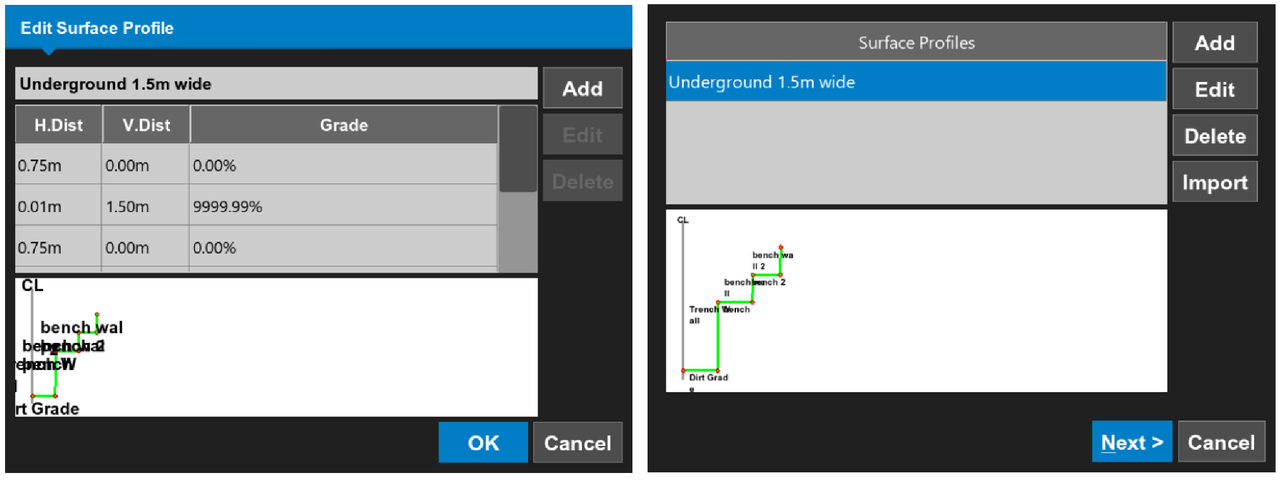
- Select Next.ADDITIONAL INFORMATION: The Apply screen opens.
- Apply the profile to the left side, the right side, or to both sides of the centerline.
- Add the horizontal offset and the vertical offset, if it is necessary.
- Select Finish to go back to the main screen.
Previous:
Closed polylines/polygons
Next:
Avoidance
myTopcon NOW! support
Take your Topcon experience to the next level with myTopcon NOW! This platform is a self-service tool for your desktop or mobile device.





