
- Select .ADDITIONAL INFORMATION:The Project Surfaces screen opens.
- Select Add.
- Select Raise/Lower Existing Surface.
- Select Next.ADDITIONAL INFORMATION:
Figure: Project Surfaces Screen - raise/lower an existing surface 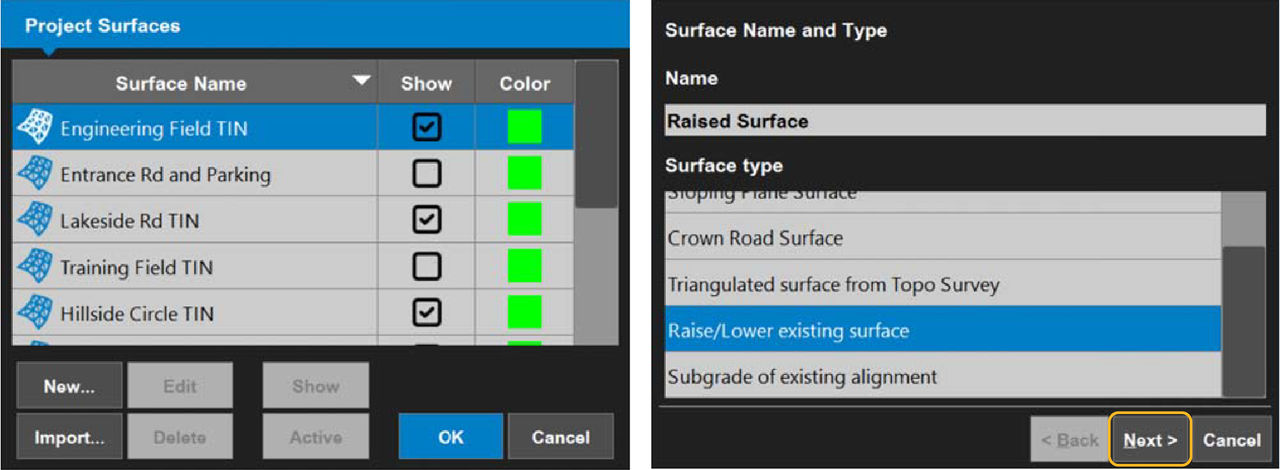 The Raise/Lower Surface screen opens.
Figure: Raise/lower surface 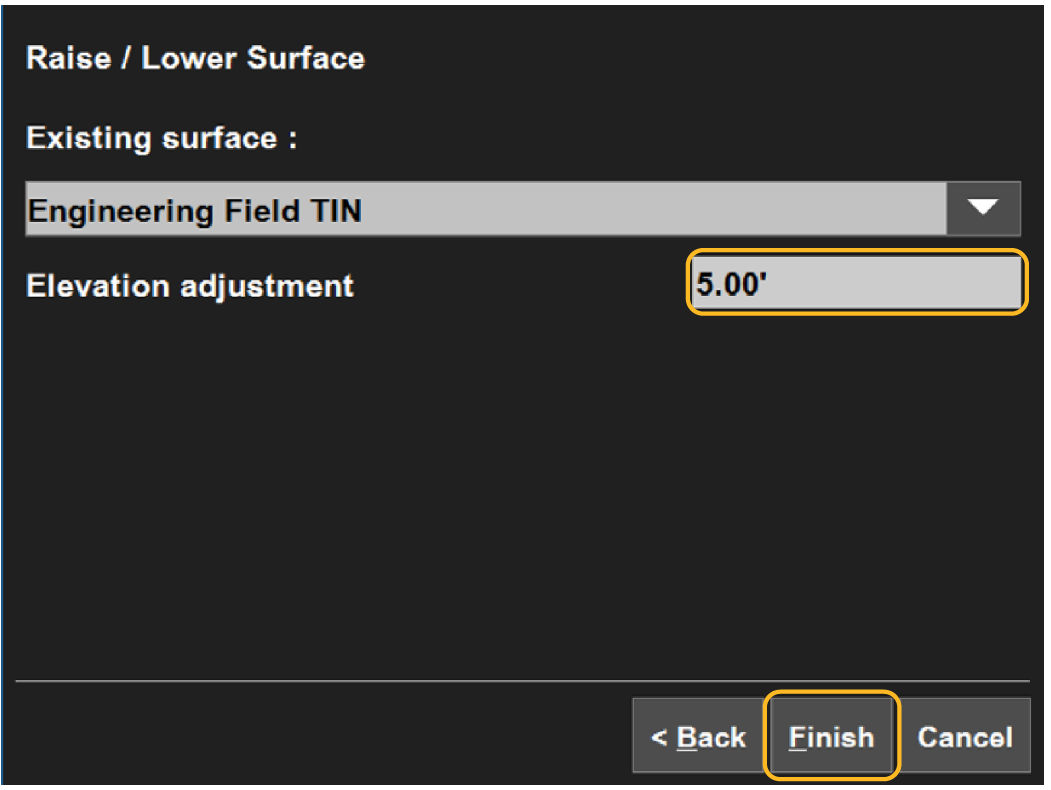
- Select an existing surface and enter an elevation adjustment value:ADDITIONAL INFORMATION:
- A positive number raises the grade relative to the working/reference surface. This is applied to the centerline of the working/reference surface.
- A negative number lowers the sub-grade relative to the working/reference surface.
- Select Finish to go back to the Surfaces screen.
- Select OK.
- Select Yes to set the new surface as active, or select No to make it inactive.ADDITIONAL INFORMATION:The main screen opens.
myTopcon NOW! support
Take your Topcon experience to the next level with myTopcon NOW! This platform is a self-service tool for your desktop or mobile device.





