Looking for your apps? Click the account icon in the upper right corner of the page.

Select an active surface

Sites can have multiple surfaces that are shown or hidden. There can be just one active surface. Cut and fill data applies to the active surface.
To select an active surface:

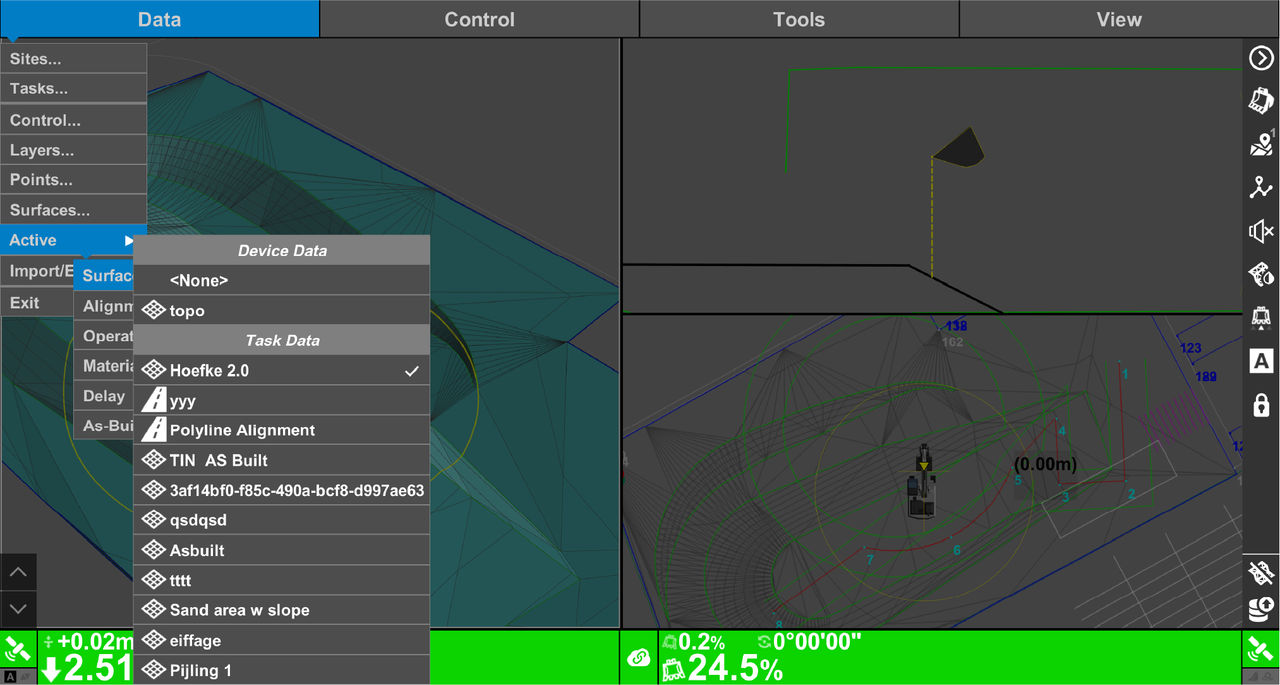
  1. Select DataActiveSurface.
    ADDITIONAL INFORMATION:
    Figure: Select an active surface file
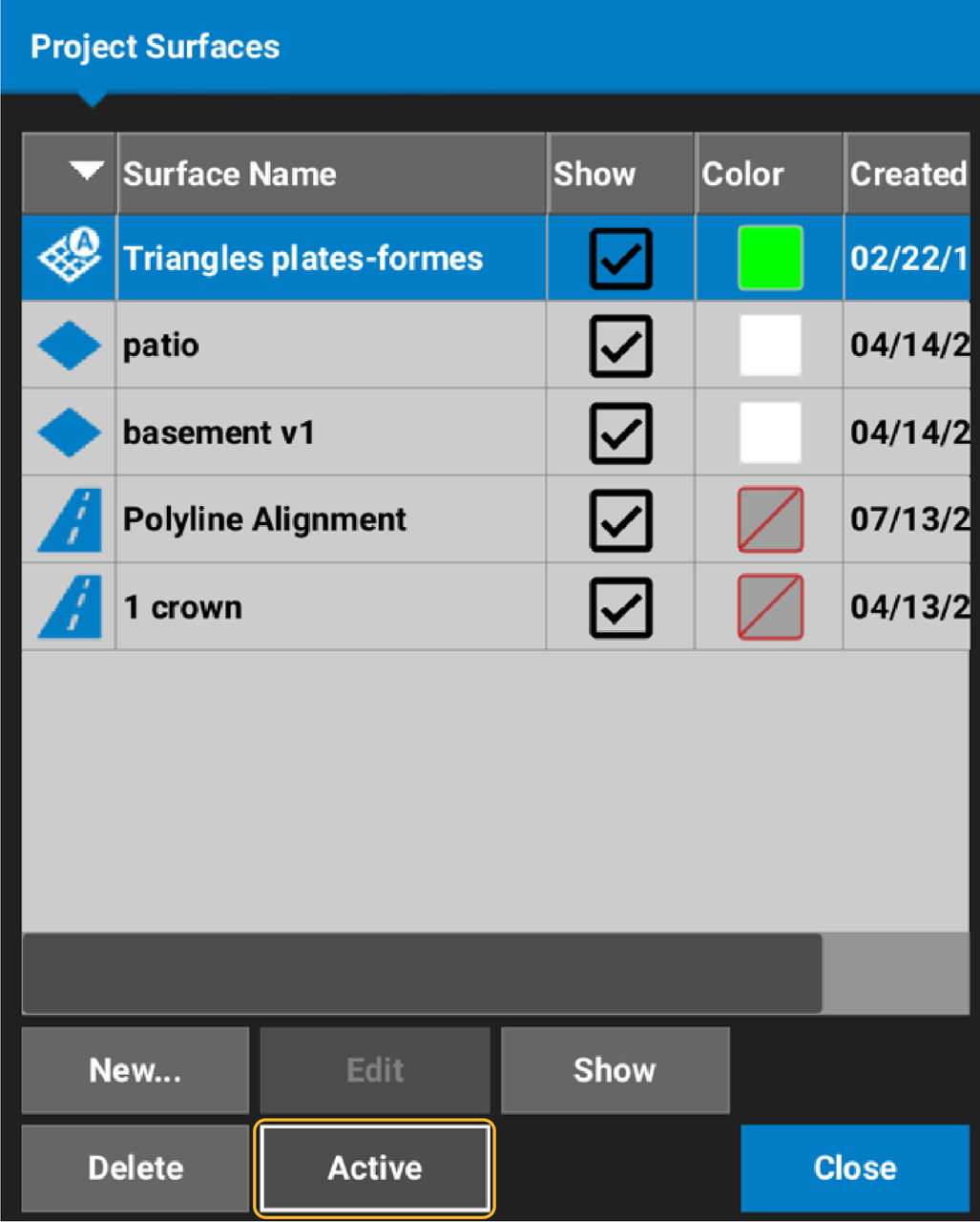
  2. Select the surface file to be active.
    ADDITIONAL INFORMATION:
    The identifies the active surface.
    Figure: Project surfaces screen
    You can also select the surface as active from the Context menu.

myTopcon NOW! support

Take your Topcon experience to the next level with myTopcon NOW! This platform is a self-service tool for your desktop or mobile device. 

Product manuals
paper icon
Communications
phone icon
E-learning
hat icon
Quick start guides
support icon
Firmware & software updates
cloud icon
Troubleshooting
webinars icon