Looking for your apps? Click the account icon in the upper right corner of the page.
Set active surface
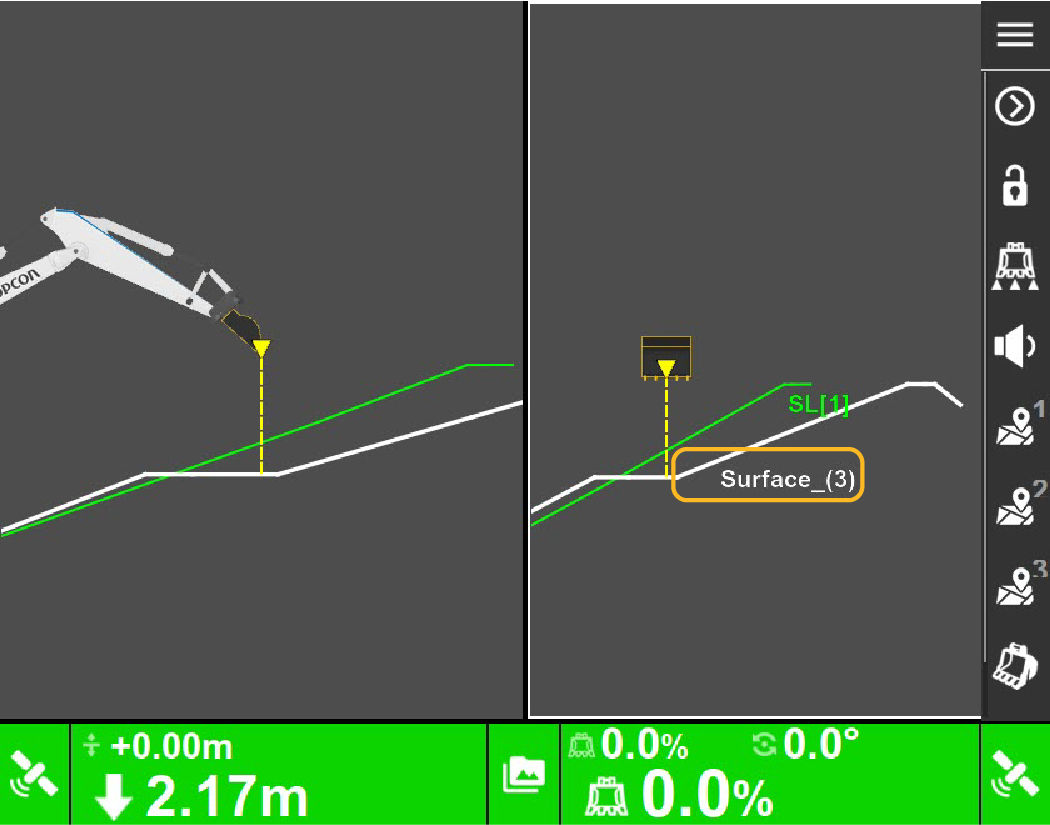
Use the Set Active Surface menu to select one active surface while other surfaces stay visible.
The Set Active Surface menu enables quick surface activation. In the figure, Surface_(3) is set as the active surface.Figure: Active surface
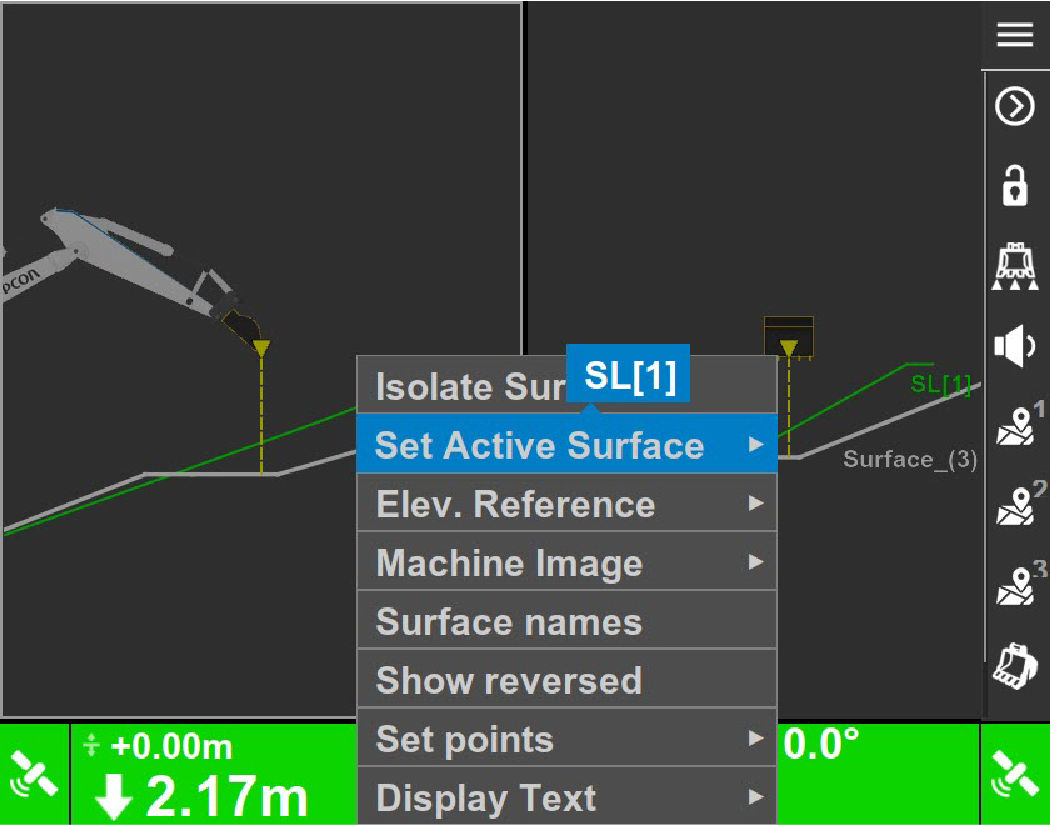
Select and hold the surface to open the Context menu.
ADDITIONAL INFORMATION: Figure: Set active surface menu
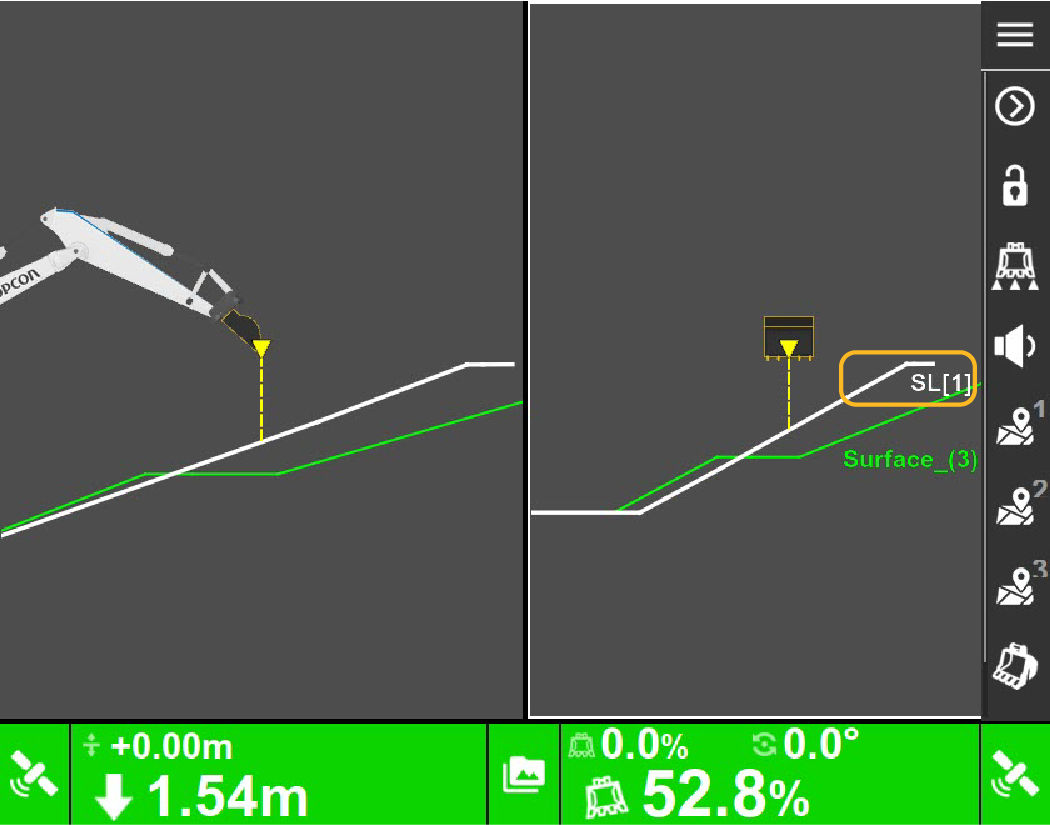
Select Set Active Surface and select the new active surface.
ADDITIONAL INFORMATION: Figure: Active surface SL[1]
To activate different surfaces from the Context menu, the surfaces must be visible. Multiple surfaces can be visible, but only one surface can be active.

 To activate different surfaces from the Context menu, the surfaces must be visible. Multiple surfaces can be visible, but only one surface can be active.




